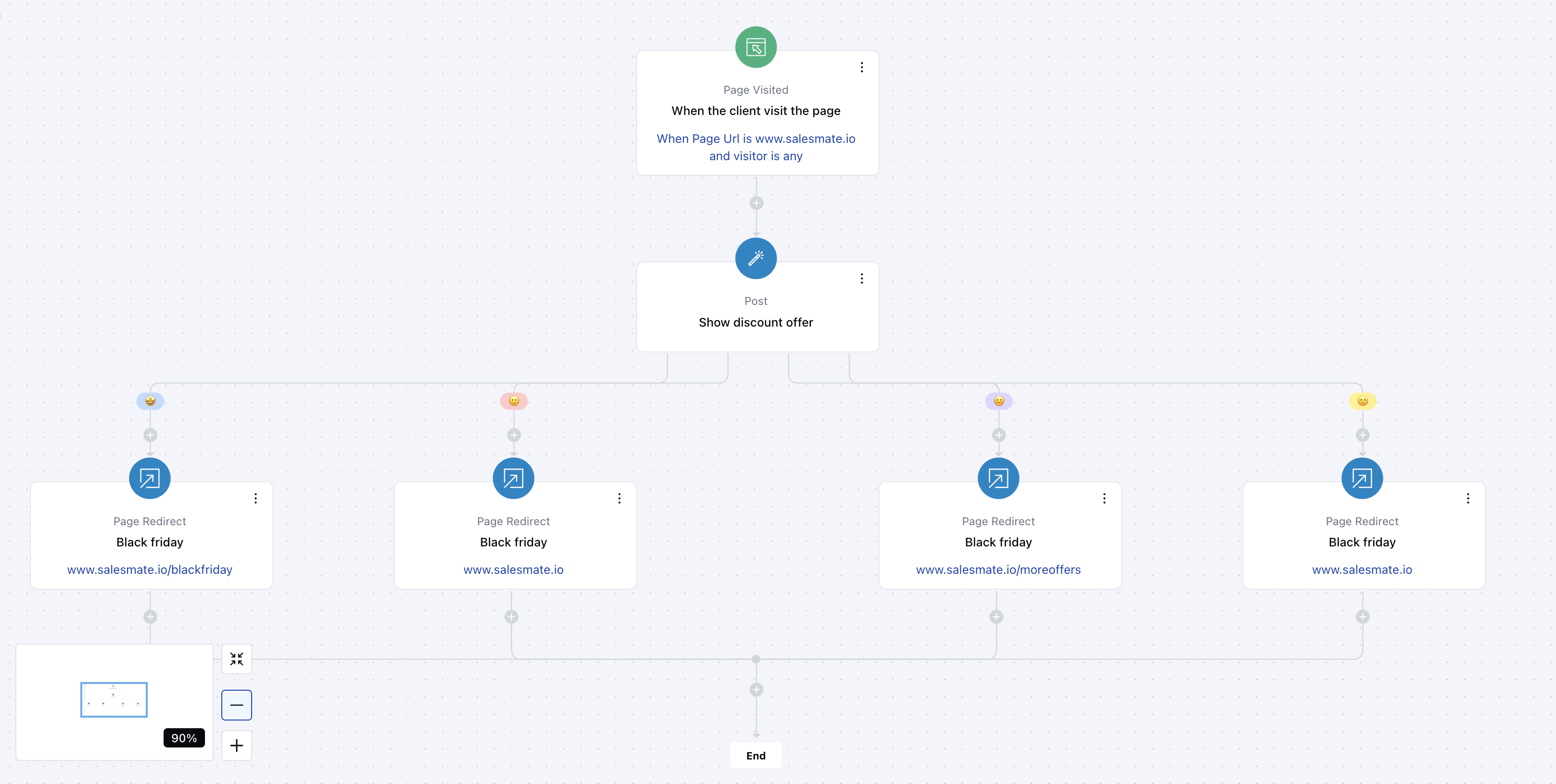
Topics covered:
How to Configure the Post Action
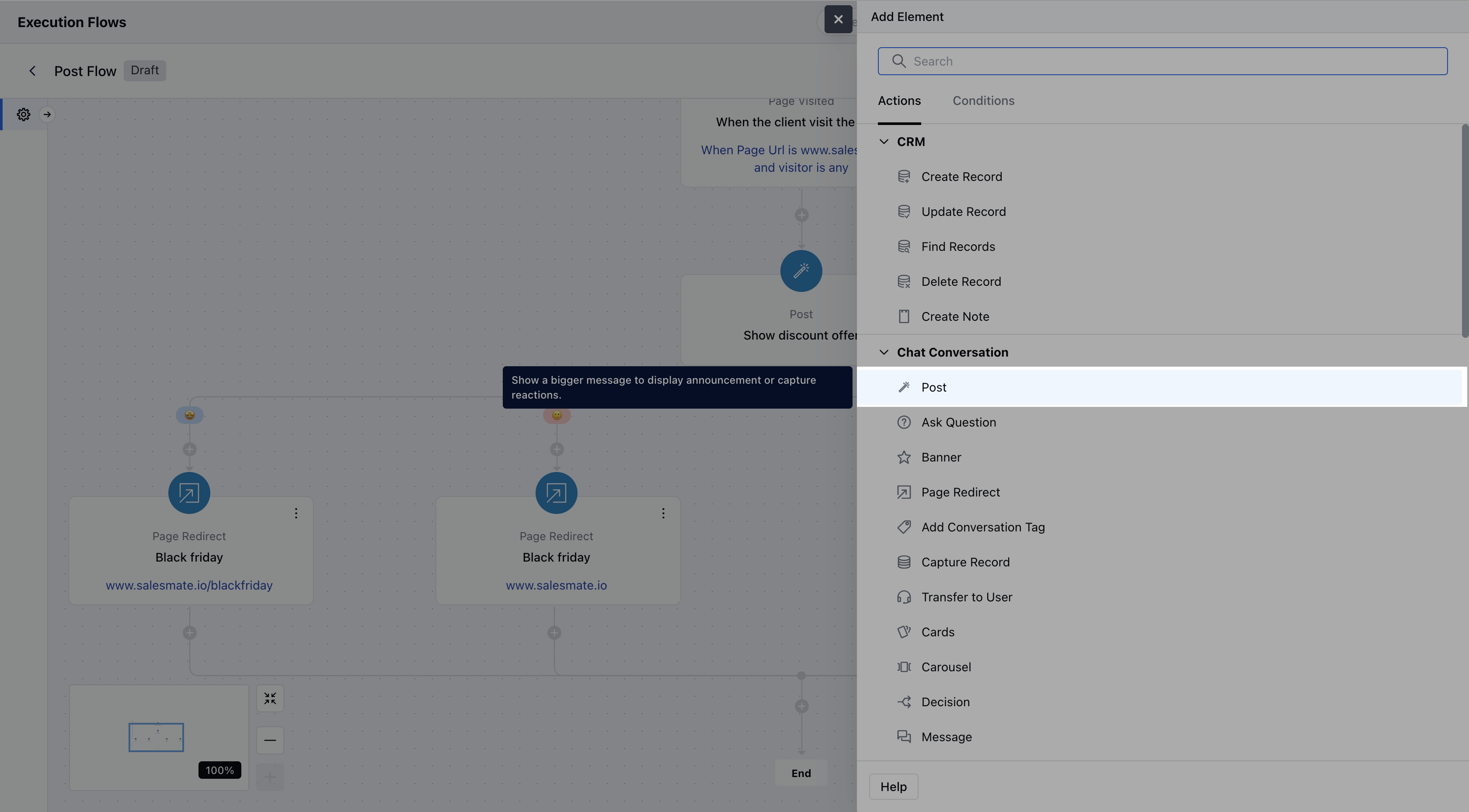
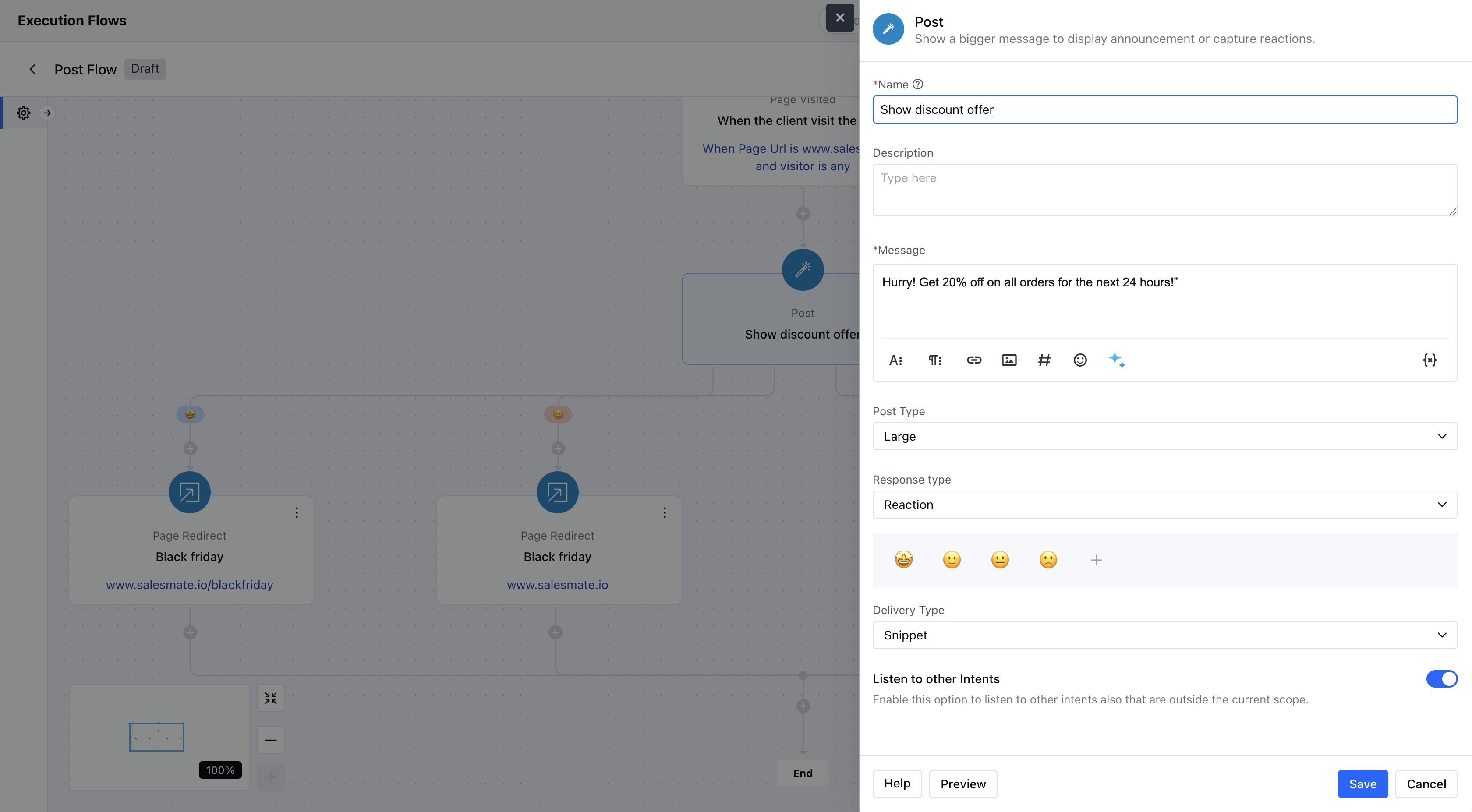
- Name: Assign a clear and descriptive name for the action to easily identify its purpose.
- Message: Enter the content of the message to be displayed. Variables or entities can be inserted into the message for dynamic personalization.
- Post Type: Select the display size of the post message—choose between Small or Large.
- Response Type: Decide how the user should interact with the post:
- Reactions: Allows you to specify reaction options (e.g., thumbs-up, thumbs-down).
- Text Input: Enables free-text responses from the user.
- Delivery Type: Choose how the post will be presented—either as a Snippet(compact display) or Full(expanded display).
- Listen to Other Intents: Enable this option if you want the agent to detect and trigger other intents based on the user’s input.
Practical Use Case:
Display a popup message like “Hurry! Get 20% off on all orders for the next 24 hours!” Include a CTA (Call to Action) button (e.g., “Shop Now” or “Claim Discount”) as part of the reaction options. If the customer selects the action, the flow continues with the discount code or directs them to the sales page.If the user doesn’t respond or shows no interest, the flow can provide other shopping recommendations or offer assistance.