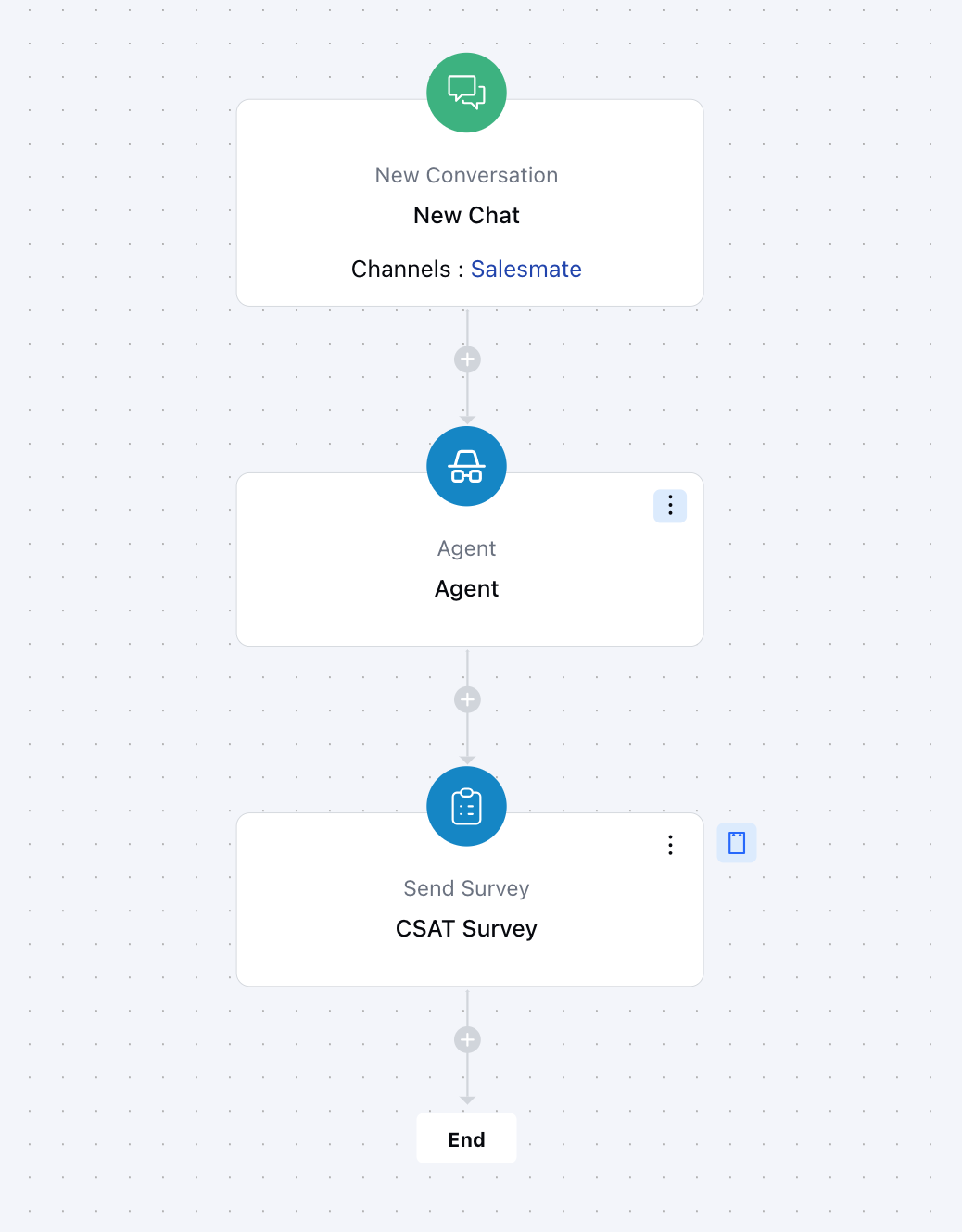
How to Configure the Send Survey Action in Chat
While setting up an Execution Flow, select the Send Survey action.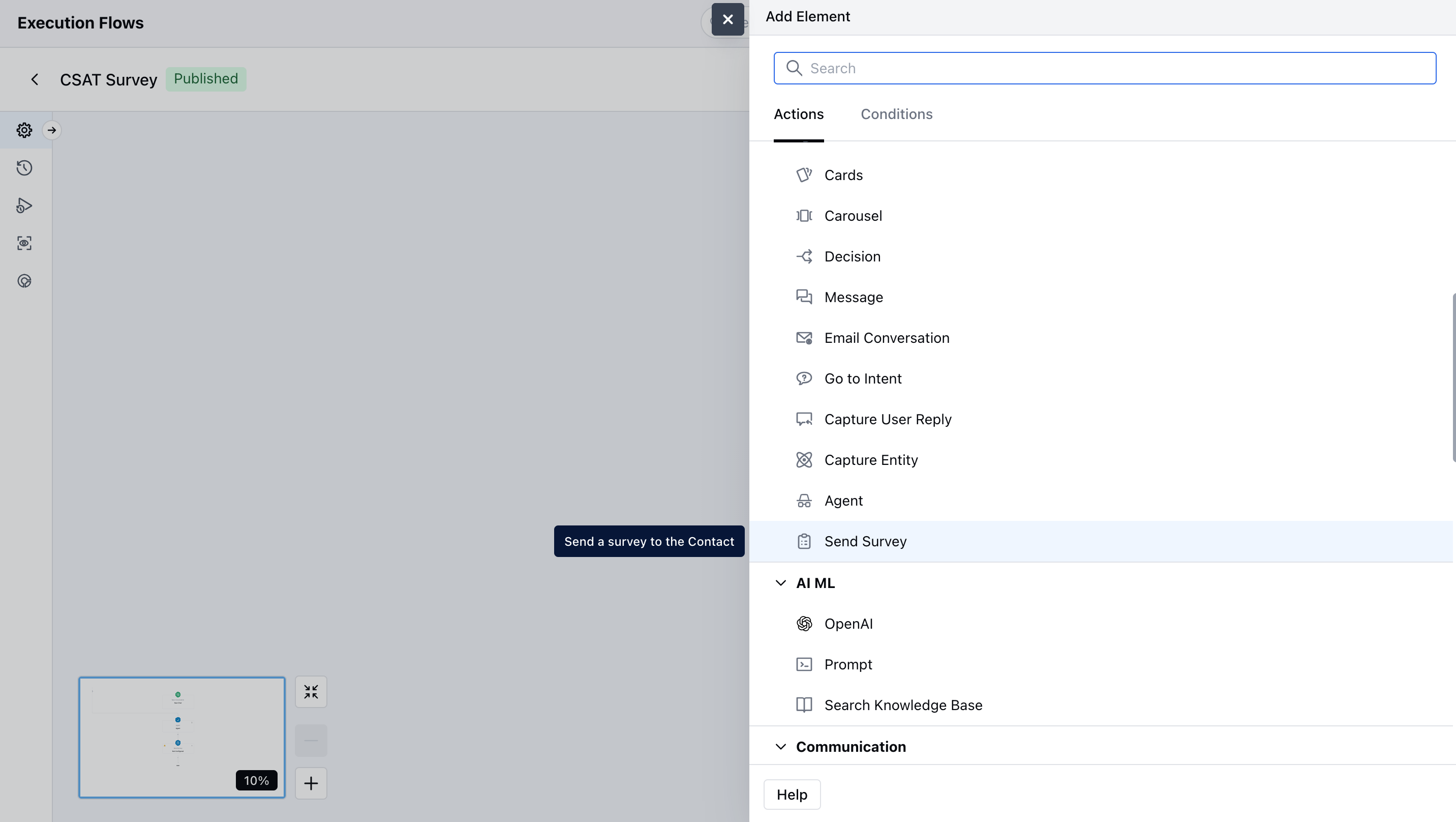
- Once the action is selected, configure it by providing the following details:
- Name : It is the identifier of the step.
- Description : It is optional to display internal notes for context.
- Select Survey : Choose which survey (CSAT, NPS, CES, or custom) from the surveys created that you want to send to the customer in the chat.
- Message : Enter the greeting or message that appears above the survey invite in the chat. For example: “We’d love your feedback!”
- Survey Start Button Text : Customize the text on the button that starts the survey. For example: “Start Survey” or “Share Feedback”
- Position : Decide where the survey message appears in the chat window — top, bottom, or after a specific message.
- Style : Choose the visual style of the survey block to match your brand (like color theme or button style).
- Allow customers to dismiss the survey : Turn this on to let customers close or skip the survey if they don’t want to answer.
- You can preview the Survey using the Preview button.
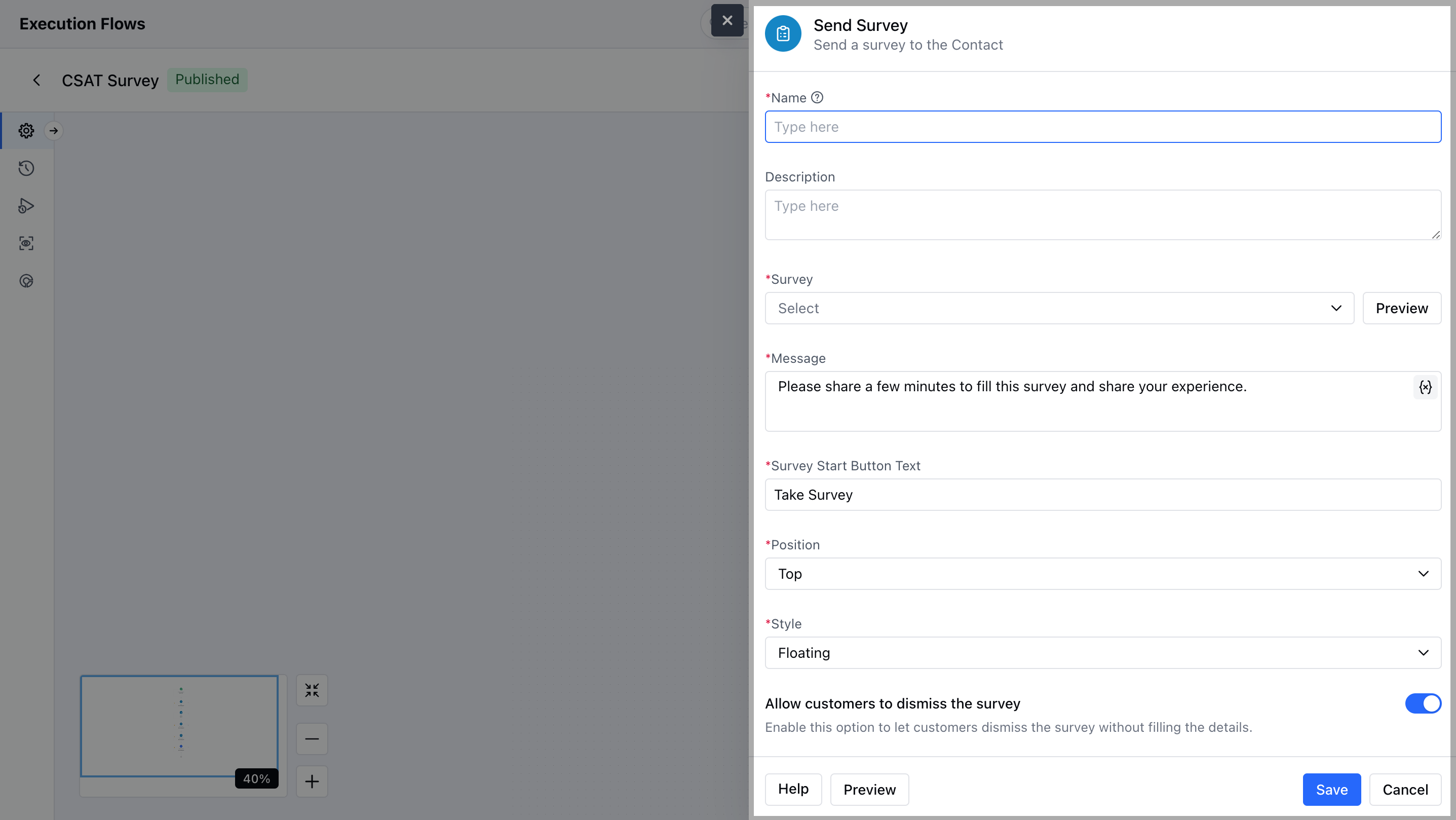
- Click on Save to save the action.
Practical Use case
After successfully helping a customer with a support query in chat, automatically send a quick CSAT survey asking how satisfied they were with the assistance they received. This helps measure real‑time customer satisfaction and identify areas to improve the support experience.