

Topics covered:
Configuring the Action
- While setting up the execution flow, select the Decision Action.
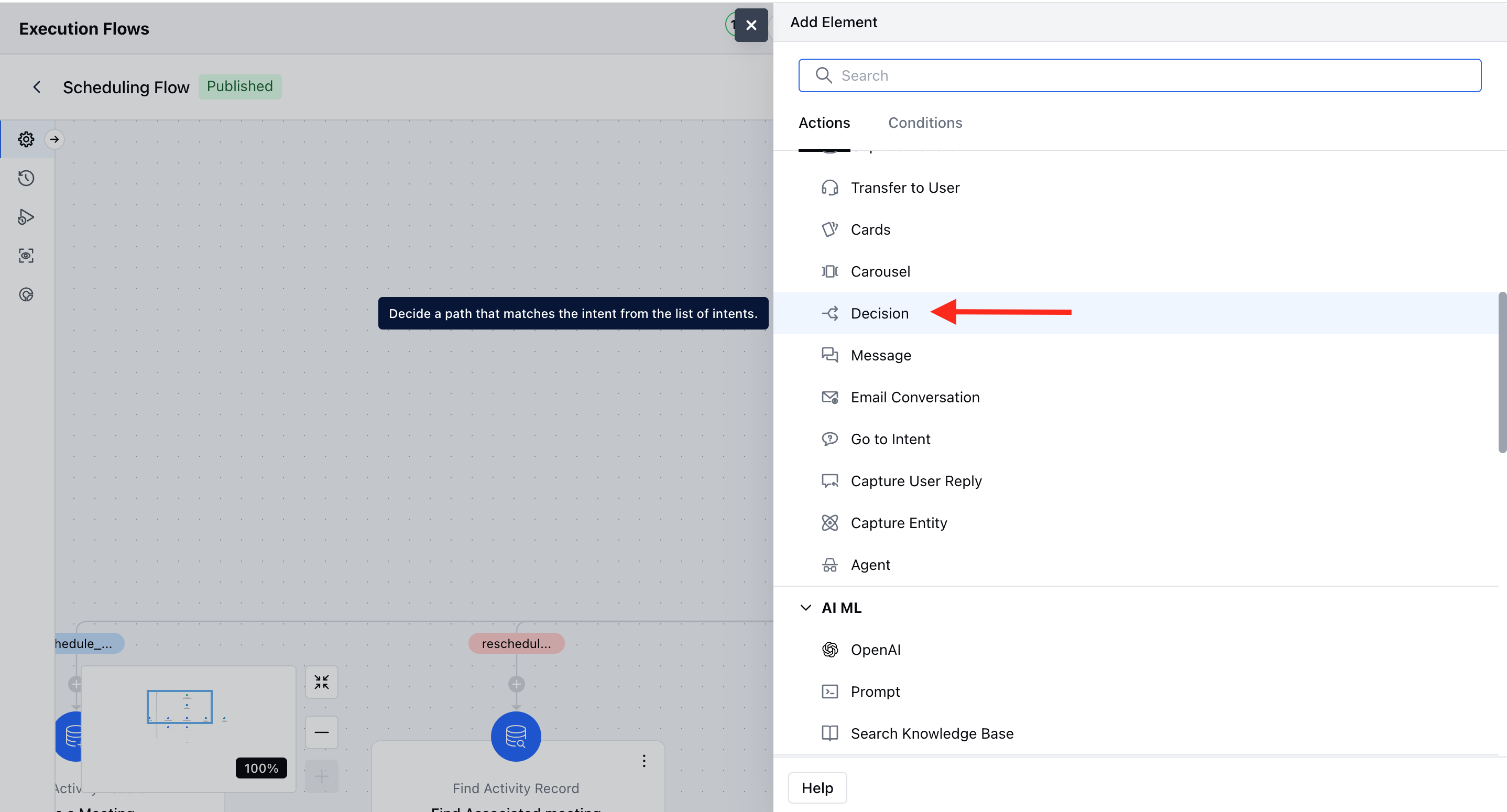
- Once the action is selected, configure it by providing the following details:
- Name: Assign a clear and descriptive name for the action to easily identify its purpose.
- Description (Optional): Provide a brief explanation of the action’s function for reference.
- Intent: Select the intent that will trigger this flow upon detection. Only enabled intents will appear in the dropdown list. You can click on the Pencil Icon to edit this intent. The changes done here will update the Intent you created.You can do an additional setting by clicking the levels icon. You can set up the Exit Rules for each intent.
- No Match Handling: This option manages situations when the user’s input doesn’t match the expected prompt or contains irrelevant content. You can add optional re-prompts to guide the user back on track.Generate More with AI: Available after adding at least one re-prompt; generates five, ten, or fifteen new training phrases.Re-prompts loop until all provided prompts are used, after which the conversation proceeds along the default path.
- Follow-up Path: Define an alternative route if the user remains off track after all re-prompts are used. Enabling this adds an extra output port to specify the follow-up path.
- Listen to Other intents: You can enable this option to listen to other intents also that are outside the current scope, that are not added in the decision step.
- No Reply Handling: This option manages cases and sends automated responses when the user does not respond.
- Timeout Duration: Set duration after which the re-prompt message should be sent Re-Prompt configuration: Provide one response to send when No Reply is detected, and you can use the Generate Sentences with AI”button to get additional responses.
- Message: It is an optional field where you can enter the message you want to display to the user.
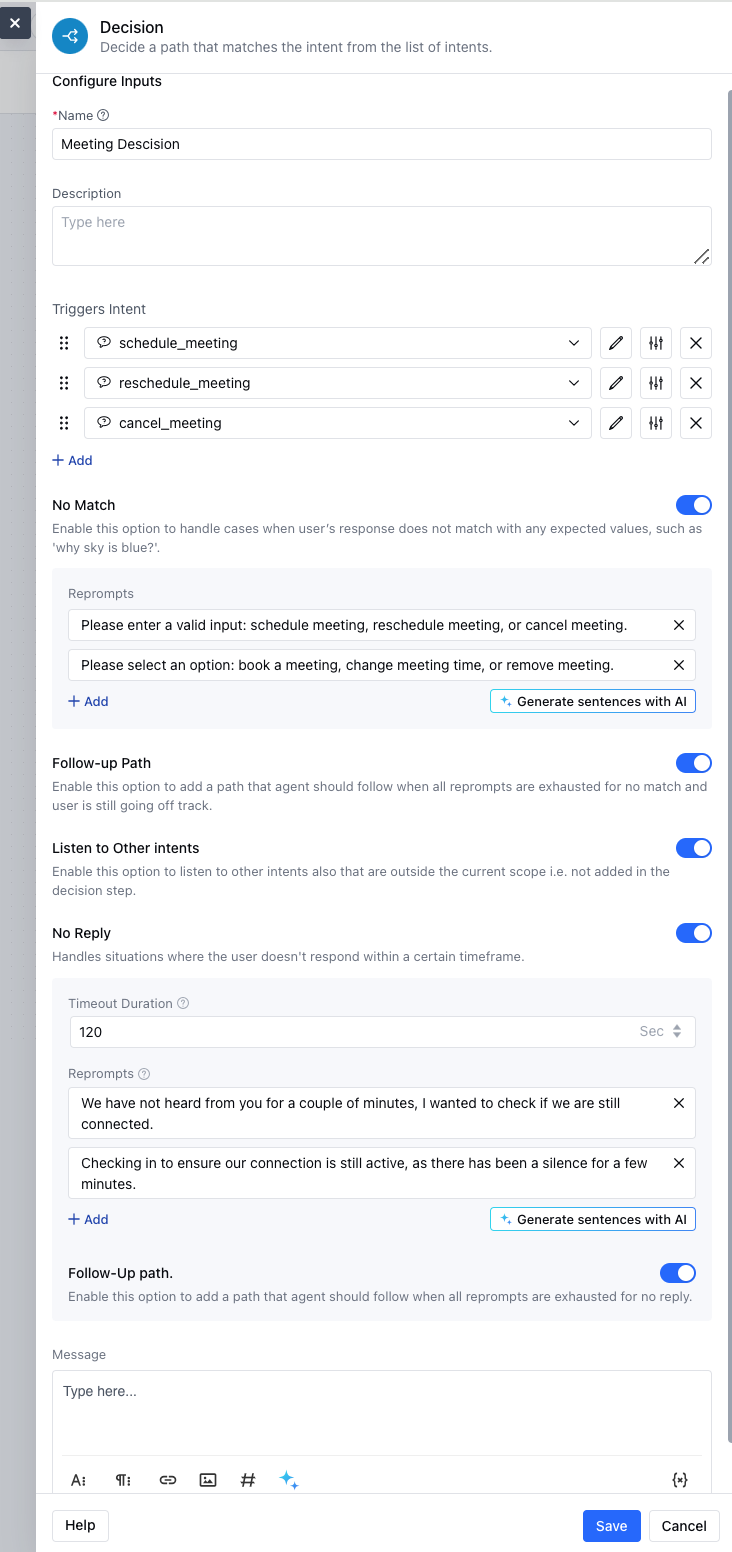
- Click on Save. You can also configure the follow-up actions for each intent you added, No-Match, and No-Reply.
Practical Use Case
Imagine you want your agent to handle the meeting scheduling for your client without any buttons clicked. Yes, it’s possible using the Decision action, where you can include intents for Schedule Meeting, Reschedule Meeting, or Cancel Meeting. You can add three intents for scheduling a meeting, rescheduling a meeting, and cancelling a meeting. You can configure the next steps based on the response provided by the user.