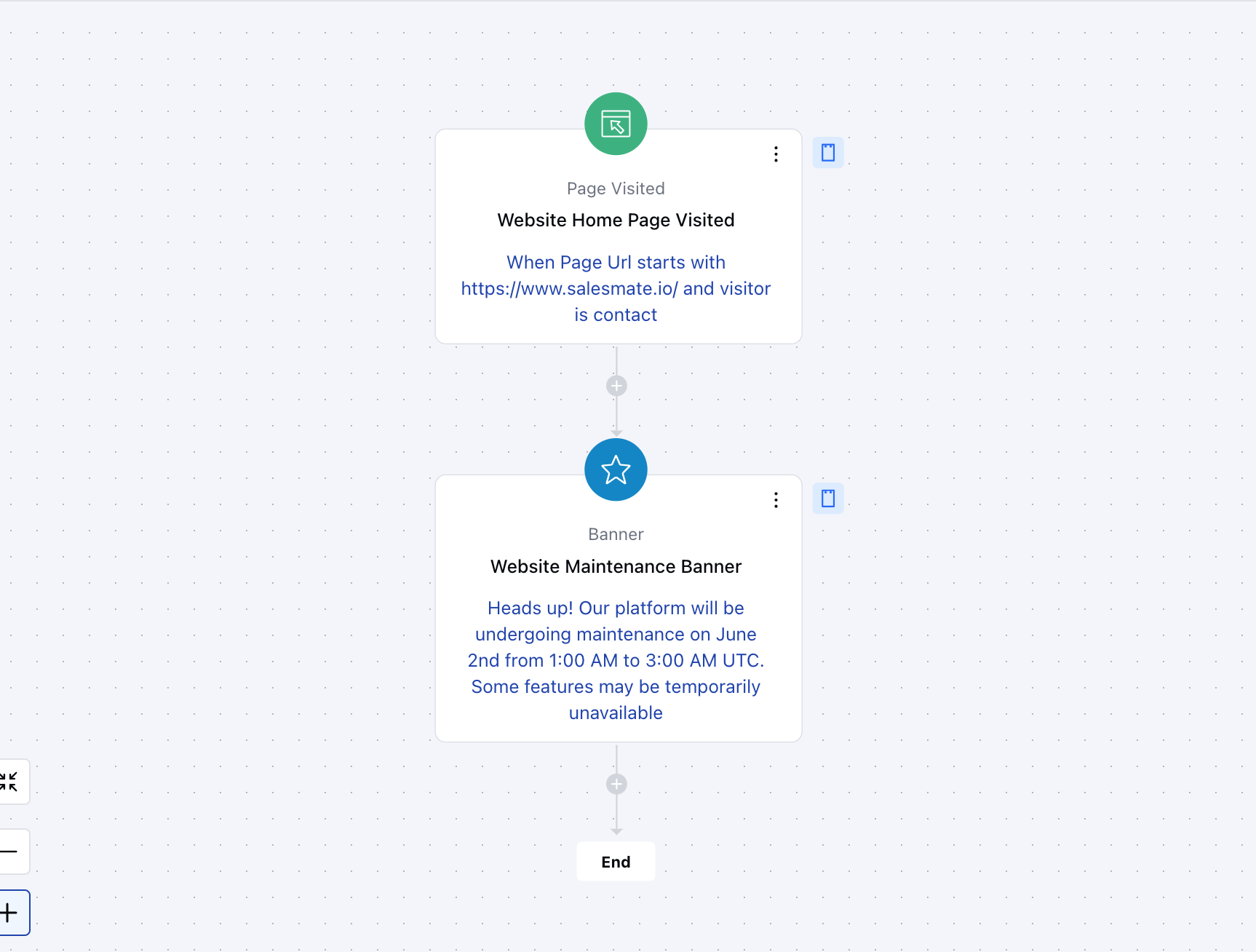
Topics covered:
How to configure the Banner action
- While setting up an Execution Flow, select the Banner action.
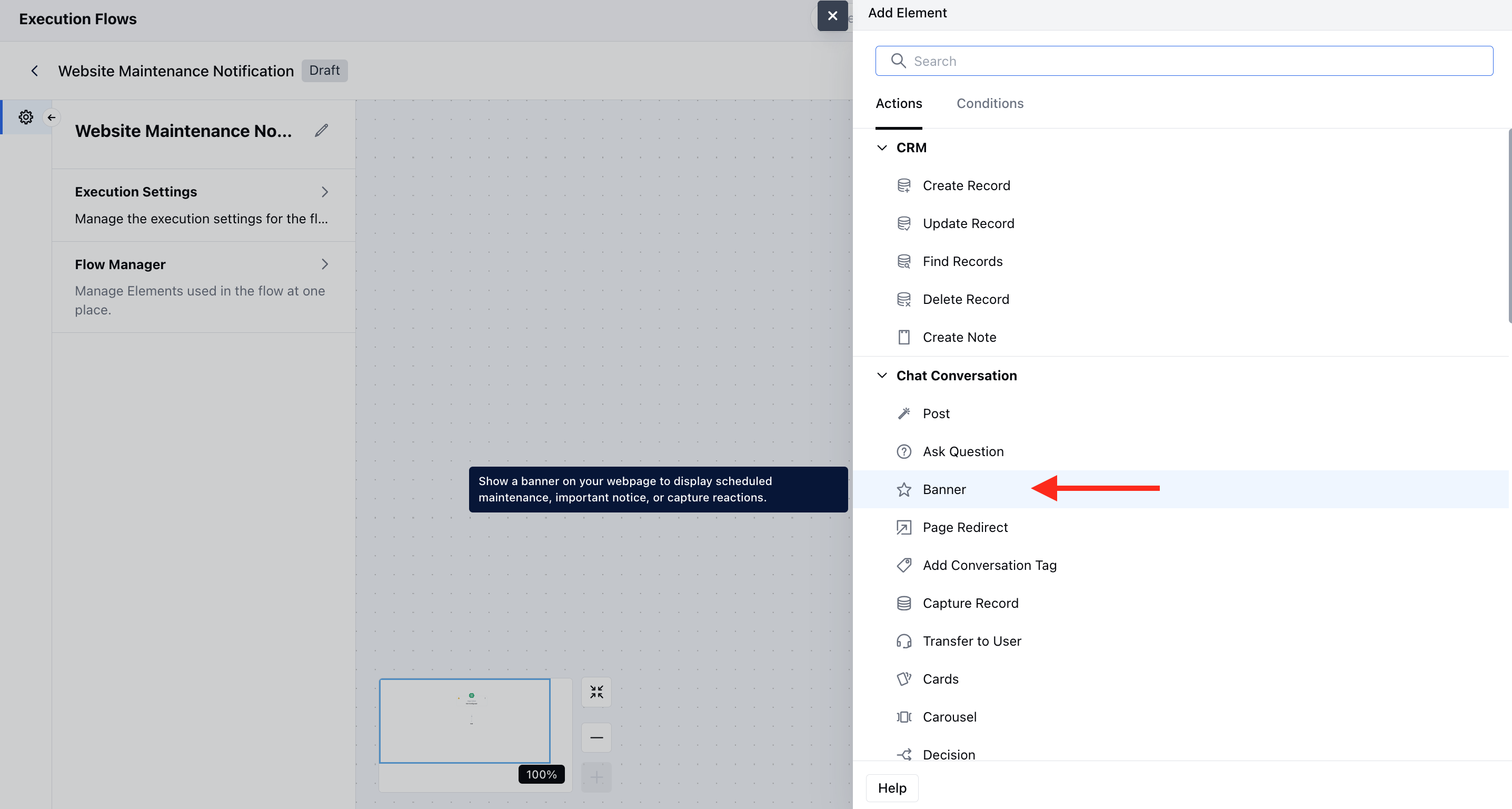
- Once the Banner action is selected, configure it by providing the following details:
- Name:Assign a clear and descriptive name to the action to identify its purpose in the flow easily.
- Description: Add a description to better understand the action you like to perform.
- Message: Add the message that you like to display as the banner.
- Response Type: You can set it to None or Reaction to get the response on your banner.
- Banner position: You can select the banner position on the screen.Banner Style: Apply predefined visual styling to your banner, such asInlineorFloating.
- Color: Set the background color to match your brand or message tone.
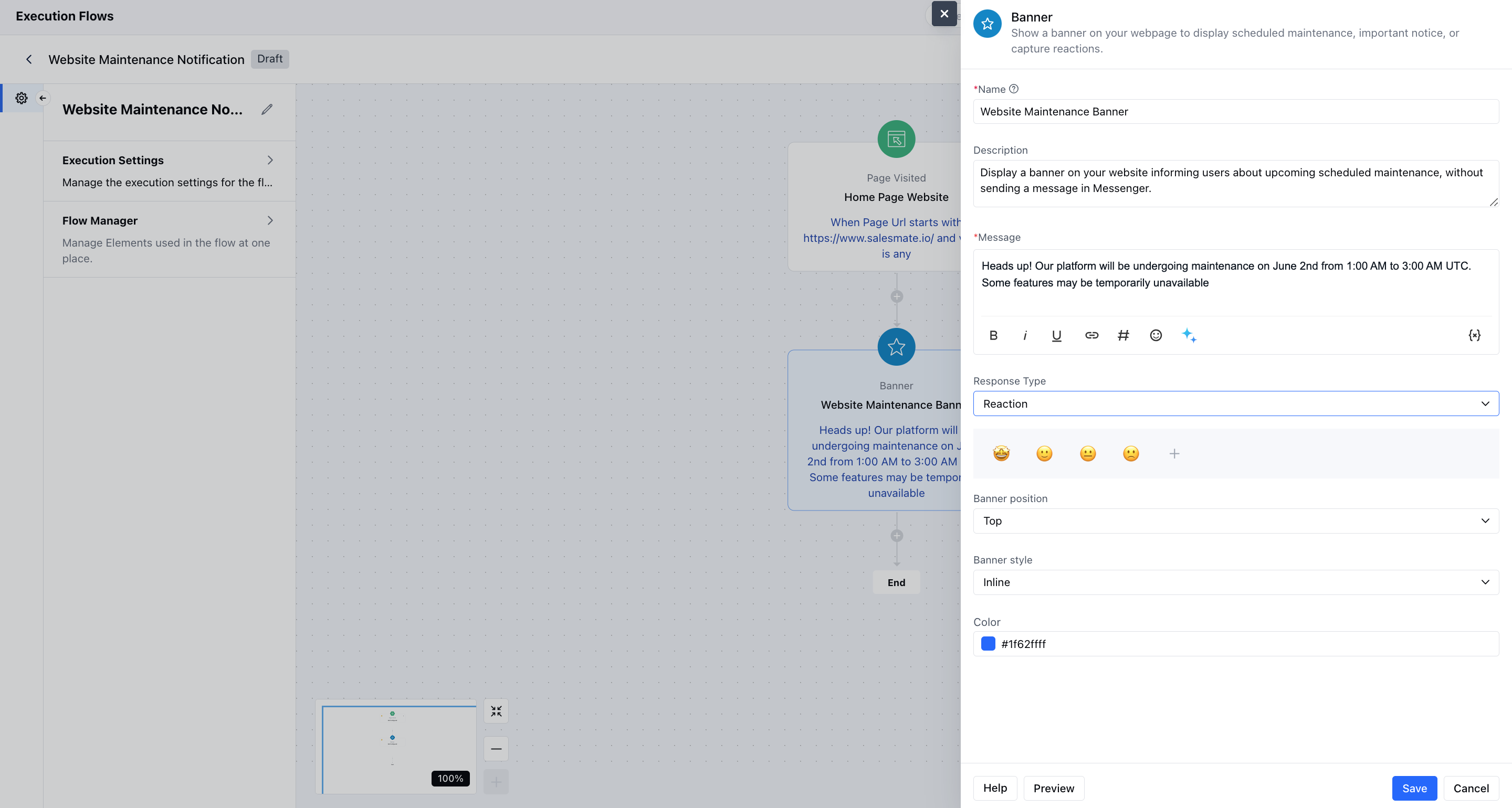
- You can also preview the banner and hit save.
Practical Example:
Display a banner on your website informing users about upcoming scheduled maintenance, without sending a message in Messenger. This provides proactive communication about outages or downtime and keeps users informed without interrupting their in-app flow.