Topics covered:
How to Configure the Send Survey Email Action
While setting up an Execution Flow, select the Send Survey Email action.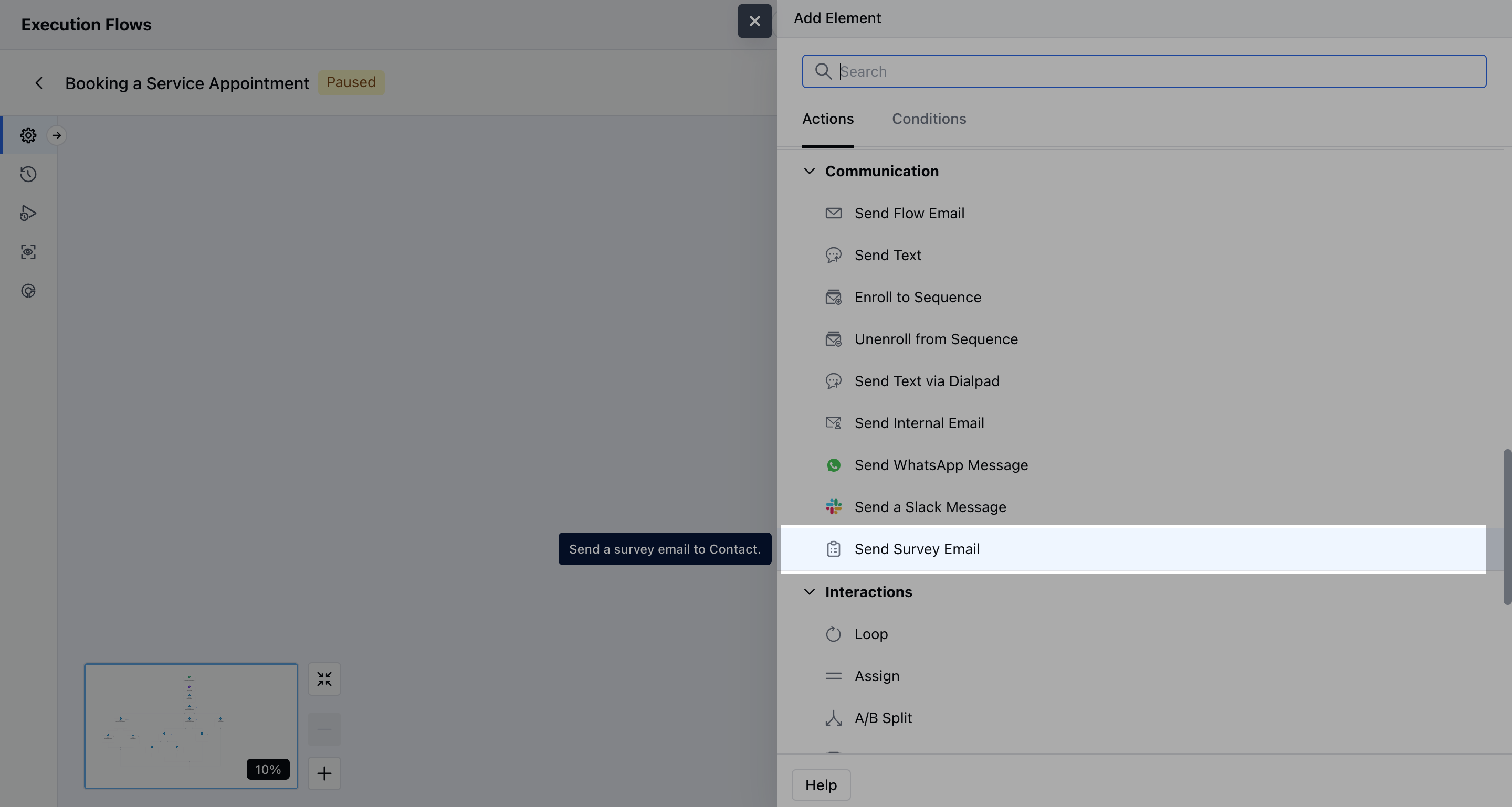
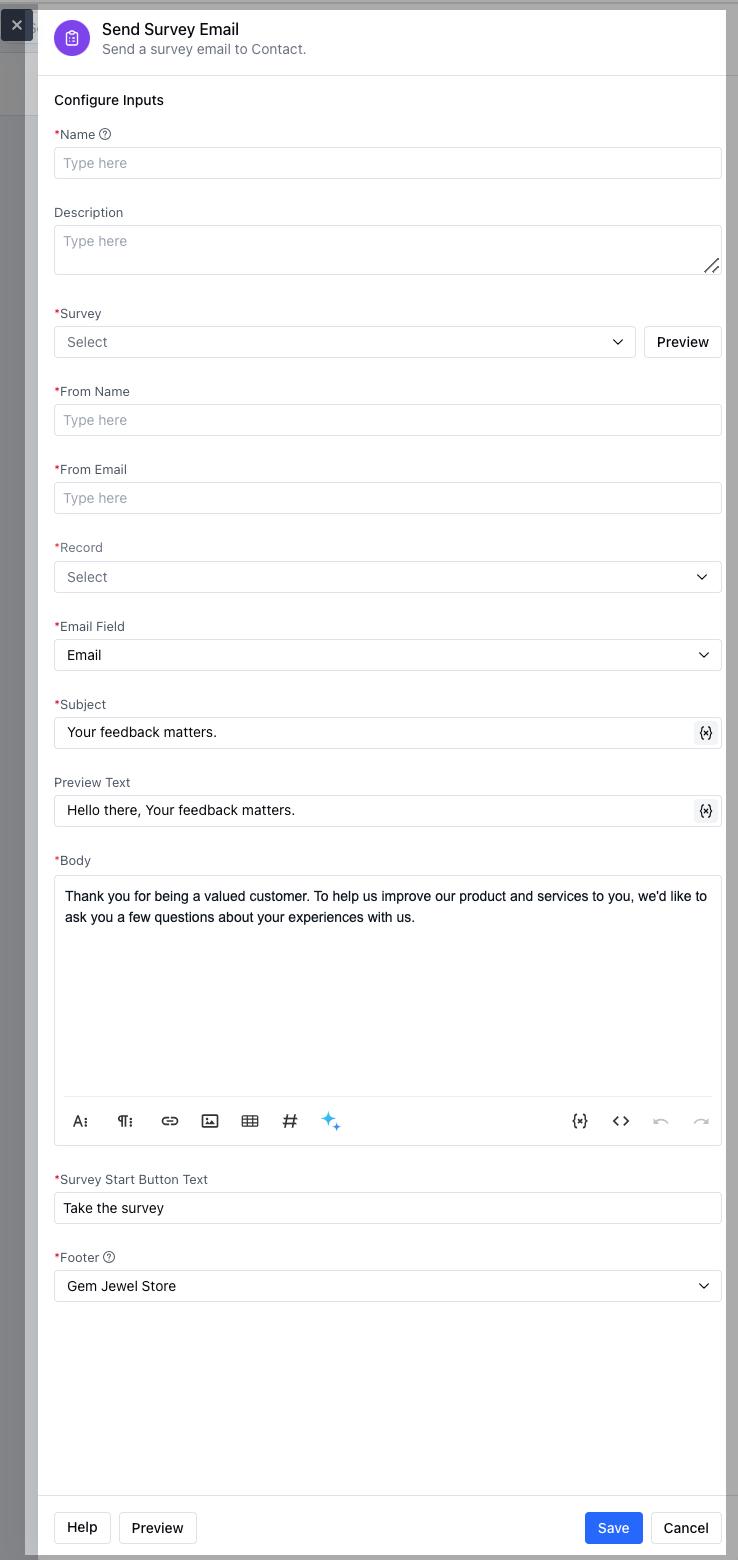
- Name: Assign a clear and descriptive name for the action to easily identify its purpose.
- Description: Offer a brief explanation of the action’s function.
- Survey: Choose from any published surveys (CSAT, CES, or NPS).
- From Name: This is the name of the sender shown in the recipient’s inbox.
- From Email: Email address from which the survey email is sent.
- Record: Specify the recipient of the email. In this, you need to specify the contact or set of contacts for the email delivery.
- Email Field: Choose the email field where the survey will be sent.
- Subject: Subject line of the survey email.
- Preview Text: Short preview text shown in the email inbox.
- Body: Here you can store the Email message body.
- Survey Start Button: Label for the survey button.
- Footer: Email footer content.
Note: If the selected email isn’t found or their email domain isn’t verified, the survey will not be sent, and the process will not move forward.
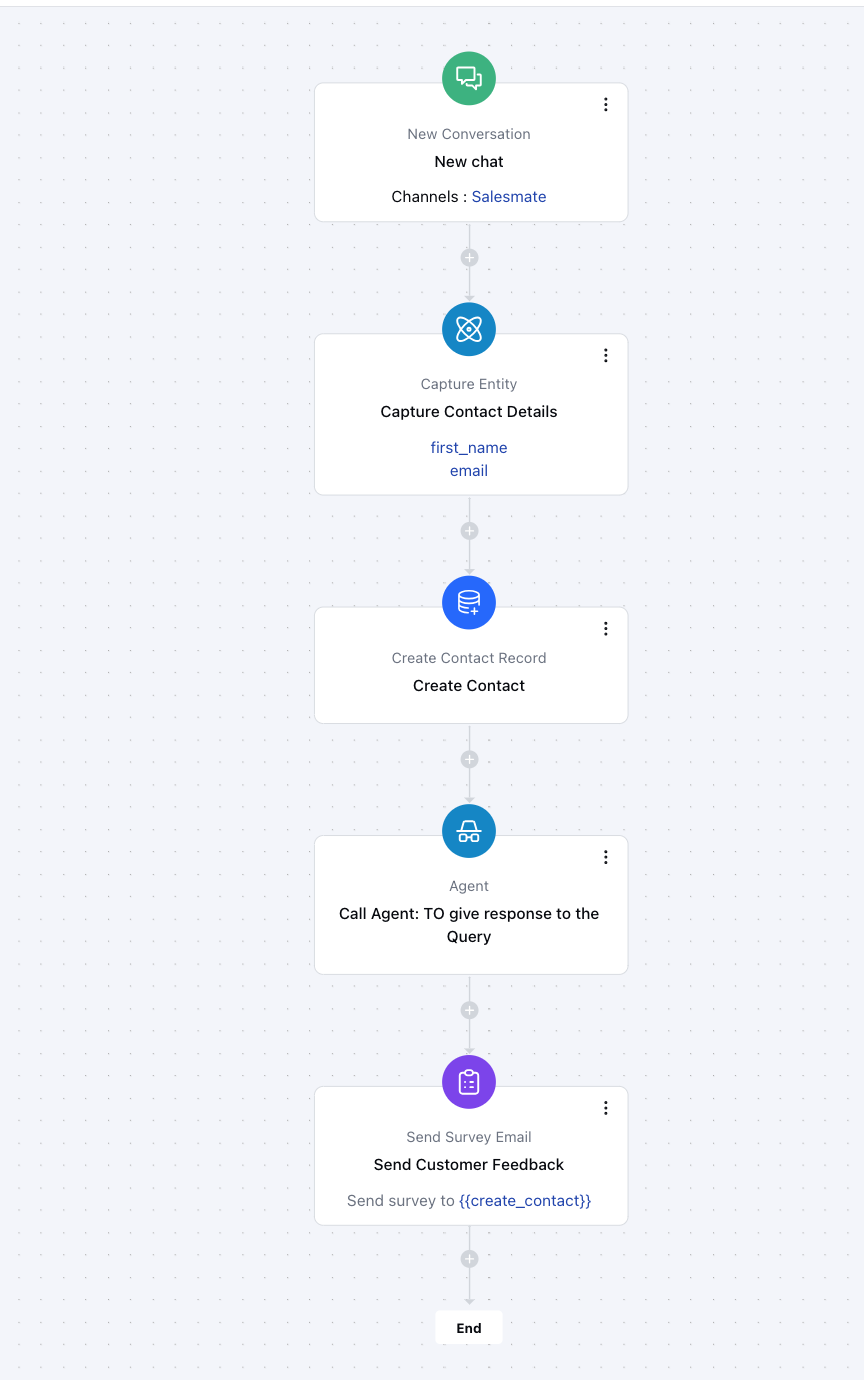
Practical Example:
Once a user initiates a chat with us, we can automatically capture their basic details such as name and email, and create a contact record in the system. From there, we can route the conversation to our AI Agent to handle their query in real time. After the interaction is complete, we can trigger a survey to collect feedback on their experience.