Topics covered:
How to Configure Function Action
While setting up an Execution Flow, select the Function action. Once selected, configure it by providing the following details: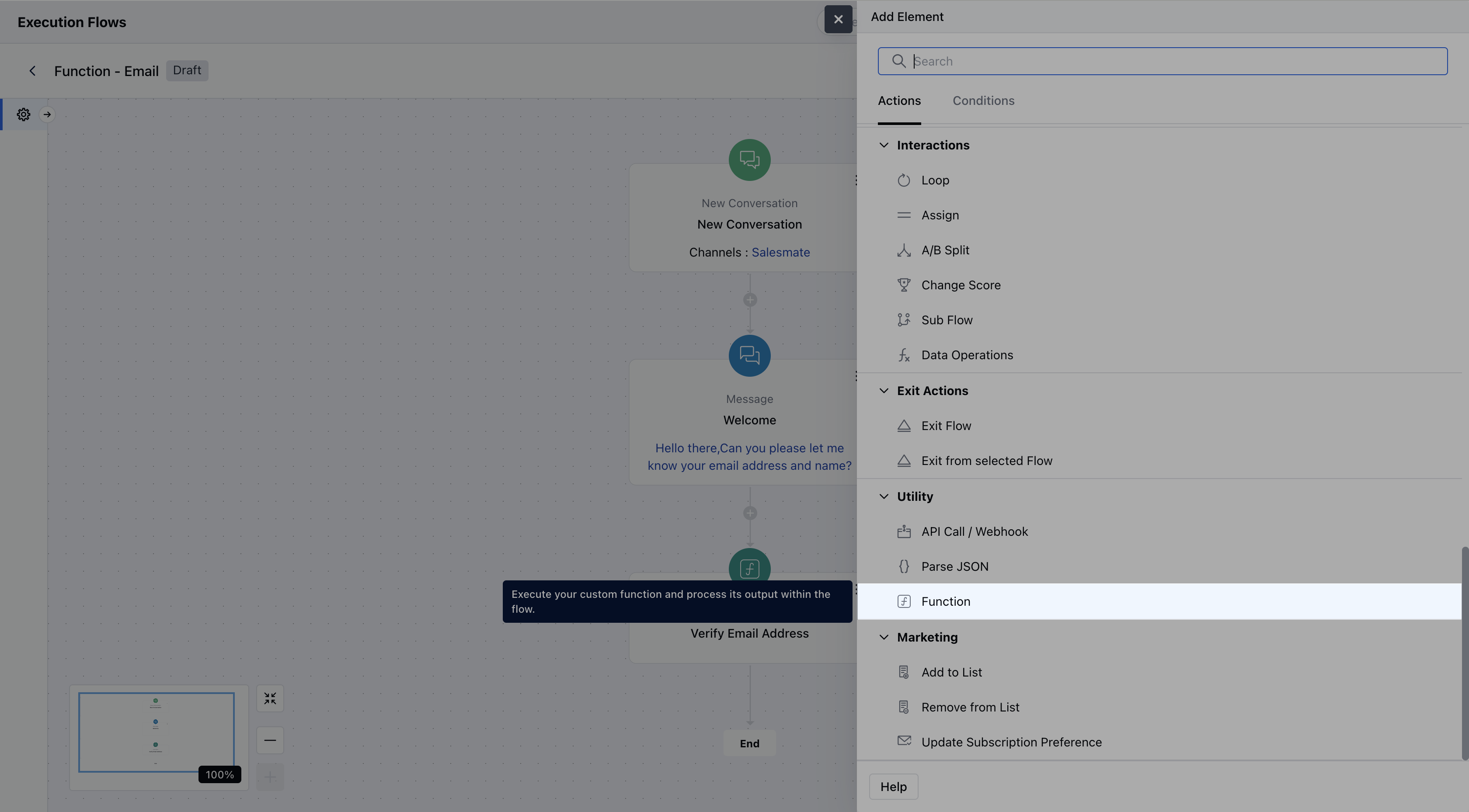
- Name: Assign a clear and descriptive name to the action so you can easily recognize its purpose in the flow.
- Description: Optionally, provide a brief explanation of what this function does.
- Function: Select the custom function you want to execute from the available list. Only functions that are configured and available in your account will appear here
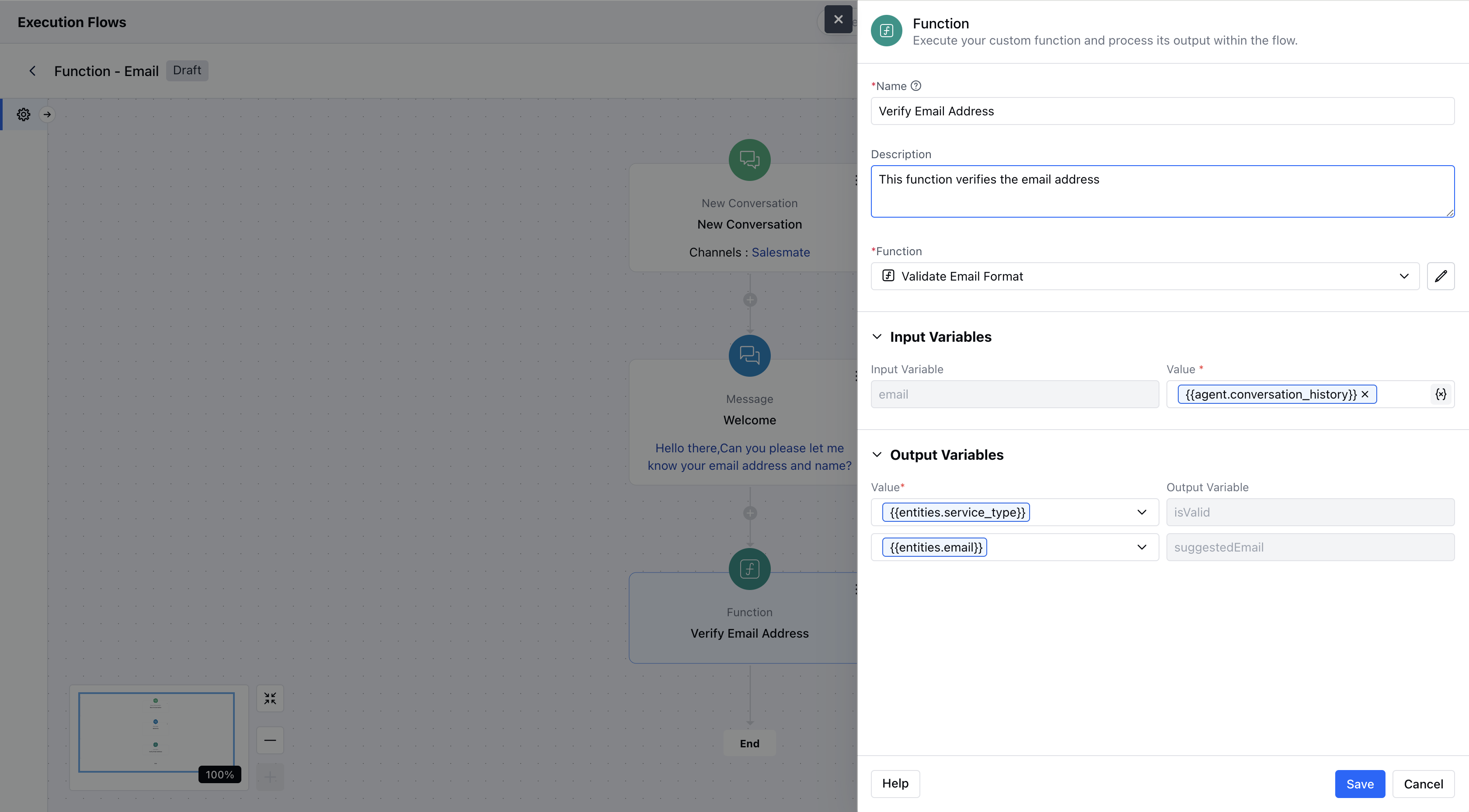
- Once configured, hit Save to include this action in your flow.
Practical Example:
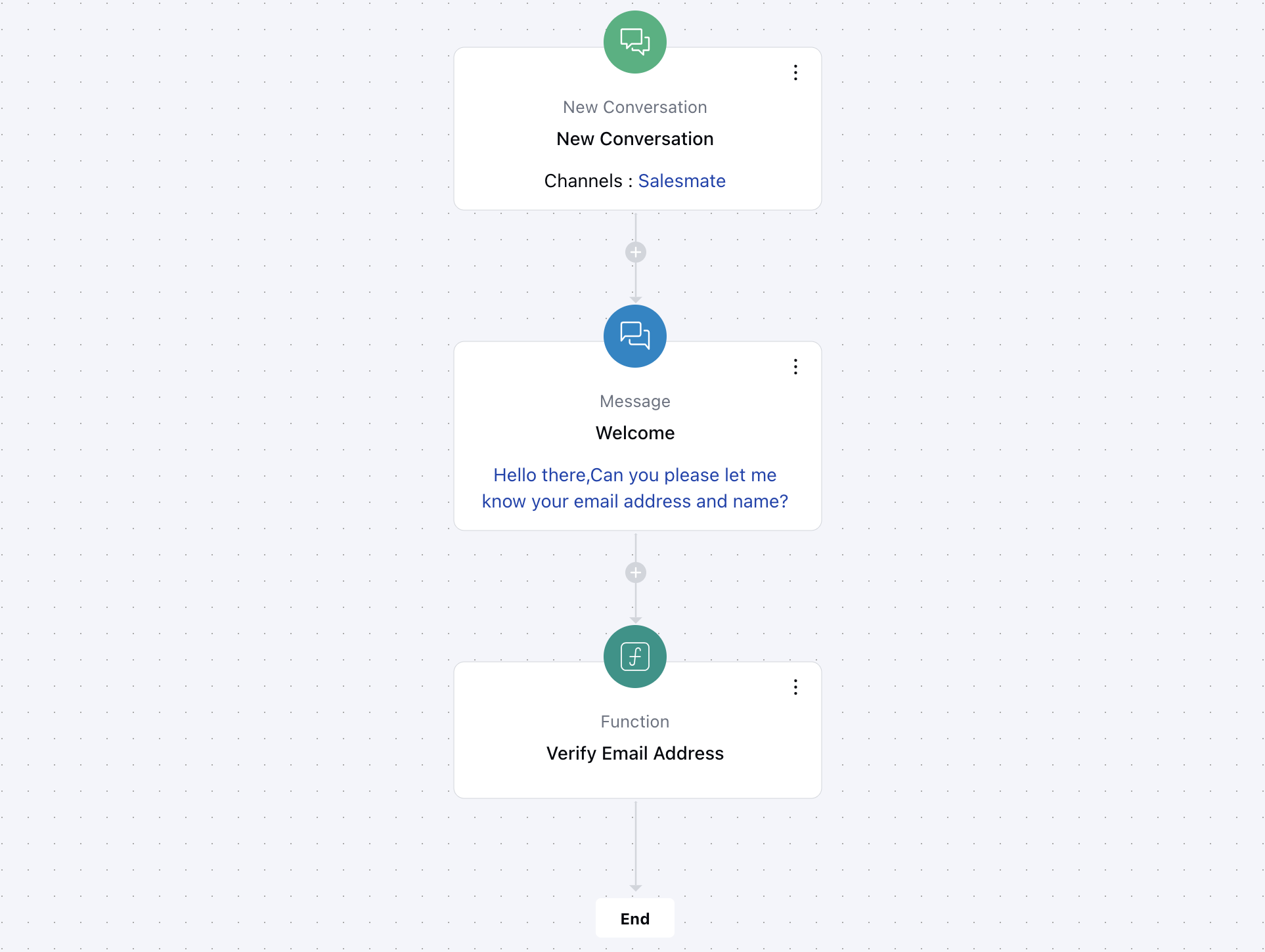
Let’s take a scenario from your website: sometimes users might enter an incorrect email address or make a typo while filling out a form. To handle this, you can use the Function Action in your Smart Flow to verify the email address first. Once verified, you can then store the correct email in your system. This ensures you’re capturing only valid and usable email addresses, helping improve your data quality and communication accuracy.