

Note: Map Dependency Fields can only be created for Select and Multi-select field types.
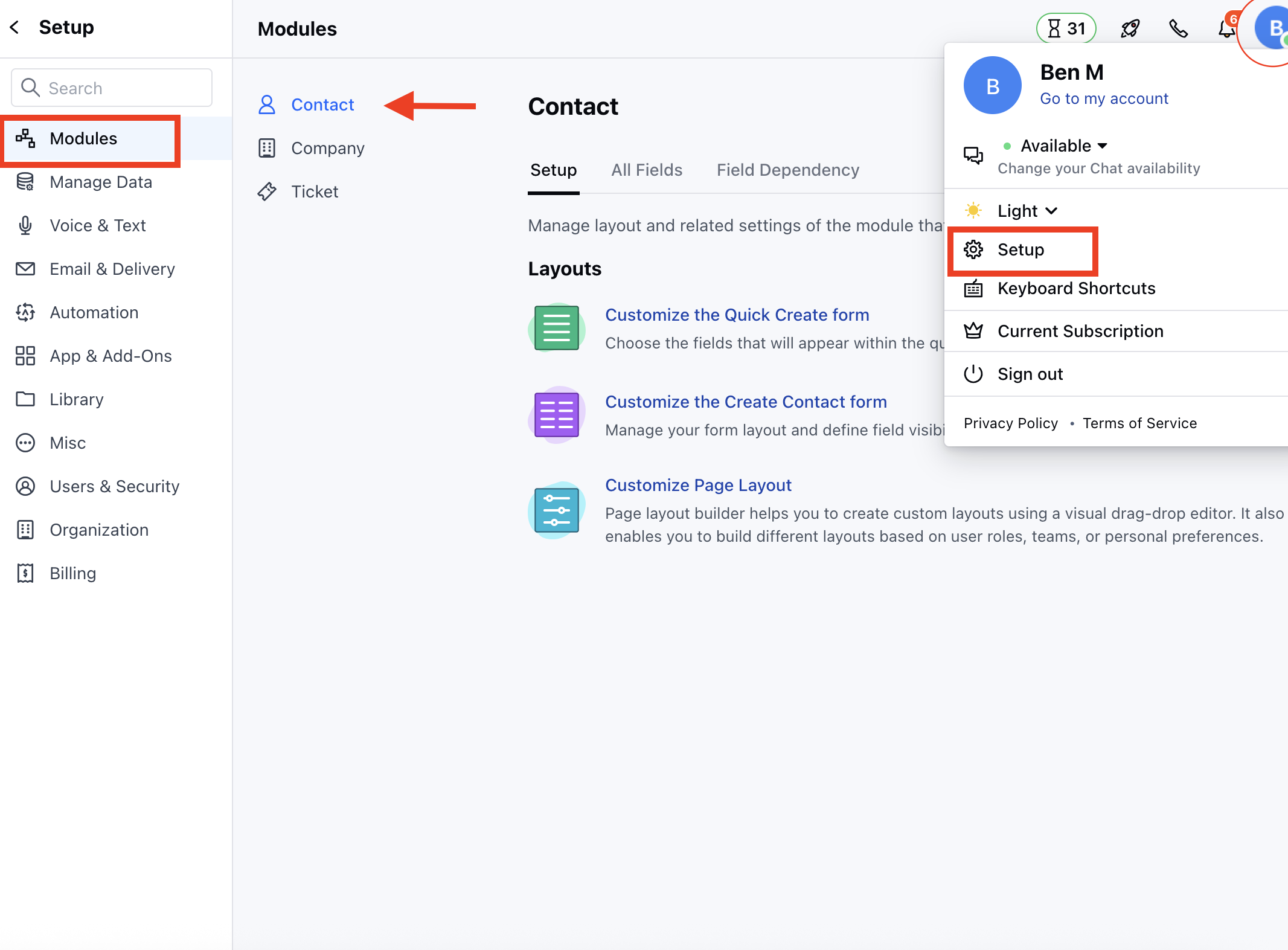
- Navigate to the Profile icon on the top right corner
- Click on Setup
- Head over to Modules Category
- Here, select the Preferred Module ( Contact, Company and Ticket Module)
- Navigate to the Field Dependency tab
- It displays columns for Parent Field, Child Field, and Actions.
- Upon first visit, the grid will be empty, showing the message No mapped dependency fields found.
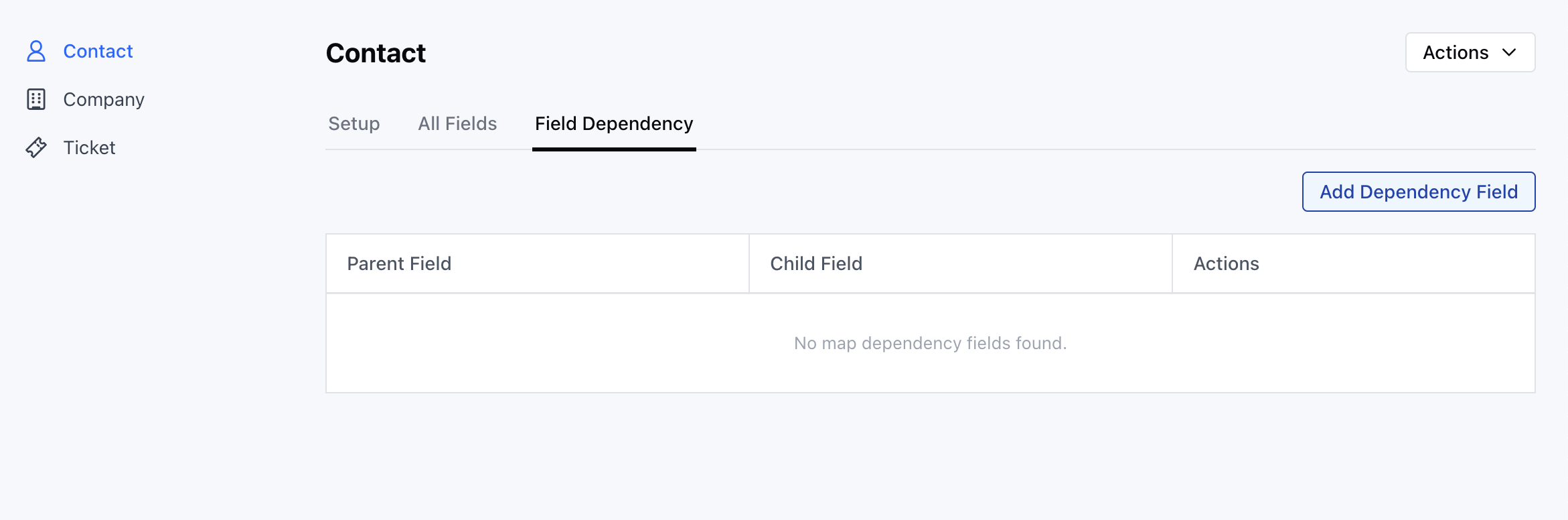
- Click the “Add Dependency Field” button to begin mapping the dependency between fields.
- To create a field dependency, you need at least two select or multi-select fields.
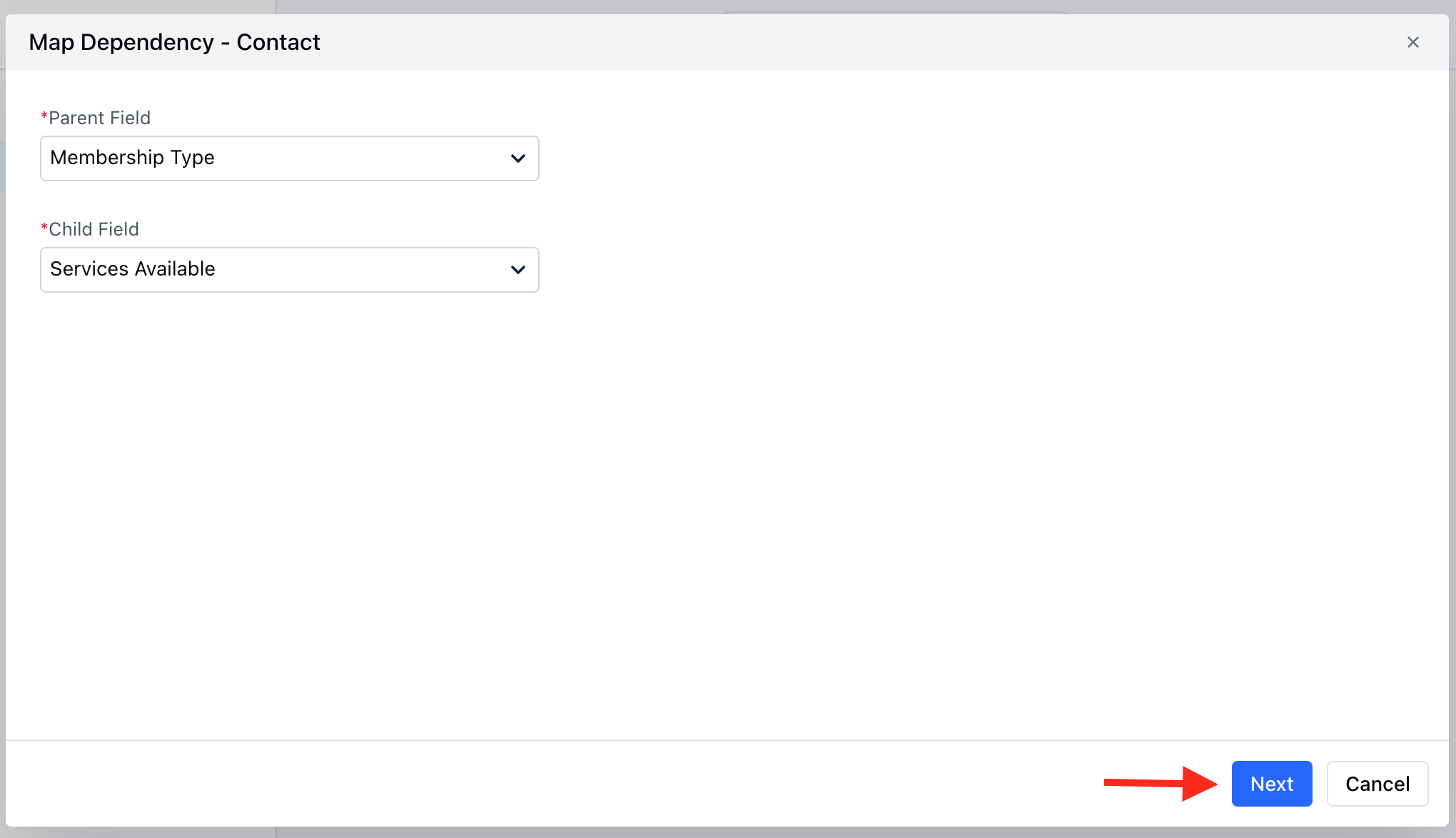
- A popup will appear with two options:
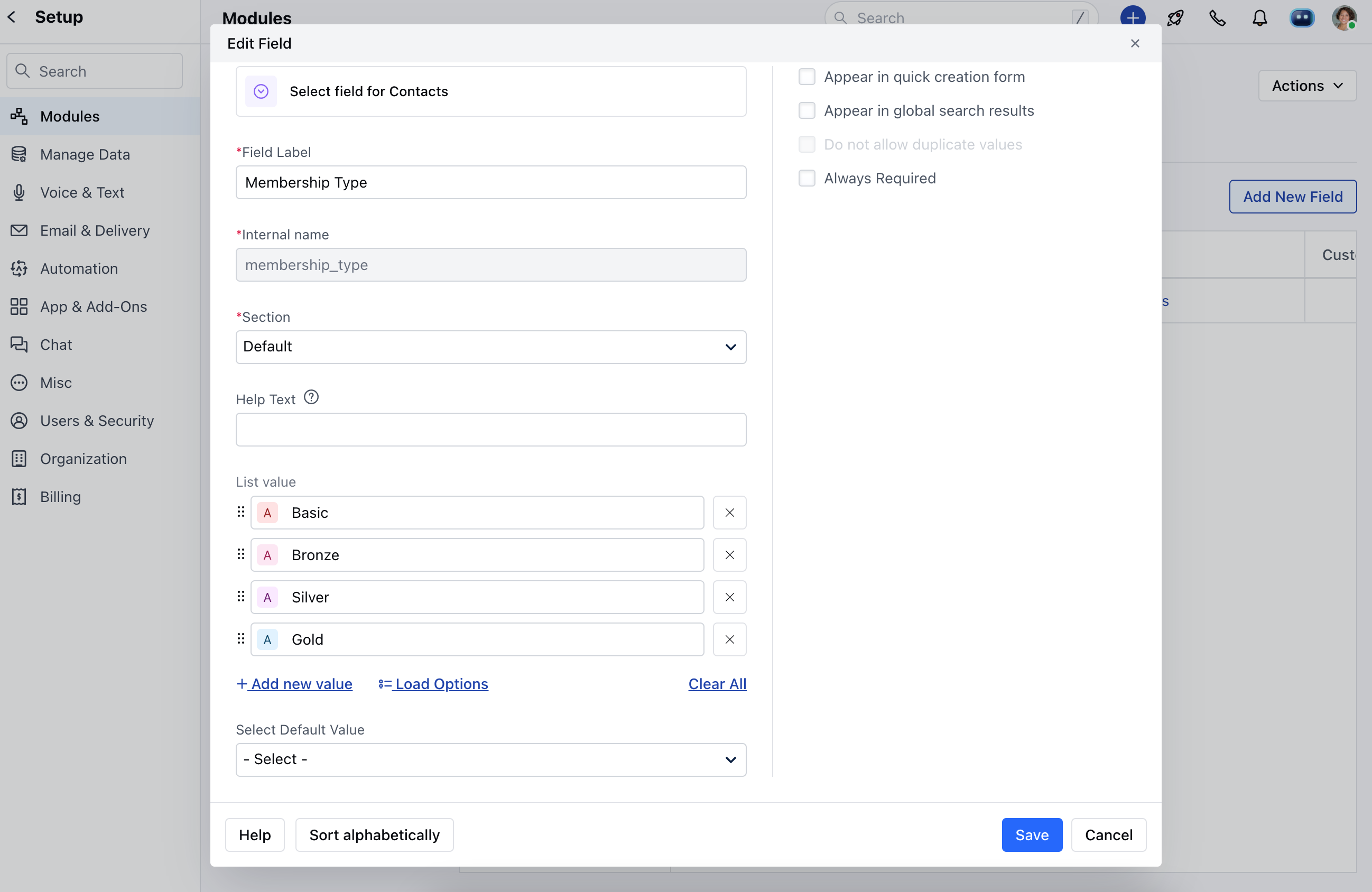
- Child Field: Select the child field from the dropdown. The values in this field will change based on the selected value in the parent field (Eg: Services Available)
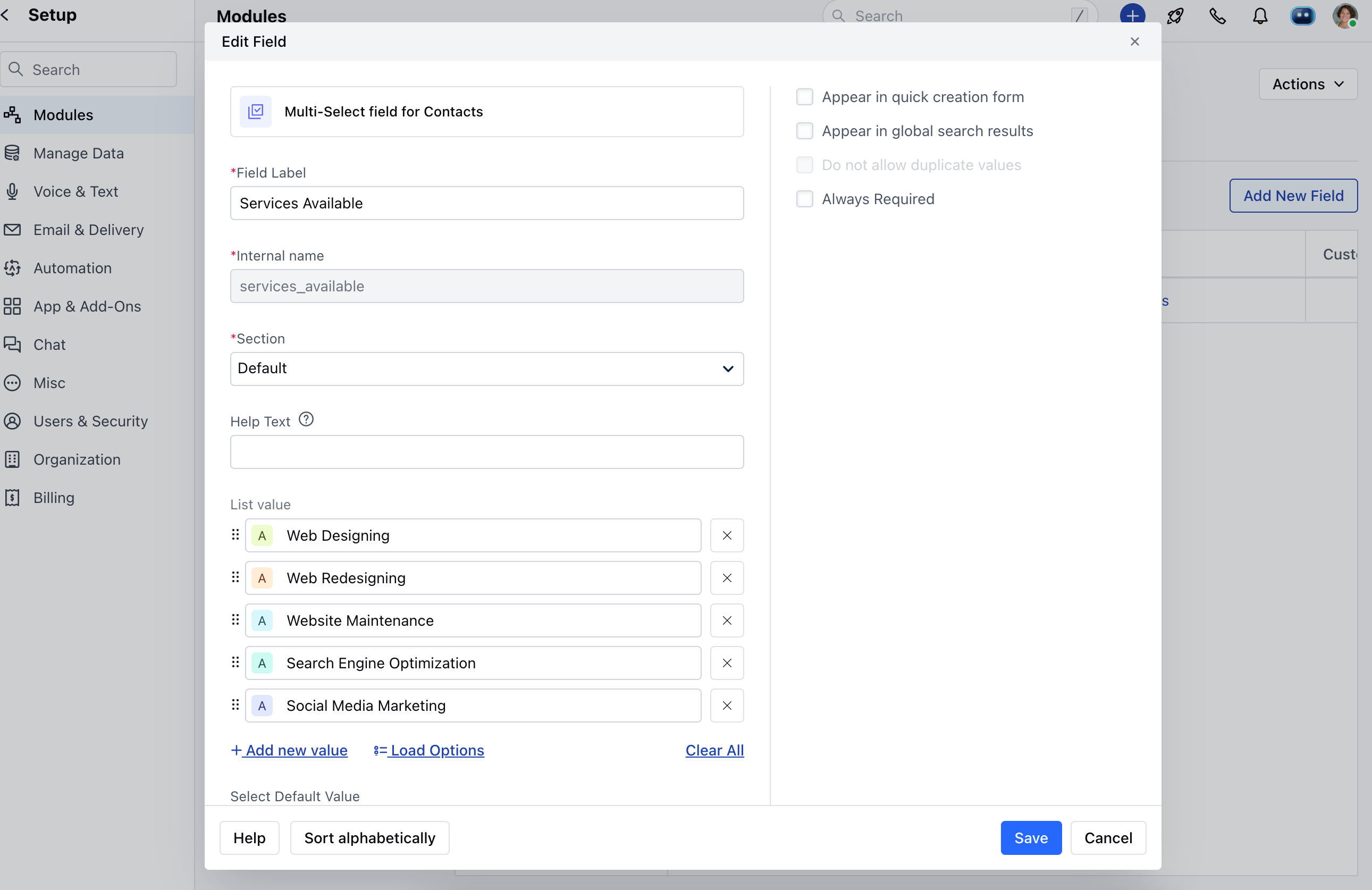
- Once you have selected the parent and child fields, click the “Next” button.
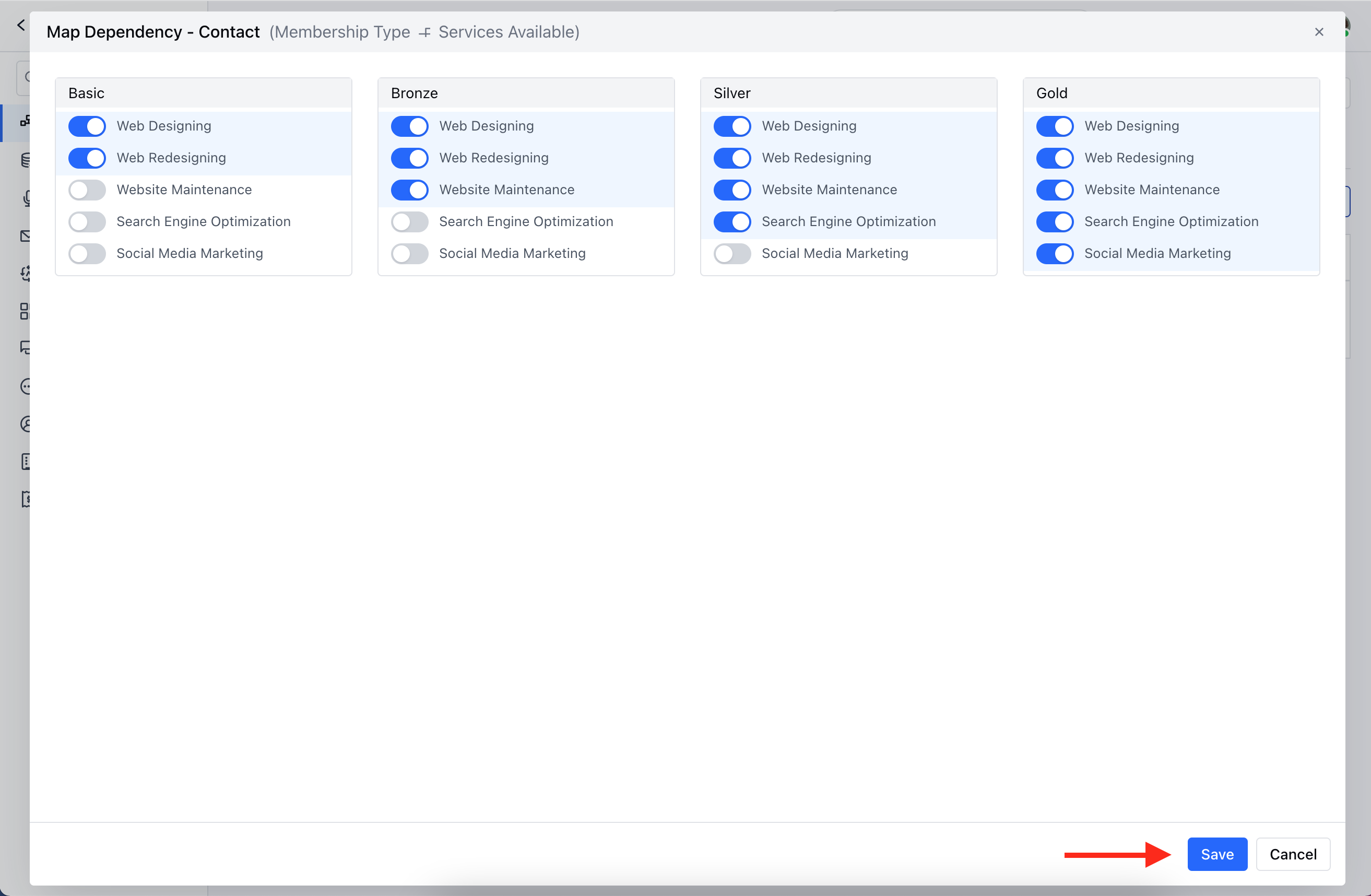
- Select values of the Child field dependent upon each Parent value. Hit Save.
Note: The options to Edit or Delete will not be available for default system dependency fields or in the deal or custom module.
- Map Dependency Fields can only be created for Select and Multi-select field types.
- Only select and multi-select fields will be displayed as options.