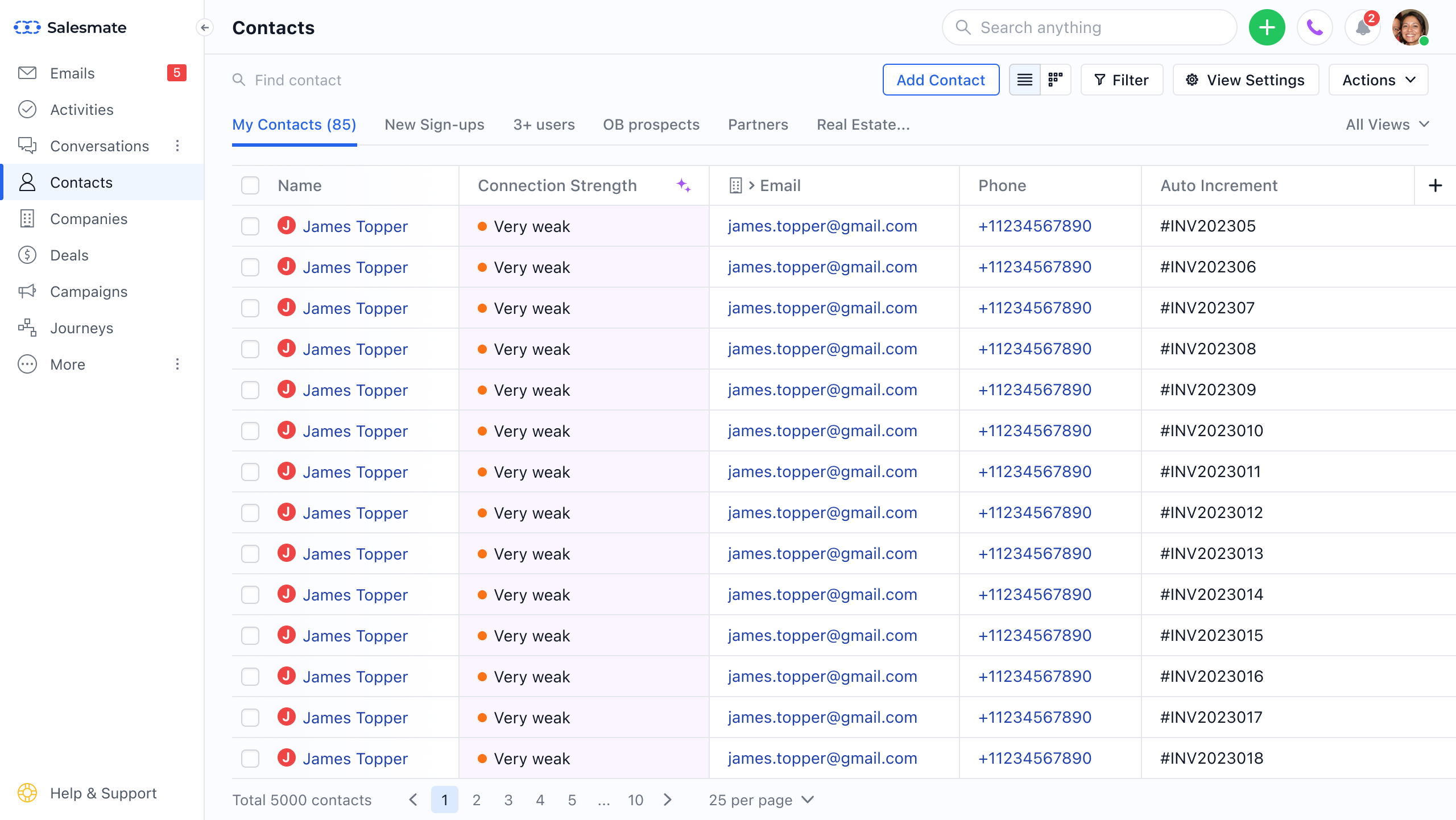
- Navigate to the Profile Icon in the top right corner.
- Click on Set-Up Head over to any module
- Select the All Fields tab
- Click on Add New Field button
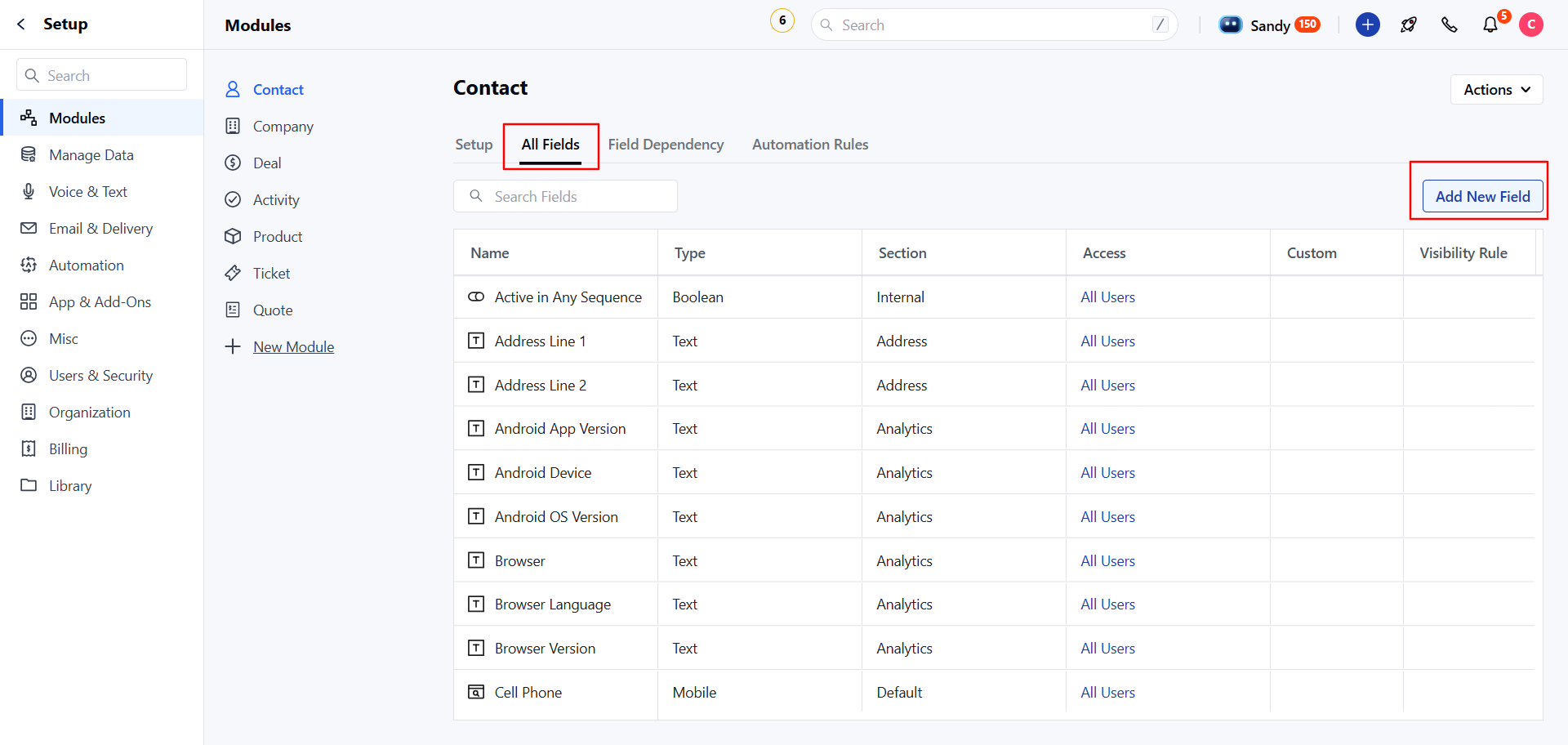
- Search for and select Auto Increment.
- Fill in the details:
- Field Label, Internal Name, Section, Help Text
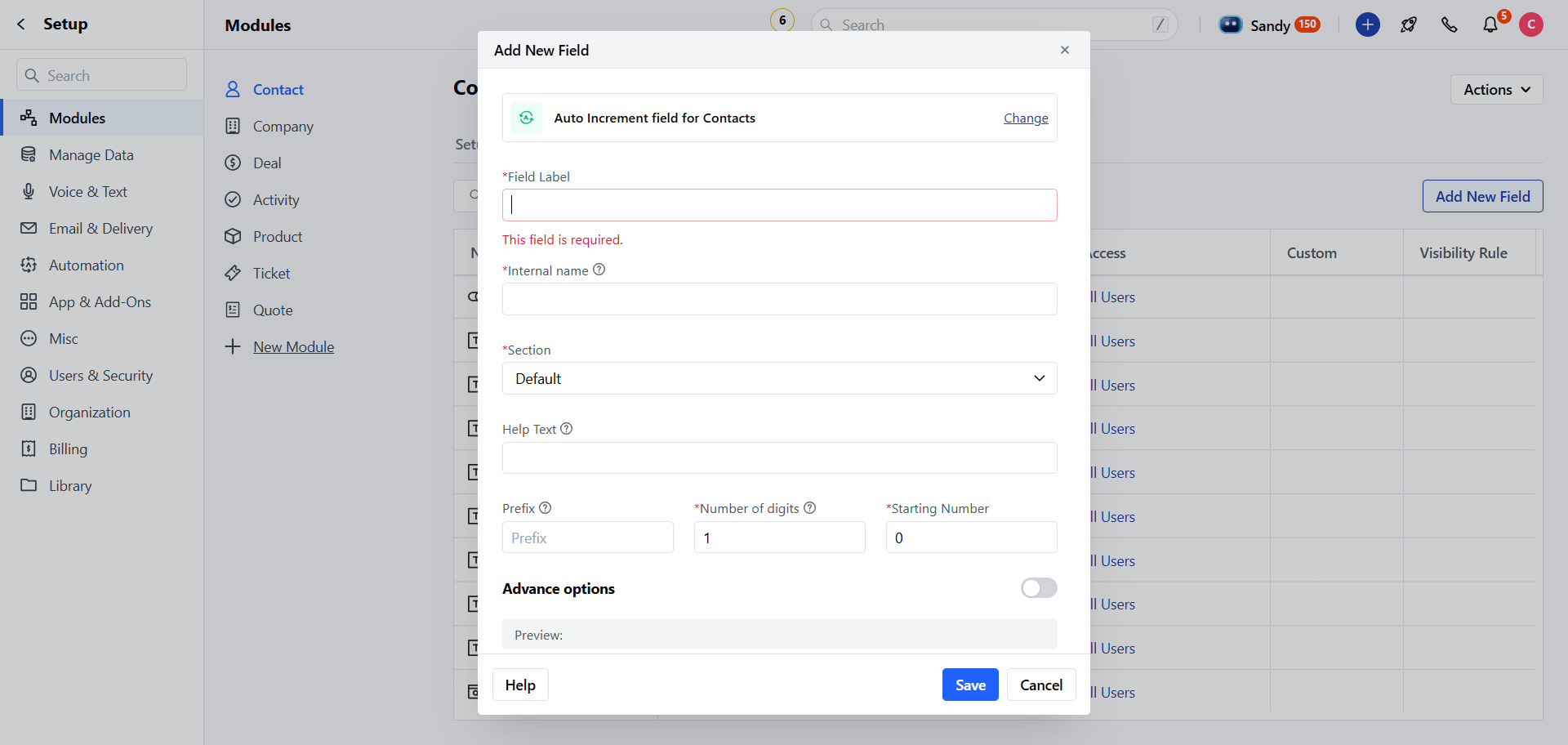
- Prefix: Here you can enter a prefix that stays constant for the field values (e.g., “INV” for invoices)
- Number of Digits: Here you can enter the number of digits that you want in the end value. For example, entering 3 would mean “INV001, INV002” etc.“ It is a number type field and required field
- Starting Number: Enter the number from where should the value start incrementing. For example, entering 100 would mean your values will be like “INV100, INV101, INV102” etc. It is a number type field and required field
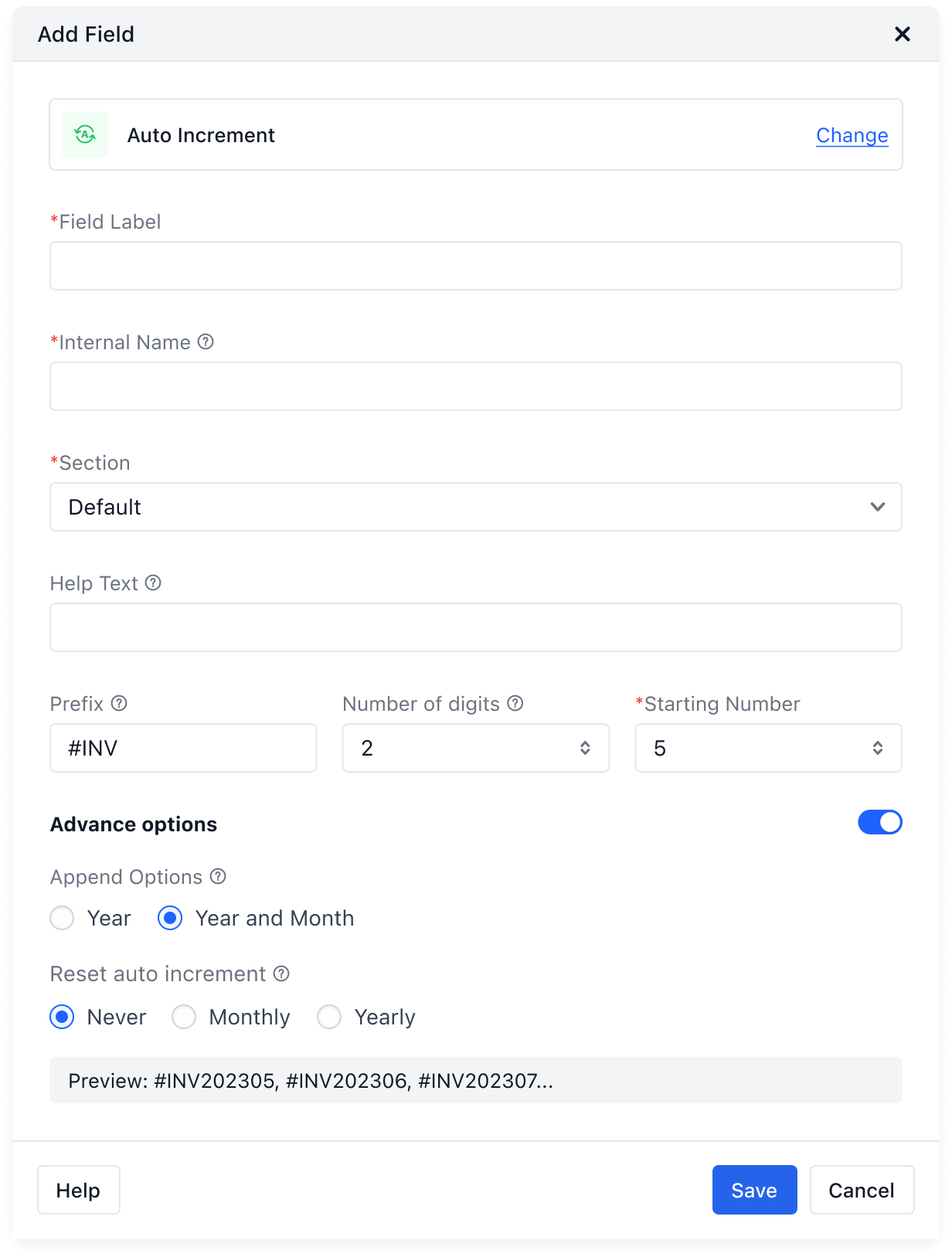
- Advanced Options: Enable this to see more features.
-
Append Year: Adds the current year to the prefix. E.g., “INV2023100, INV2023101”.
- Default: Enabled when you turn on Advanced Options.
- Format: “YYYY”.
-
Append Year & Month: Adds the current year and month. E.g., “INV202304100, INV202304101”.
- Year Format: “YYYY”.
- Month Format: “MM”.
-
Reset Auto Increment: Choose how often the number resets.
- **Never **
- Monthly: Available if you use both year and month options.
- Yearly: Available if you use the year option.
- Preview: You can see how your values will look at the bottom of the page.
-
Click **Save **
Note: All existing and new records automatically generate a sequential number once saved.