

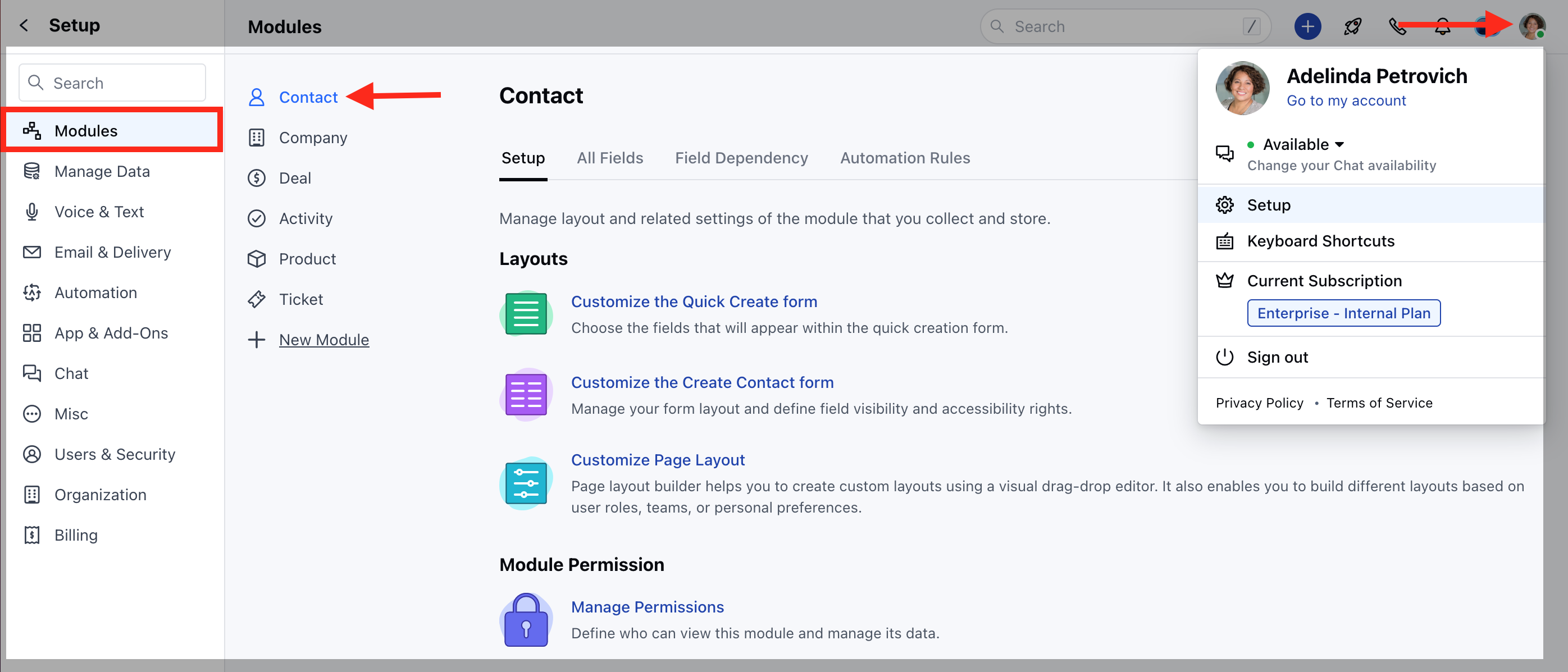
- Navigate to the Profile Icon on the top right corner
- Click on the Set Up
- Head Over to the Modules Category
- Select the Module (Contact, Company and Ticket Module)
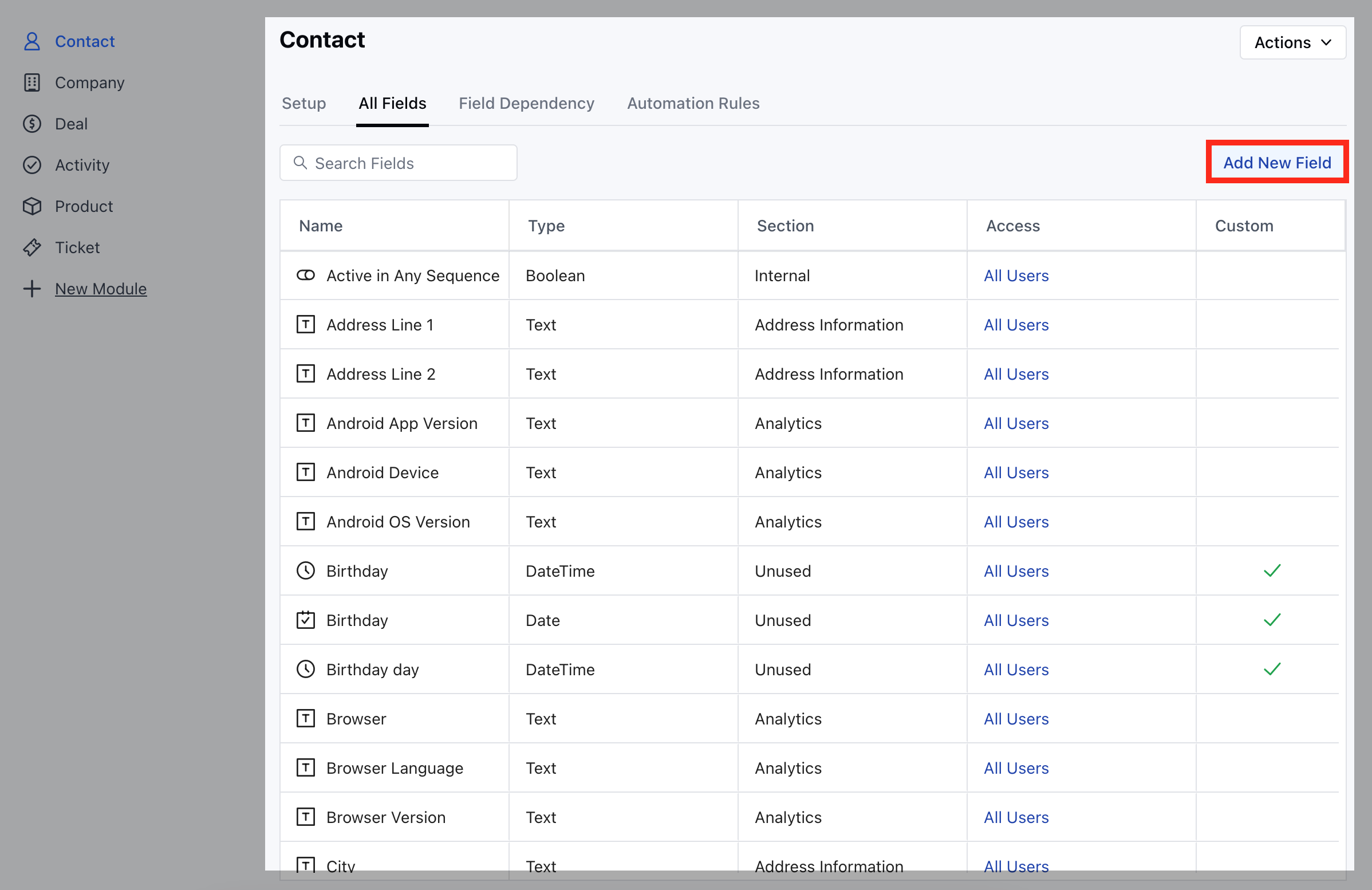
- Go to the All Detail Form Fields section
- Click on Add New Field to create a new custom field
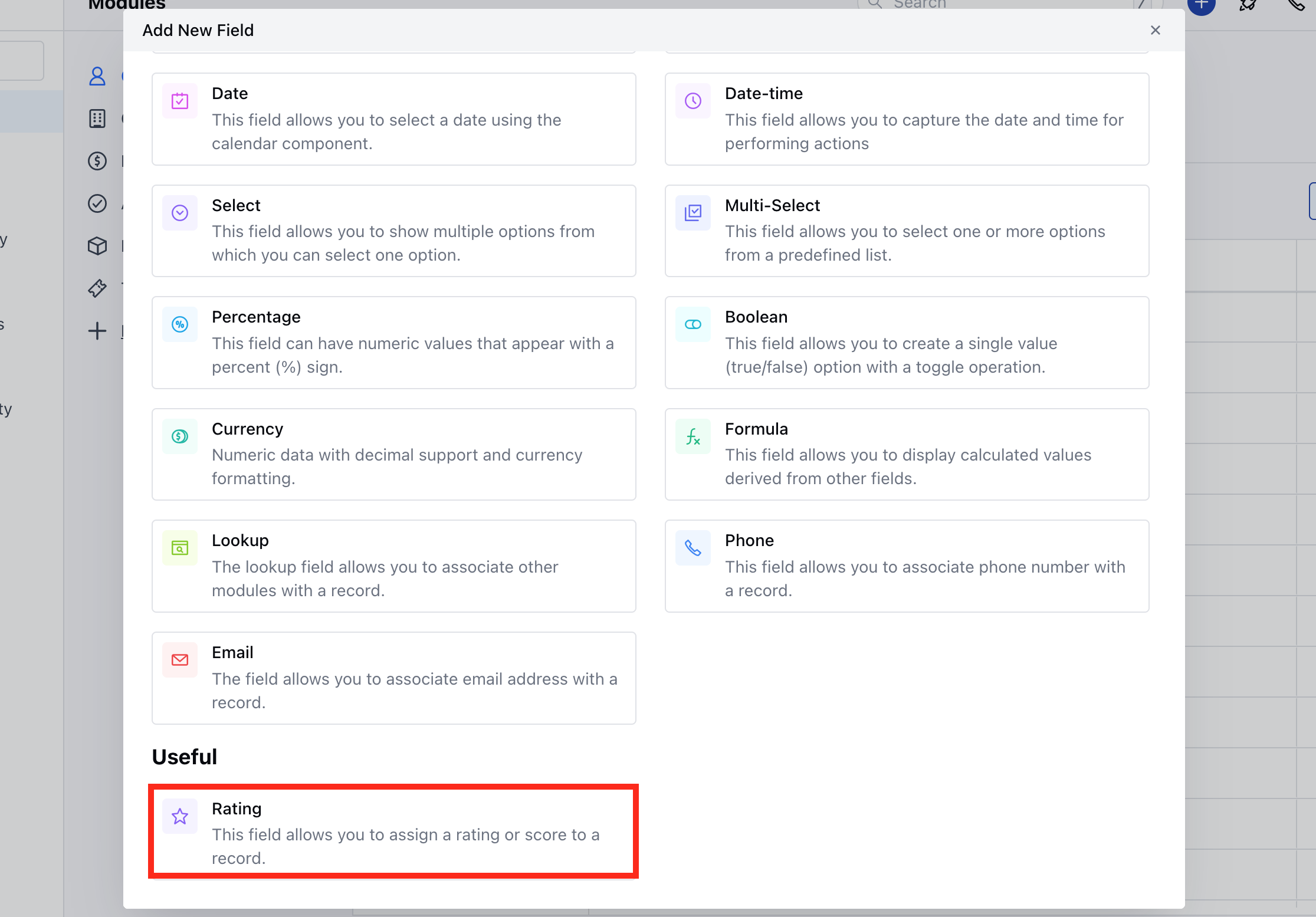
- Select the Field Type as Rating Field
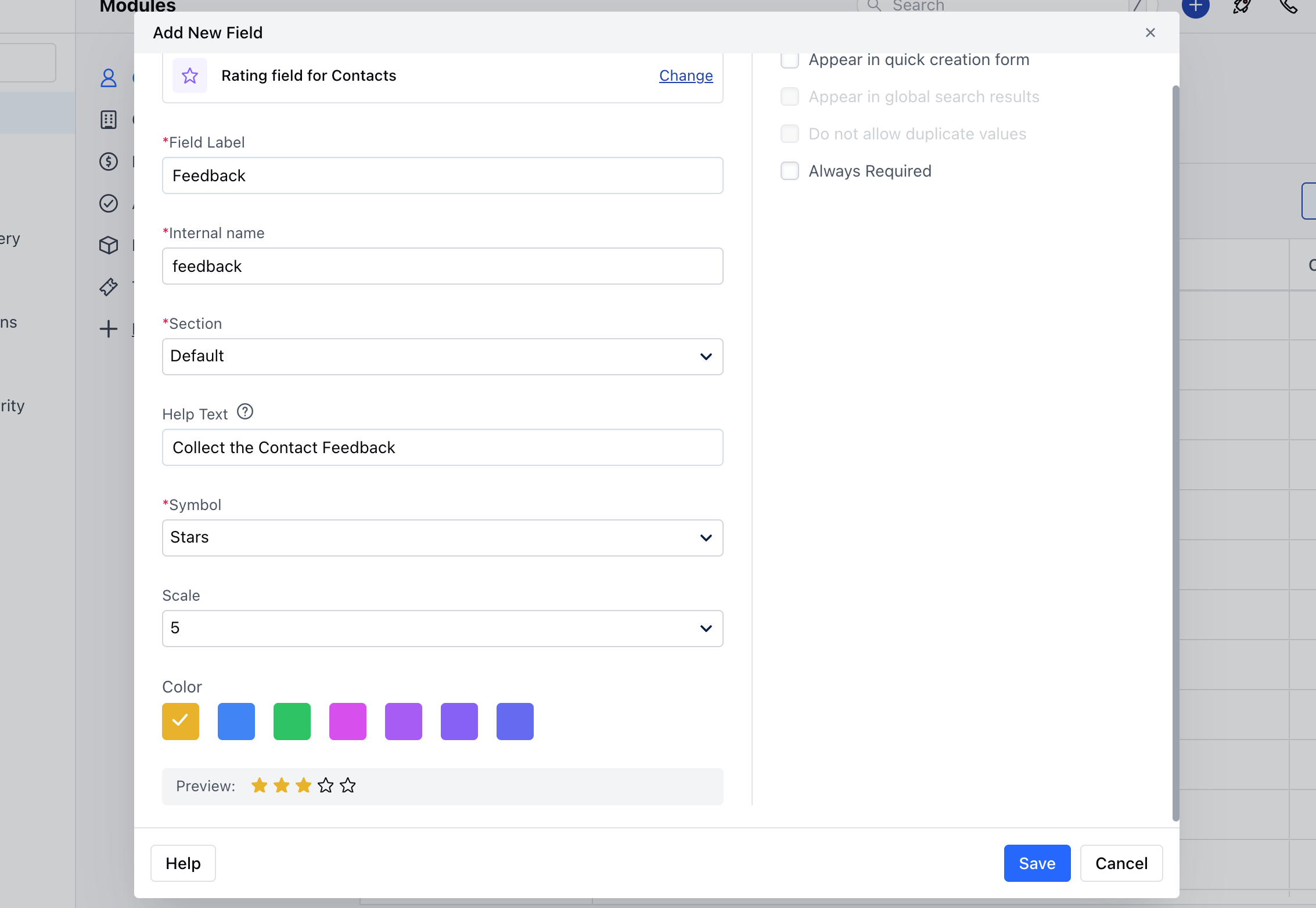
- Field Label: Define the label to identify the field.
- Internal Name: Define the internal name for API integrations.
- Section: Select the Section you wish the Field to fall under.
- Help Text: Define Help Text to provide additional information to help your teammates understand the purpose of the field.
- Symbol: Select the symbol for the rating you want to capture.
- Scale: Define the scale or range for the rating, such as a 5-star rating on a scale of 1 to 5
- Colour: Select colour in which the stars or hearts will be displayed when the user provides a rating value.
- Preview: It will display the preview of the field based on what you select in symbol
- You can further choose to,
- Appear in Quick Creation Form: Display this field in the quick creation form for easy access.
- Always Required: Make this field mandatory if needed.
- Once done, click onSave.
Note: This rating field will also be shown in the web forms and meeting schedulers.