

Note: Available for Pro and above Plans
How to Set Field Required Rule
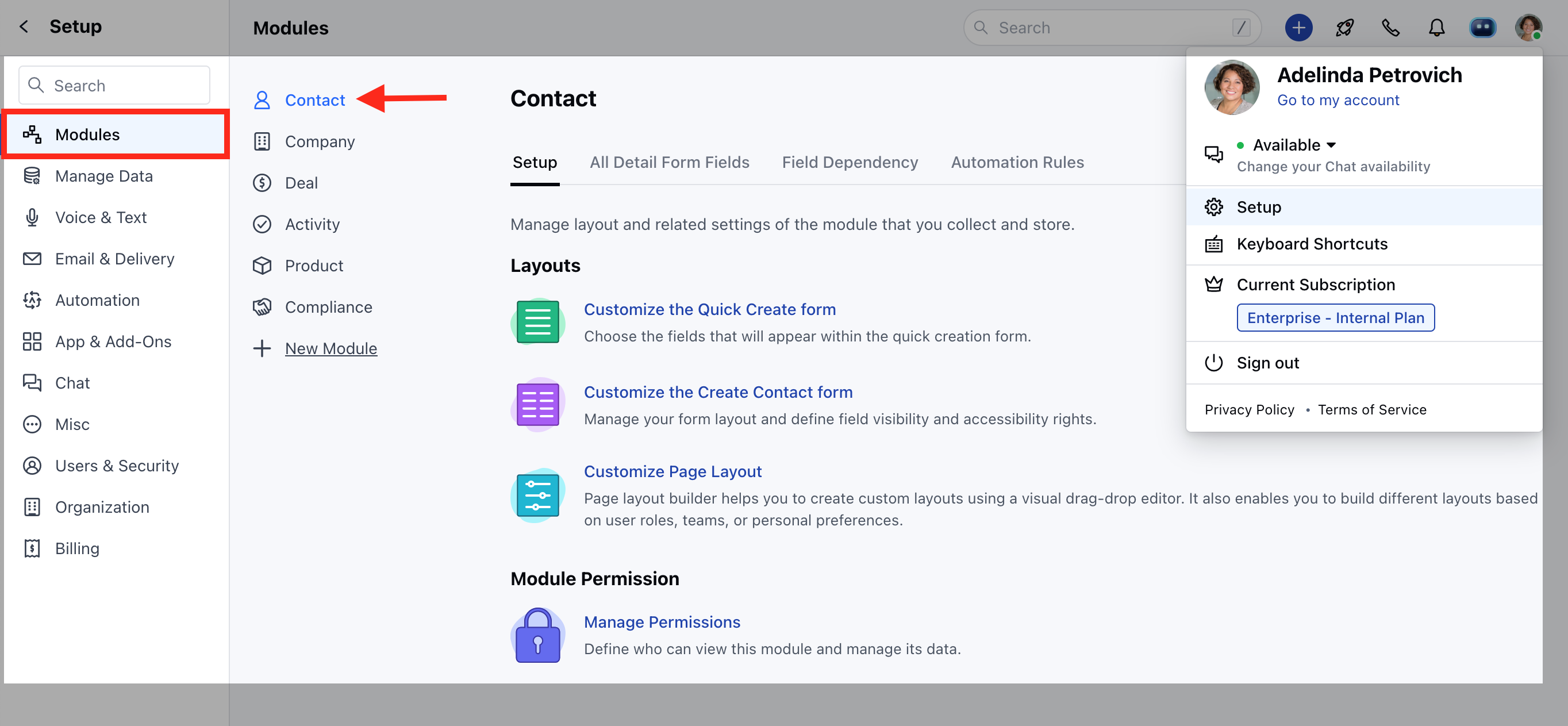
To Set the Field Required Rule,- Navigate to the Profile Icon on the top right corner
- Click on Set Up
- Head Over to the Modules Category
- Select the Module(Contact, Company and Ticket Modules)
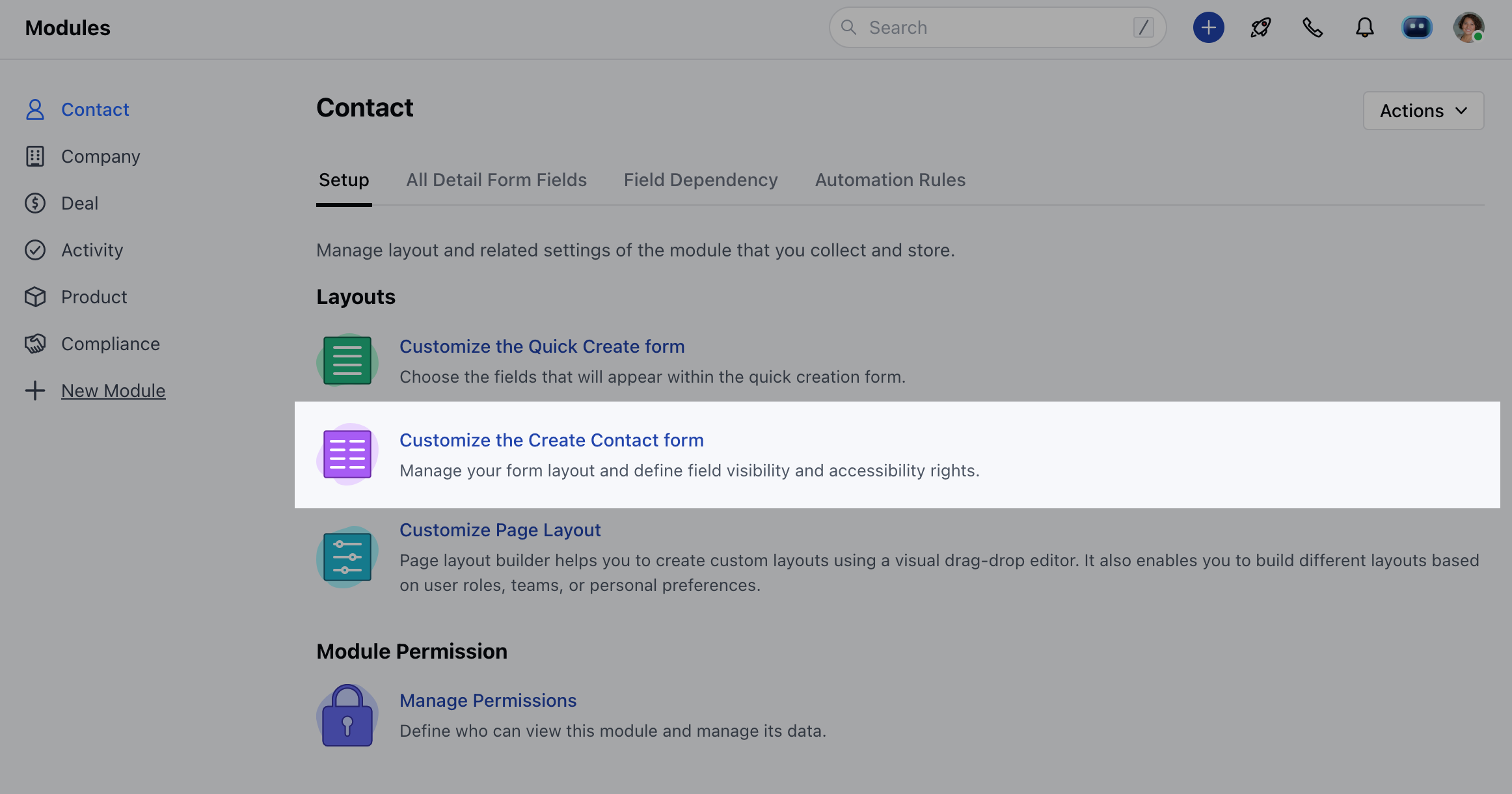
- Click on Customize the Create Module Form under Layout
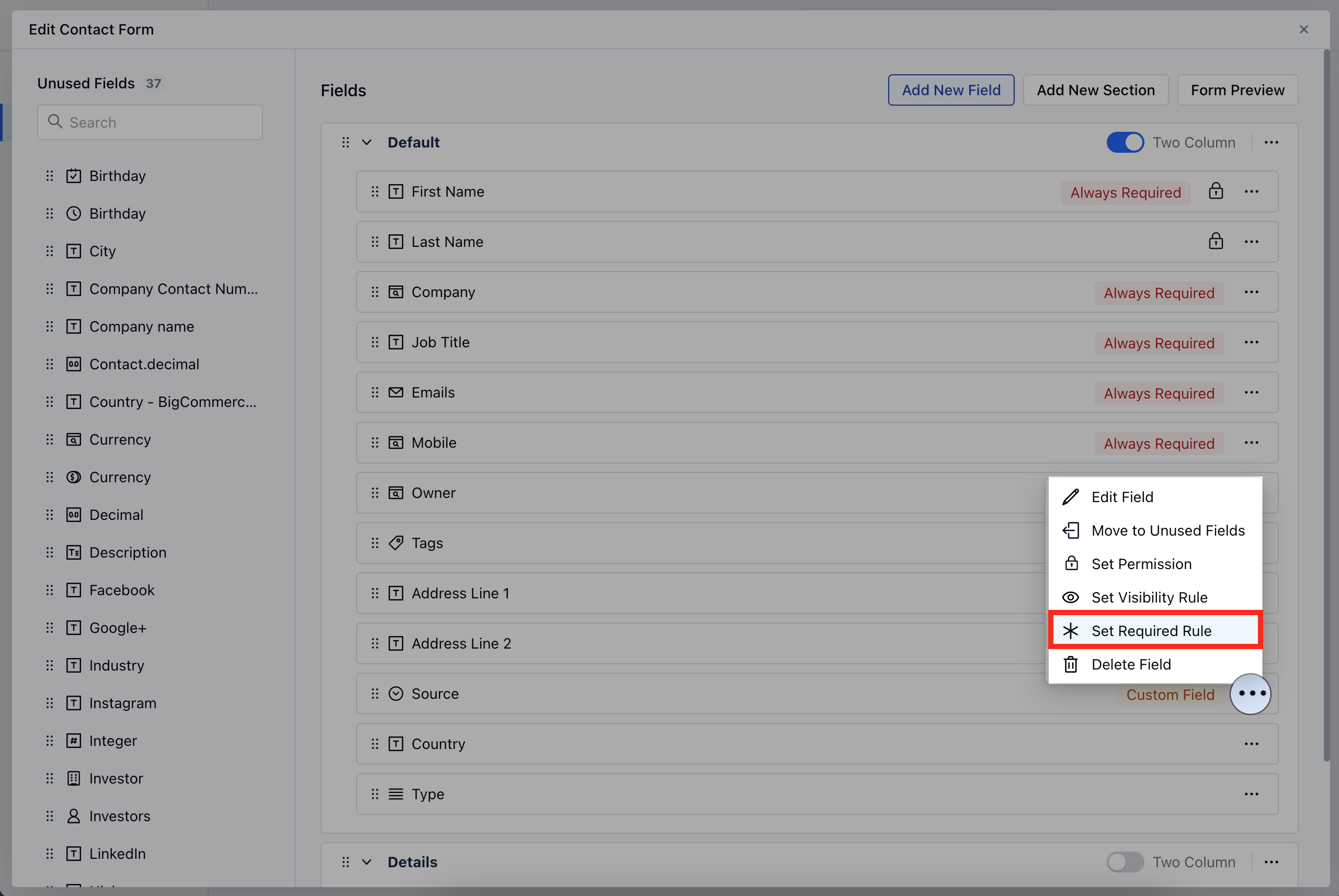
- Choose the field for which you wish to Set the Required Rule, then click on the three dots located at the corner
- Click on the Set Required Rule option
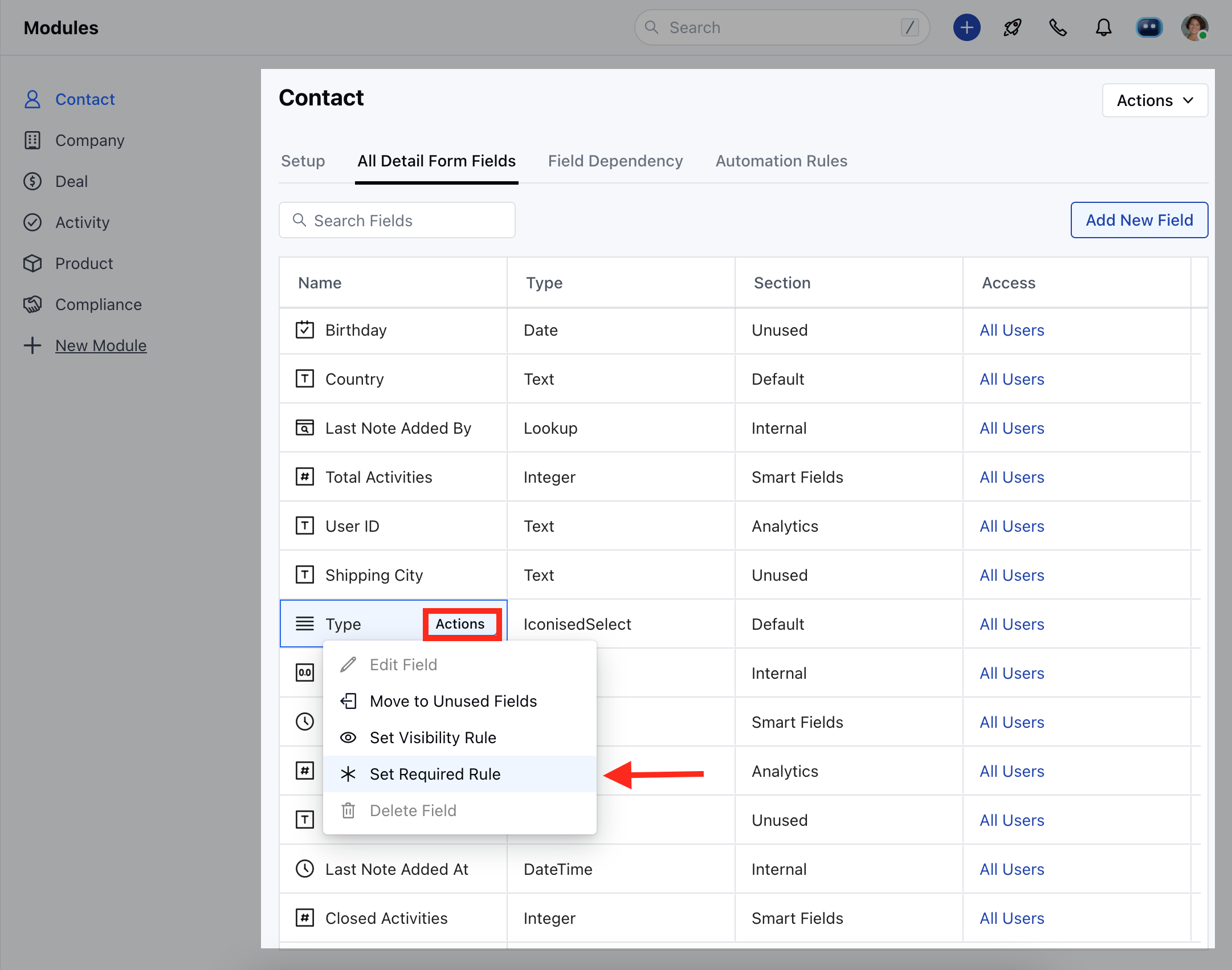
- Go to All Detail Form Field Section
- To Set the Required Rule for a field, hover over the field you wish to modify and click on the Actions button.
- Click on the Set Required Rule option
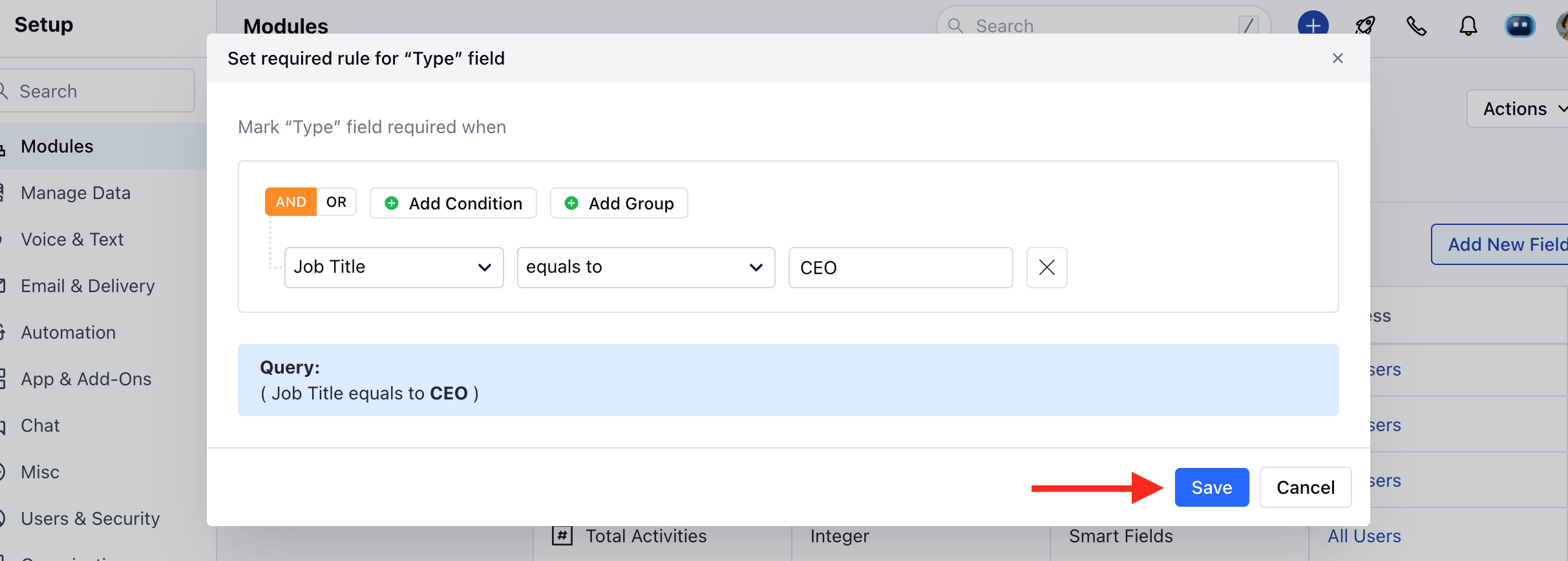
- Set the Required Criteria
- Once the condition is set, hit Save.
Note: Please Note that a user with Manage Modules permission can configure these settings.