

How to Create New Section for Create Forms
To Create a New Section,- Navigate to the Profile Icon on the top right corner
- Click on Set Up
- Head Over to the Modules Category
- Select the Module(Contact, Company and Ticket Module)
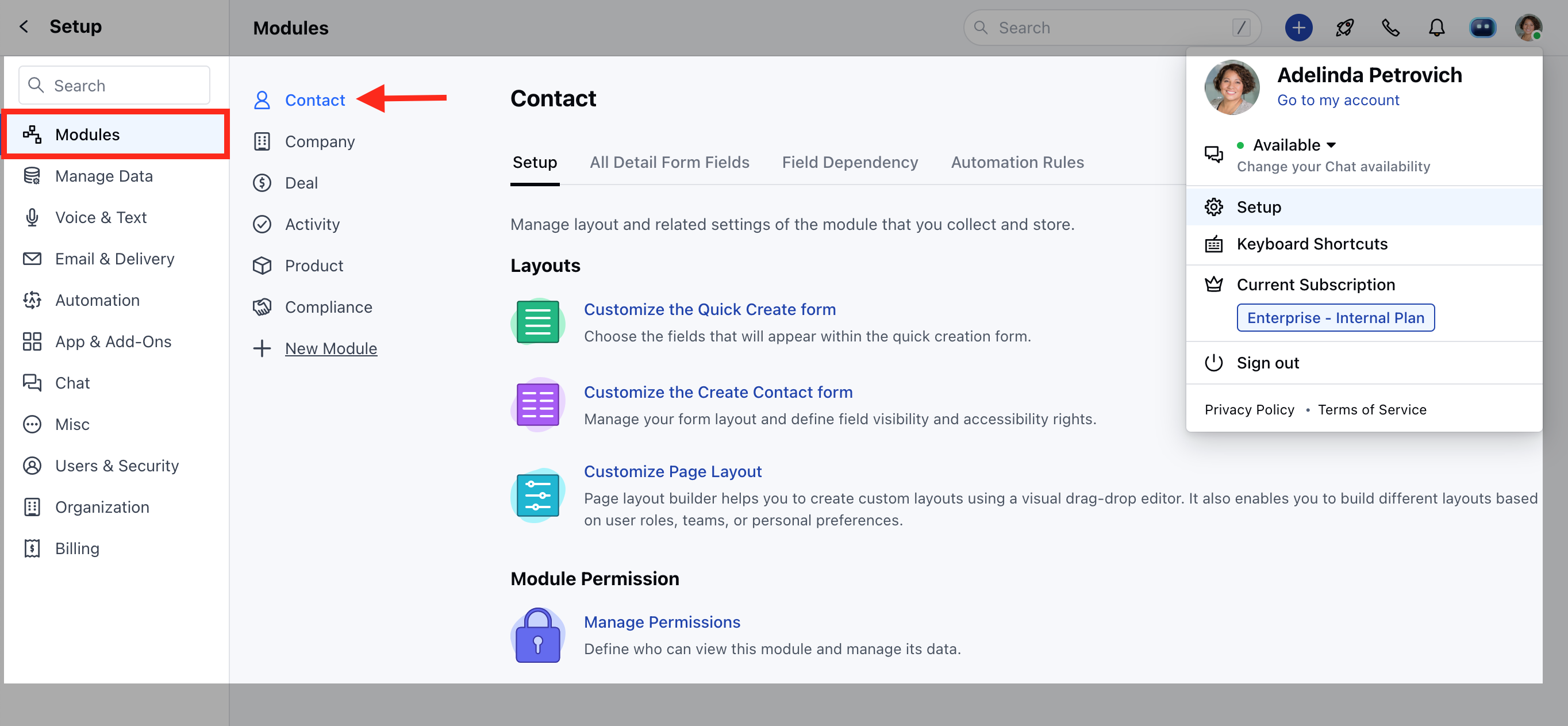
- Click on Customize the Create Module Form under Layout
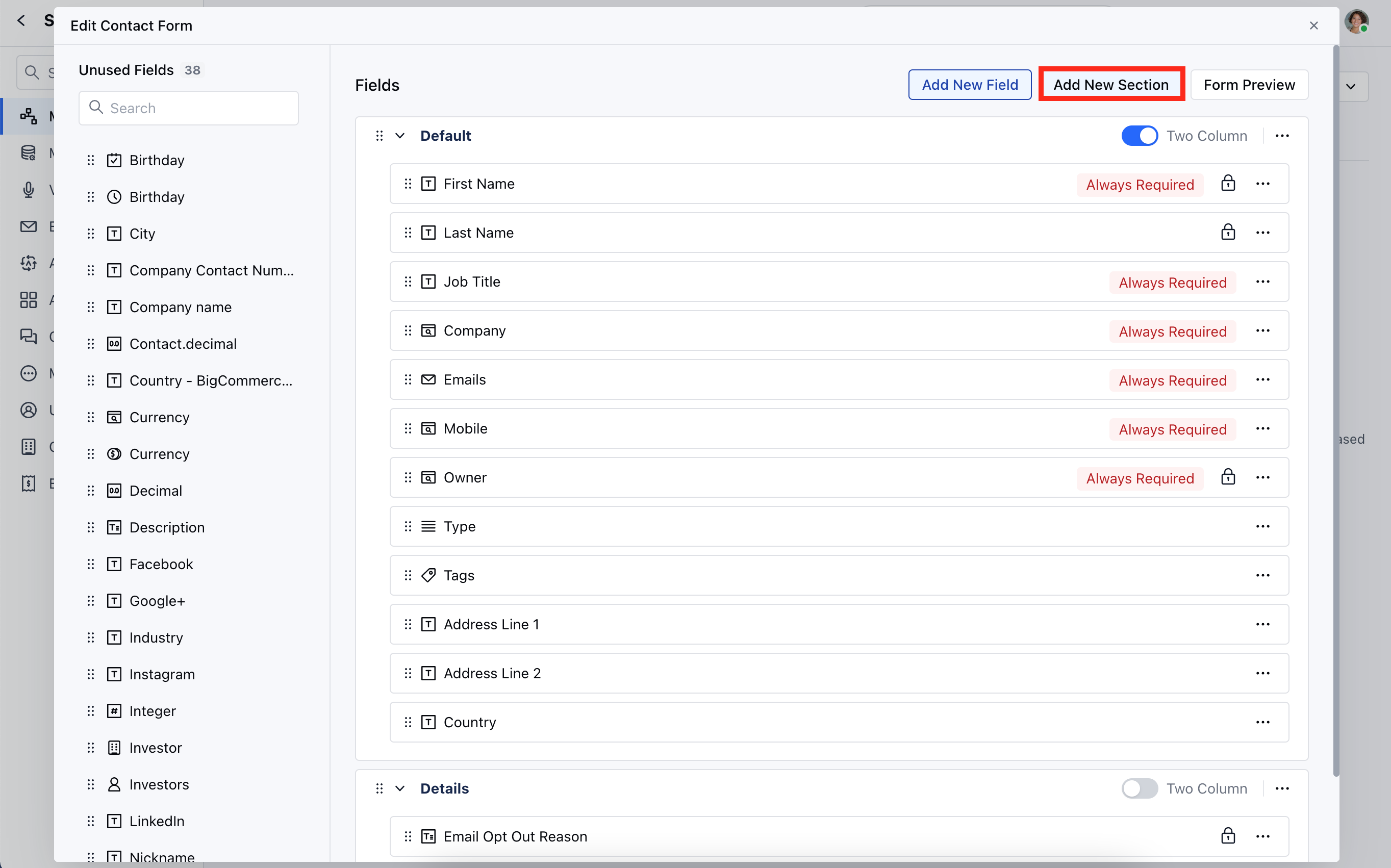
- You can add a new section by clicking on the button “Add new section” displayed at the top right corner of the screen.
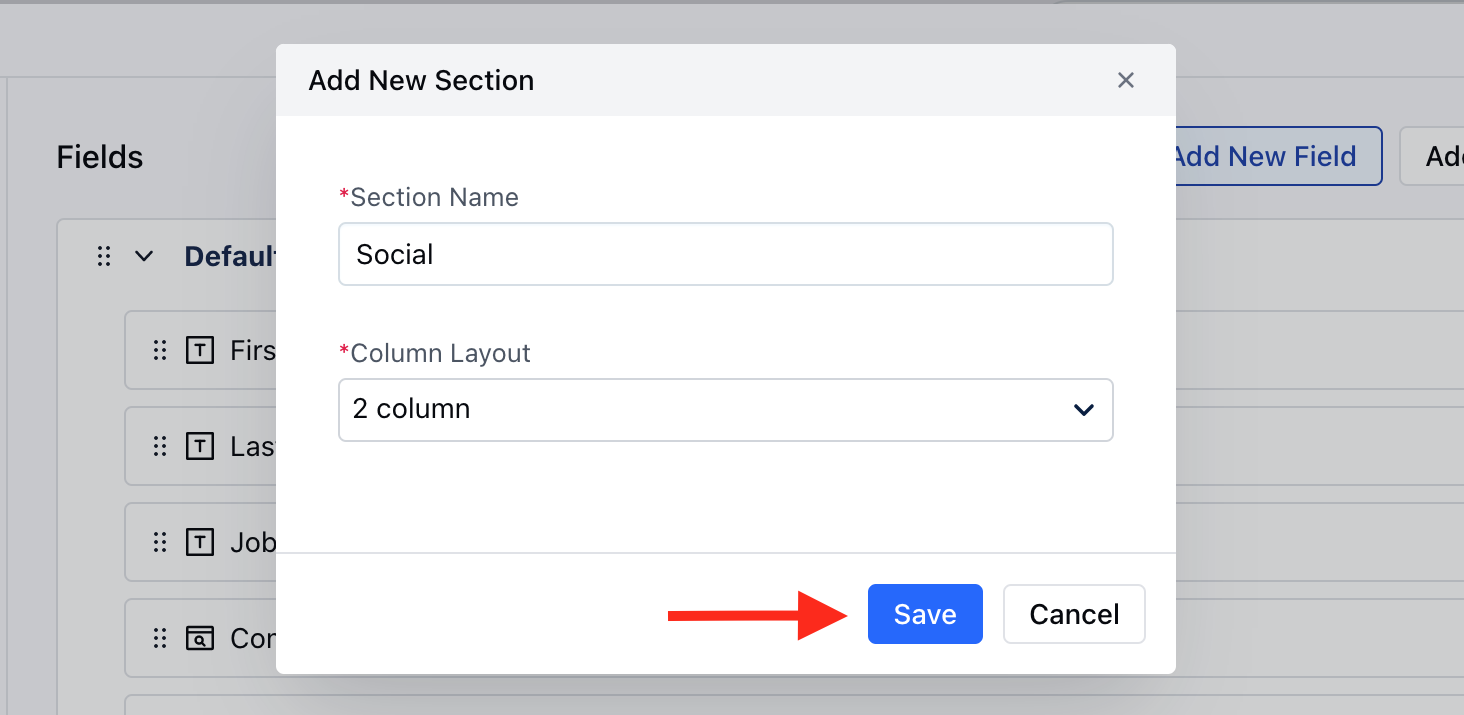
- A popup will appear, where you need to provide the following details:
- Section Name
- Column Layout
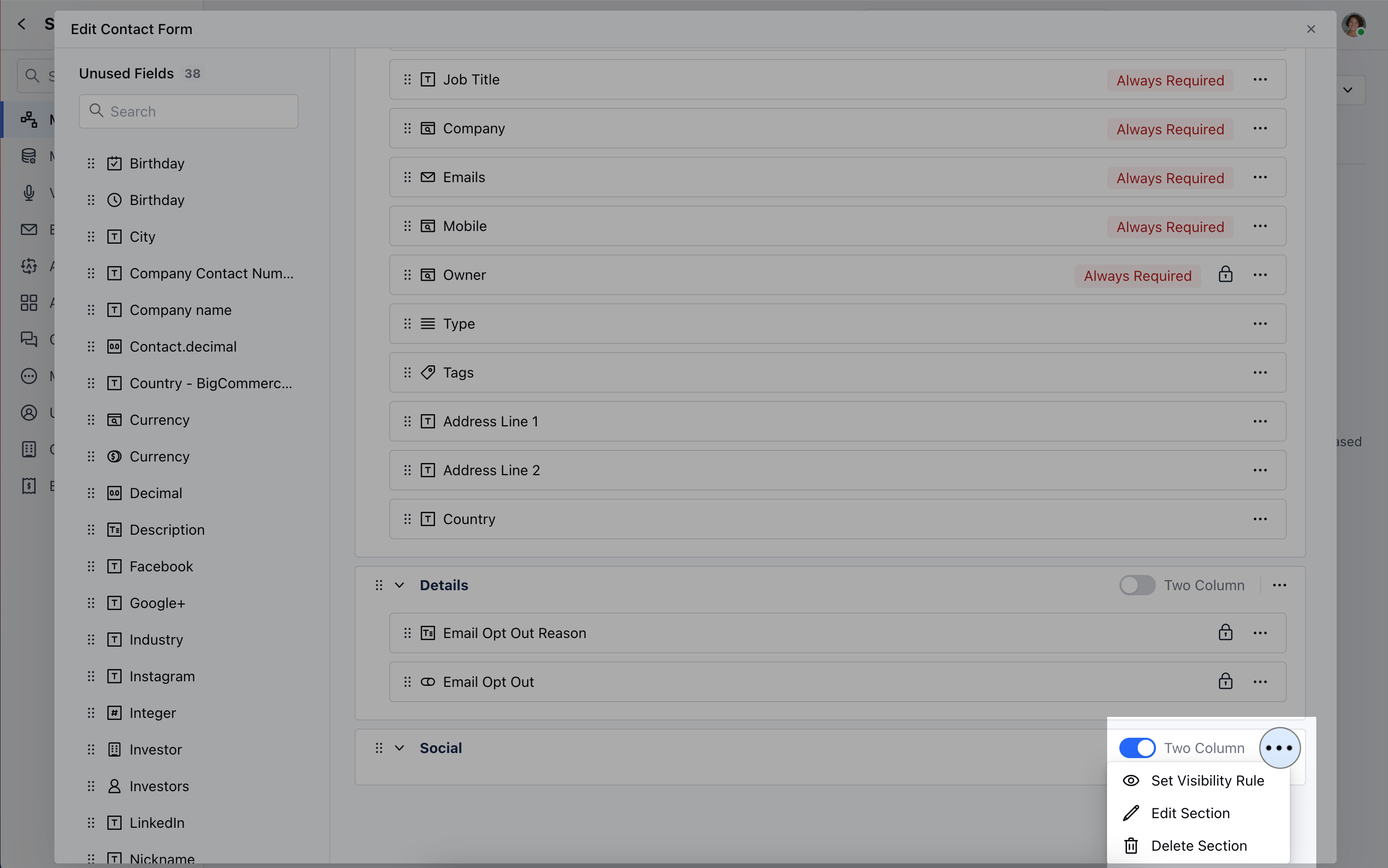
- You can easily adjust the column layout of the section by toggling the “Two Columns” button.
- Additionally, you can perform other actions on the section by clicking on the three dots:
- Set Visibility Rule : Define when this section should be visible based on specific conditions.
- **Edit Section : **Rename the section or change its column structure (one or two columns).
- **Delete Section : **Remove the section and its fields will be moved to the unused fields section.
Note:
- If the visibility rule is set on the section, then a tag would appear on the section that says “Conditional Visibility”.
- You cannot delete a section if it contains any locked or required fields.
- You cannot delete a section if it contains any fields that have been used as a condition for visibility or required rules of other fields or contain any of the primary fields.