

To Customize the Sidebar,
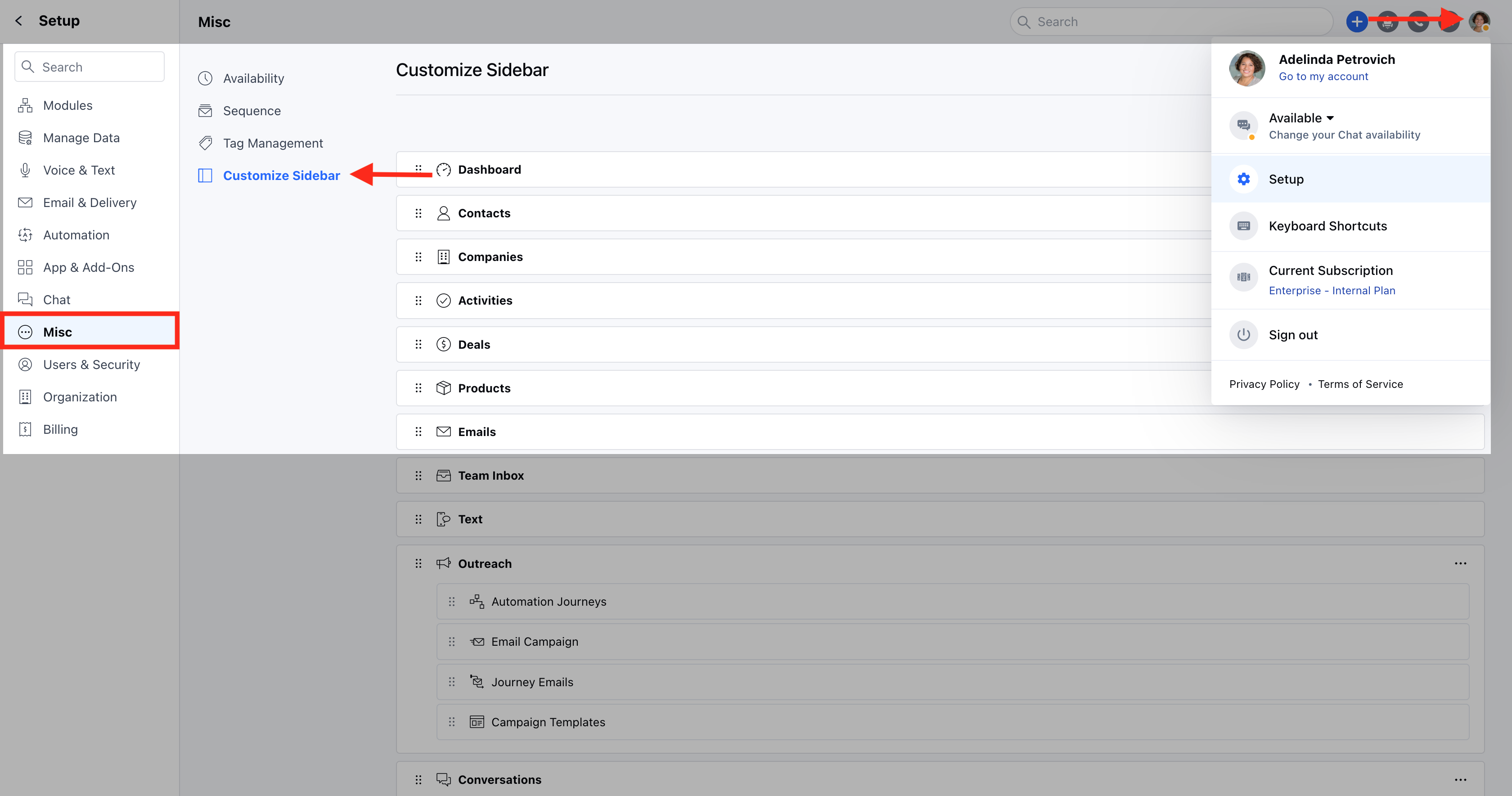
- Navigate to the Profile Icon in the top right corner.
- Click on Set-Up
- Head over to the Misc category
- Select the Customize Sidebar option
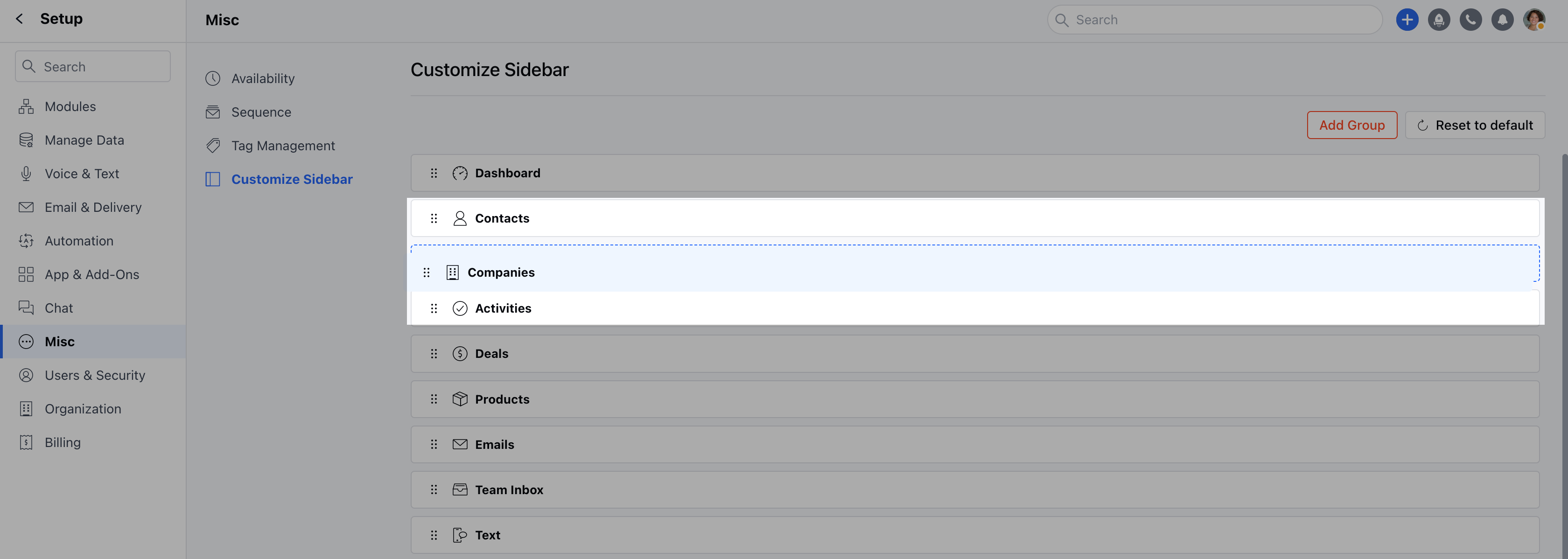
- Here you can change the order of the Module with simple drag and drop.
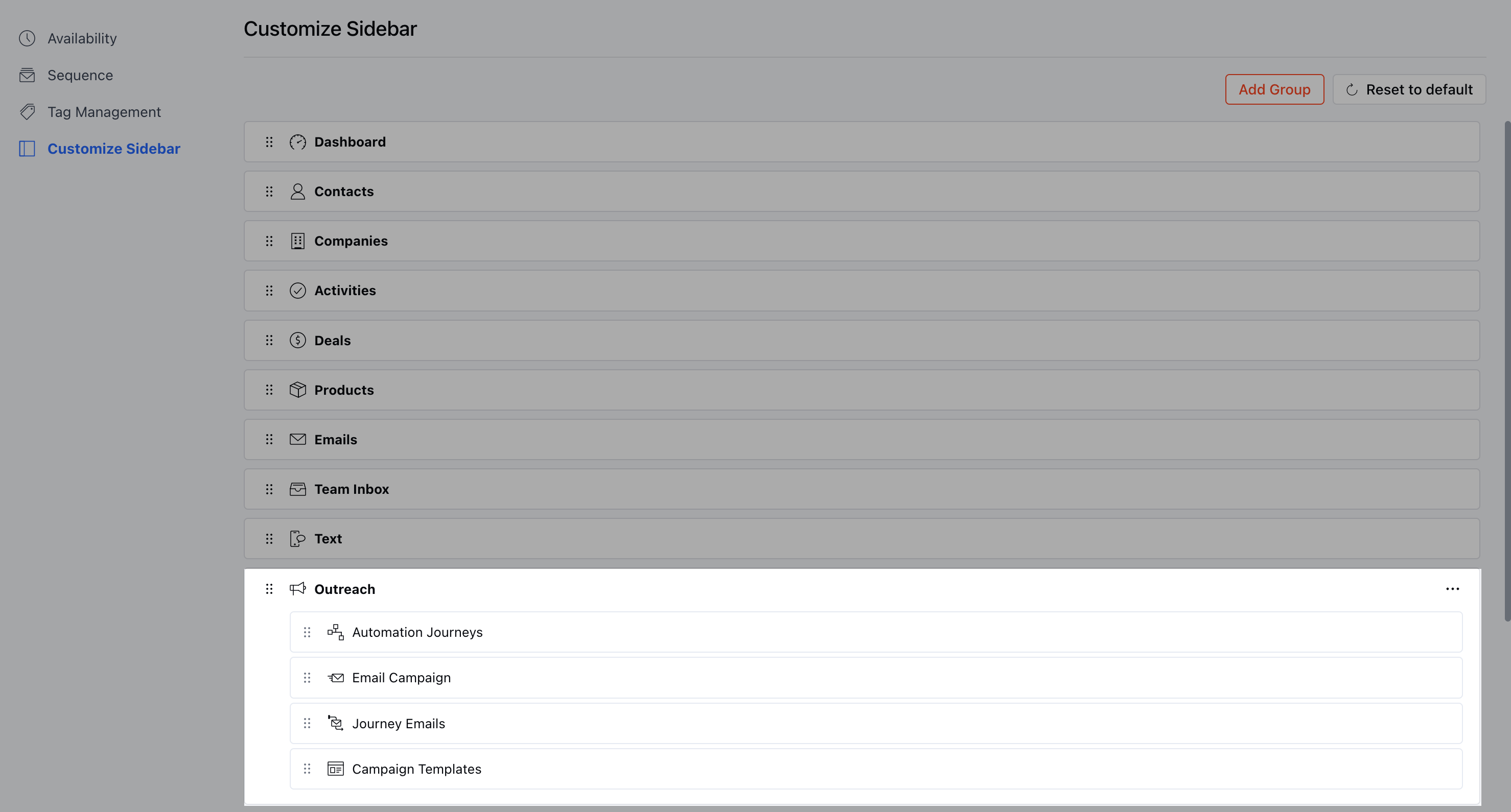
- The Option in a Sidebar with multiple options is called a Group.
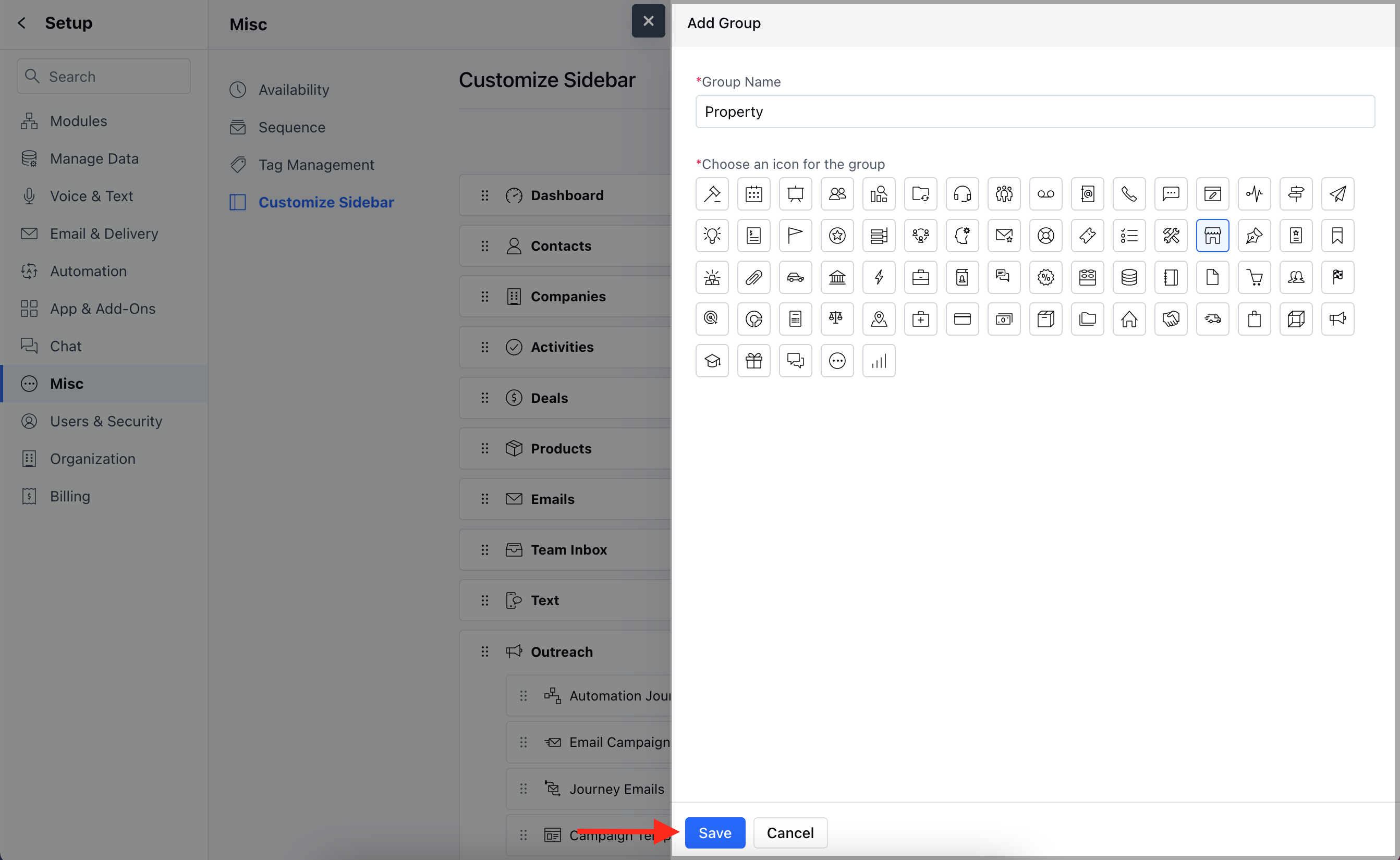
- You can create a new group from the Add Group option mentioned in the top right.

- Enter the appropriate Group Name and select the Group Icon.
- Click on Save.
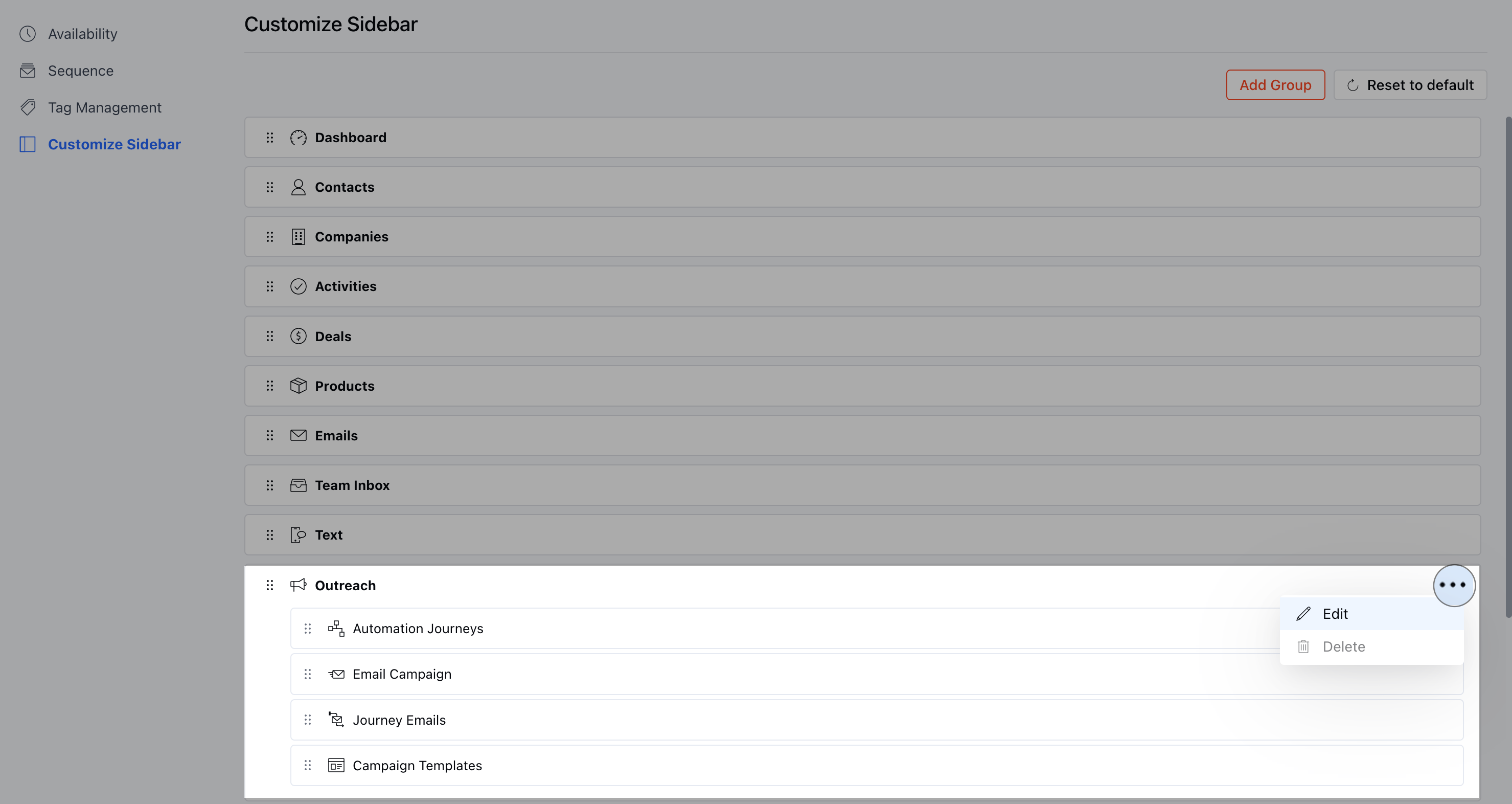
- You can Edit the Group by clicking on the three dots given in the top right corner of any Group.
- Select the Edit option
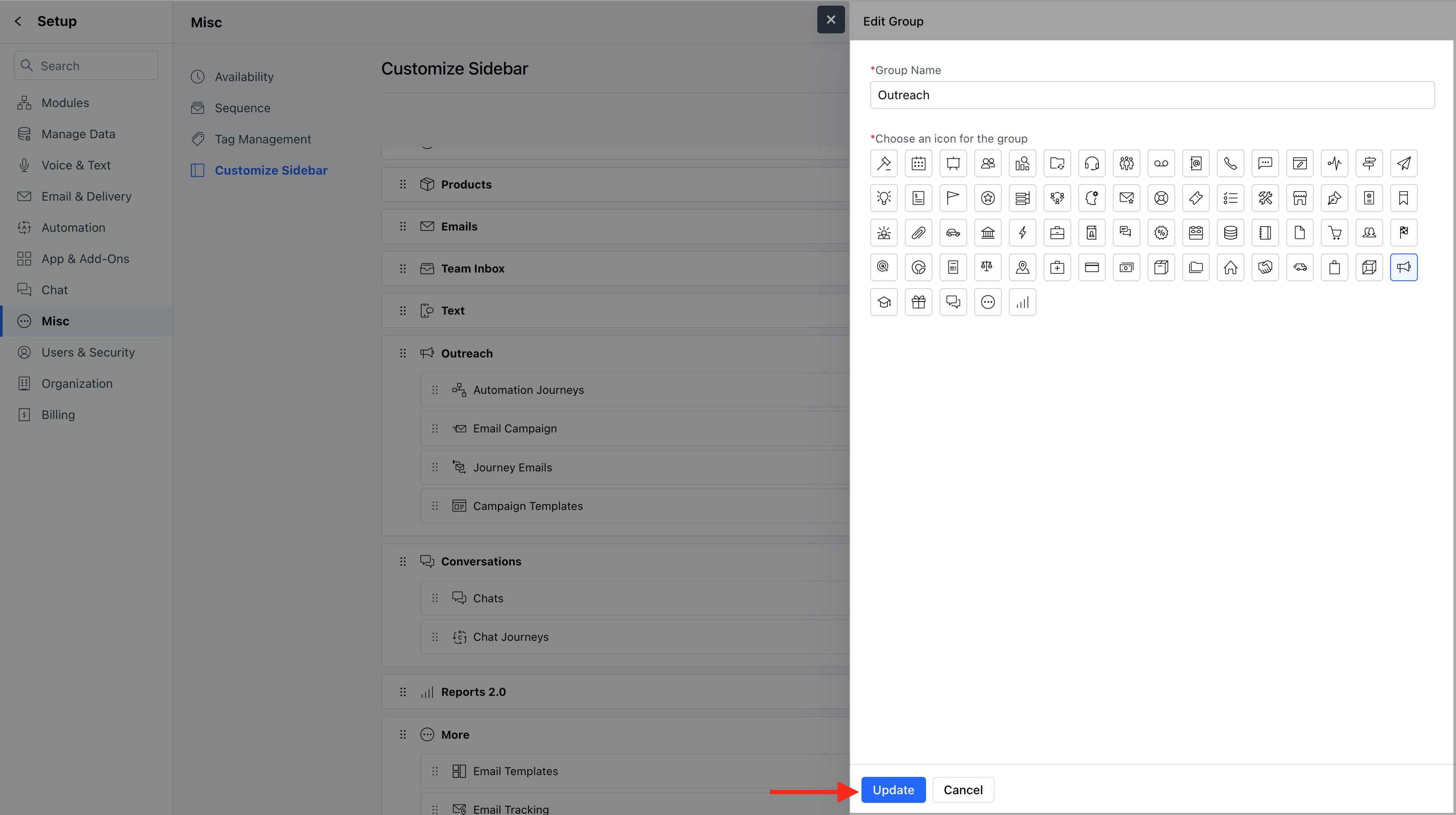
- You can Edit the Group Name and the Group Icon, followed by an Update.
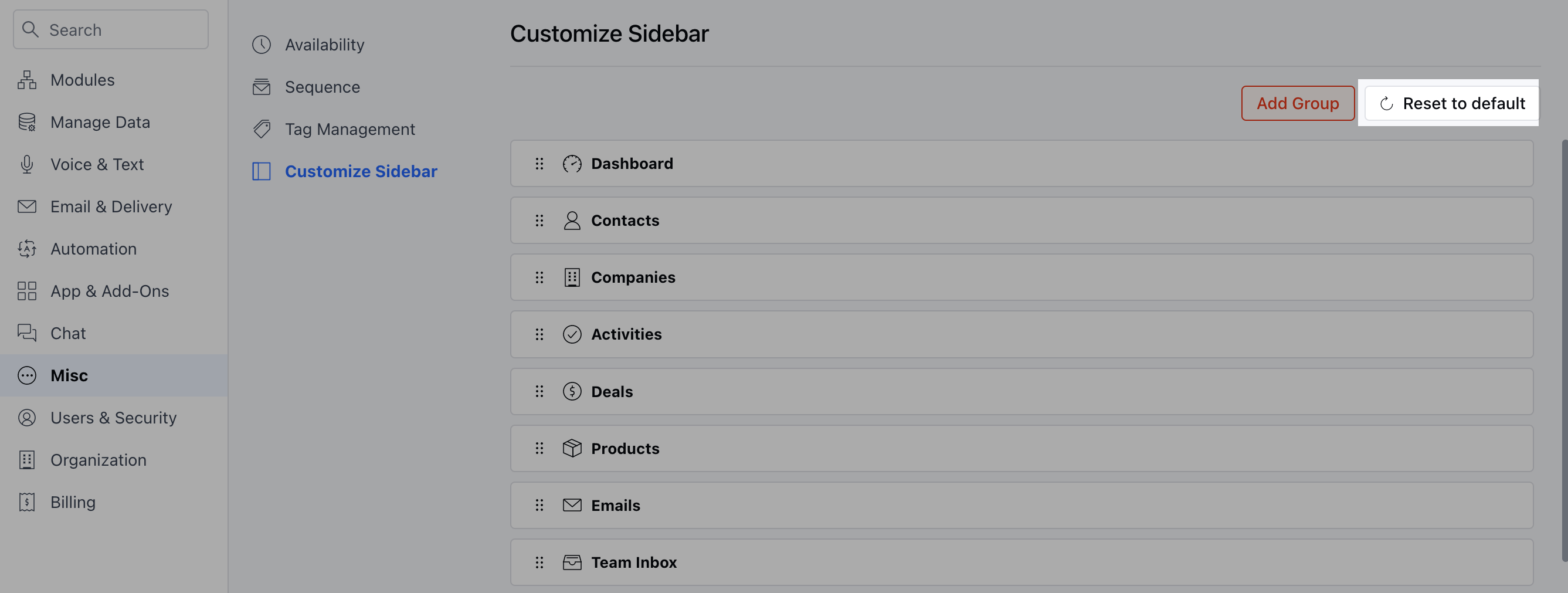
- If you want to reset the order of the menu items to the system default, then click on “Reset to default”.
Note: You cannot delete a group that contains any menu items inside it, the option to delete will be shown disabled.