- The Send Internal Email Action allows you to automate internal notifications by sending an email to Users or Team within your organization.
Topics covered:
How to Configure Send Internal Email Action
When setting up a Smart Flow, select the Send Internal Email action.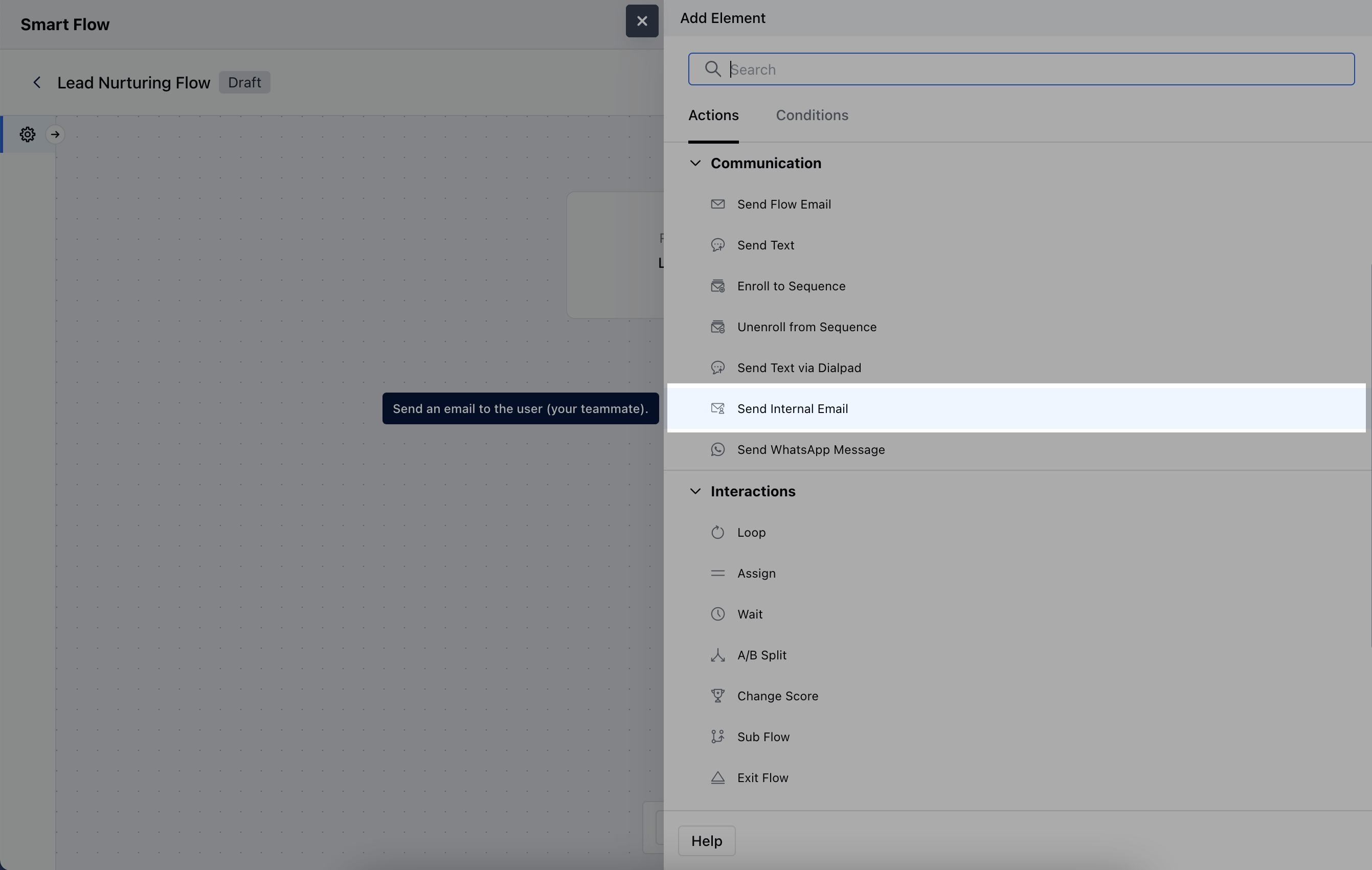
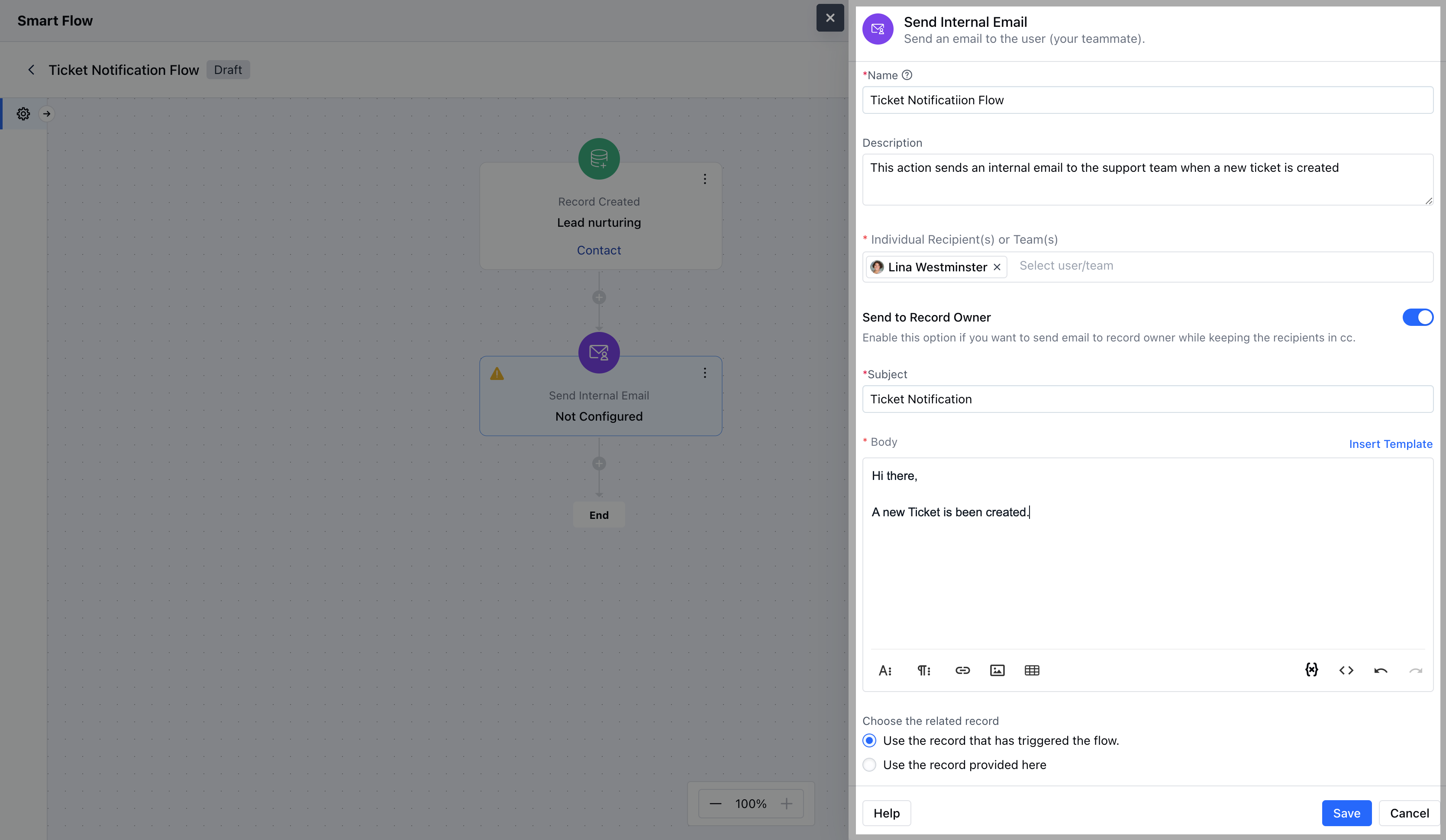
- Description: Provide a brief overview of what the email is intended to achieve within the flow.
- Individual Recipient(s) or Team(s): Specify the User or Team who will receive the internal email.
- Send to Record Owner: Choose to send the email to the owner of the associated record.
- Subject: Provide a clear and relevant subject line that captures the purpose of the email.
- Body: Either manually enter the email content or select from predefined templates.
- Choose the Related Record: This option allows you to associate the email with a specific record in your system.
- Use the record that has triggered the flow: Automatically link the email to the record that initiated the flow.
- Use the record provided here: Manually select a different record to associate with the email, rather than the one that triggered the flow.Once the configuration is completed, hit on Save.
Practical Example
Considering this use case where you want to notify your teammate when a deal is created and you have a specific E-mail template configured to notify them internally.Using this action can help you achieve this use case where this action can be configured when a record/deal is created to send an Internal E-mail to notify them.This can be used to notify a specific User/Record Owner/Team