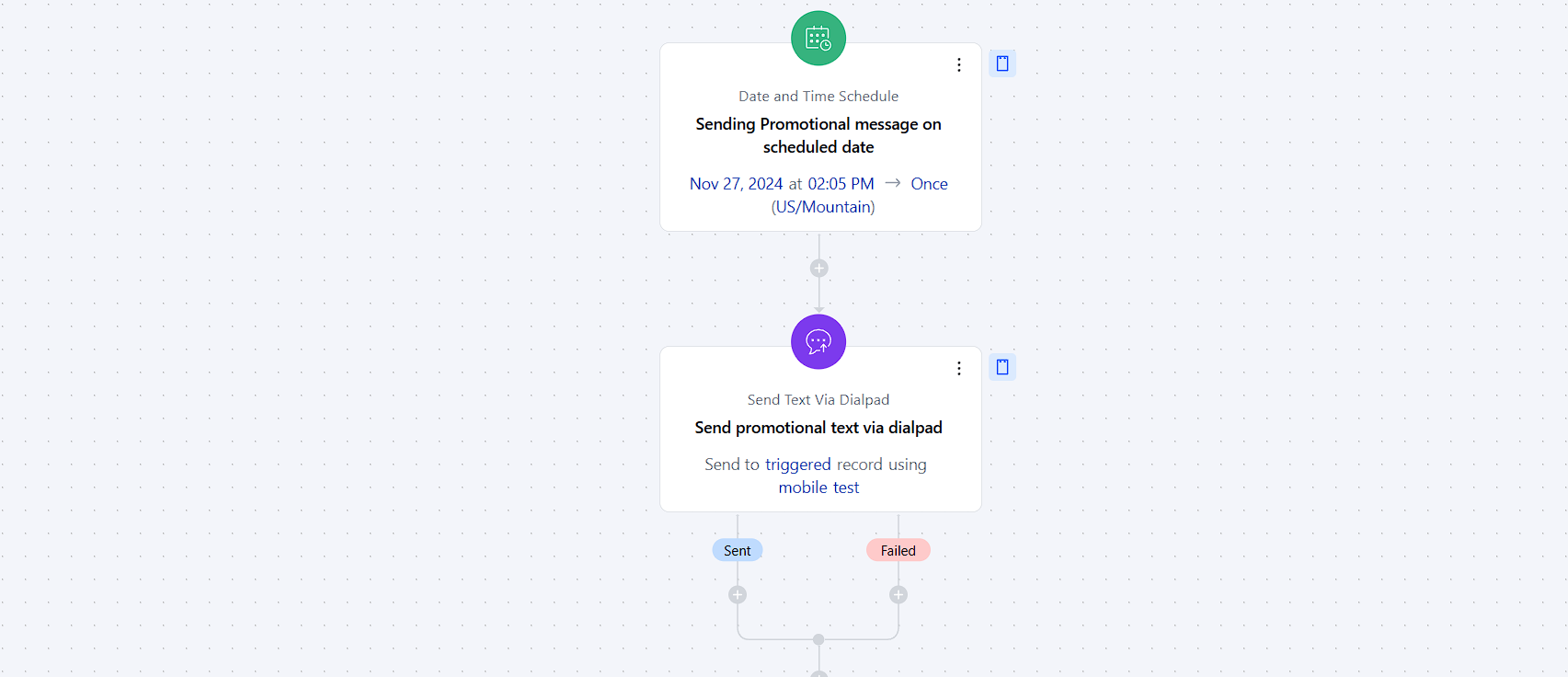
- **This allows you with the possibility of sending ** T **exts via Dialpad ** to your contacts automatically.
Topics covered:
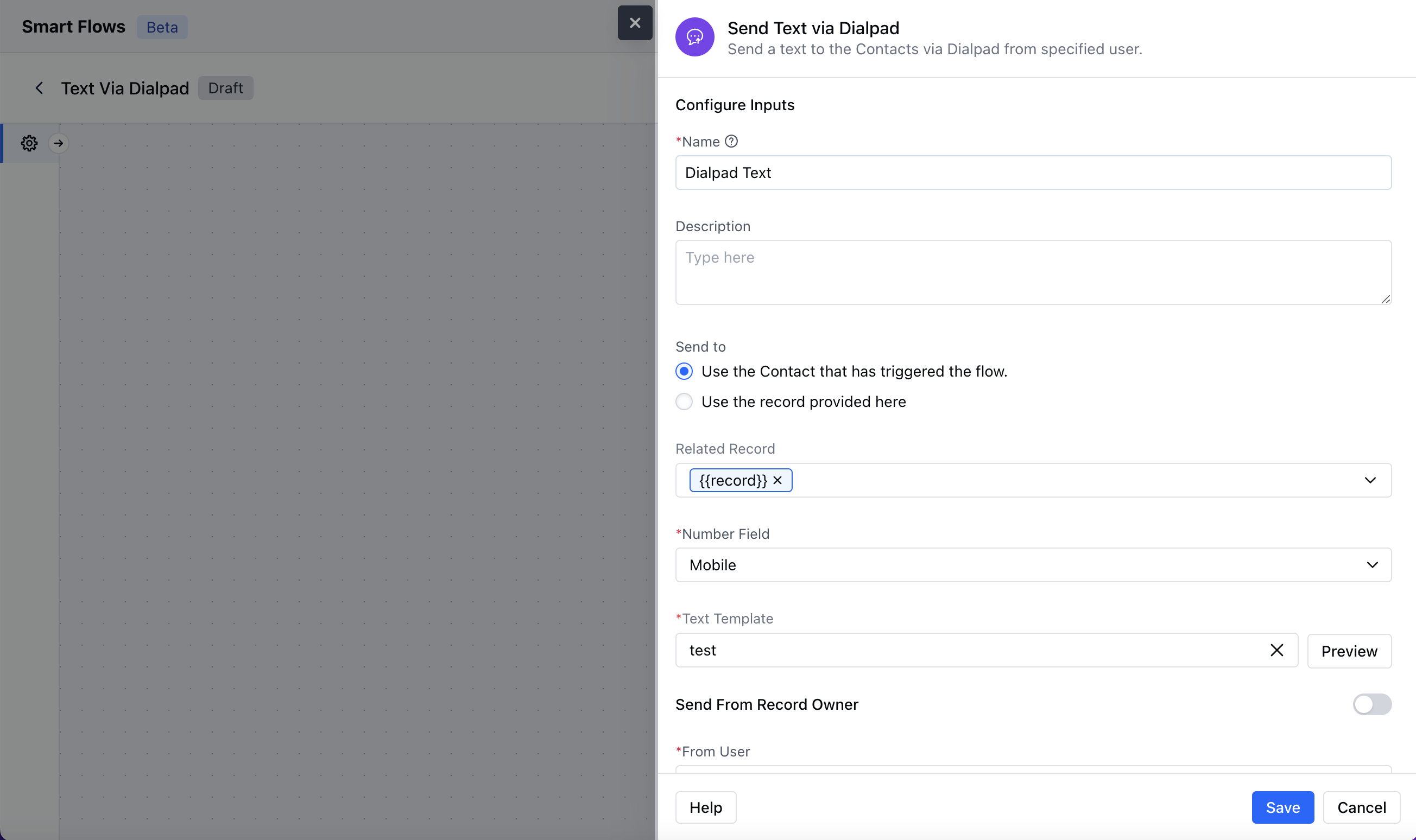
How to configure Send Text Via Dialpad Action
When setting up a Smart Flow, Select the Send Text via Dialpad Action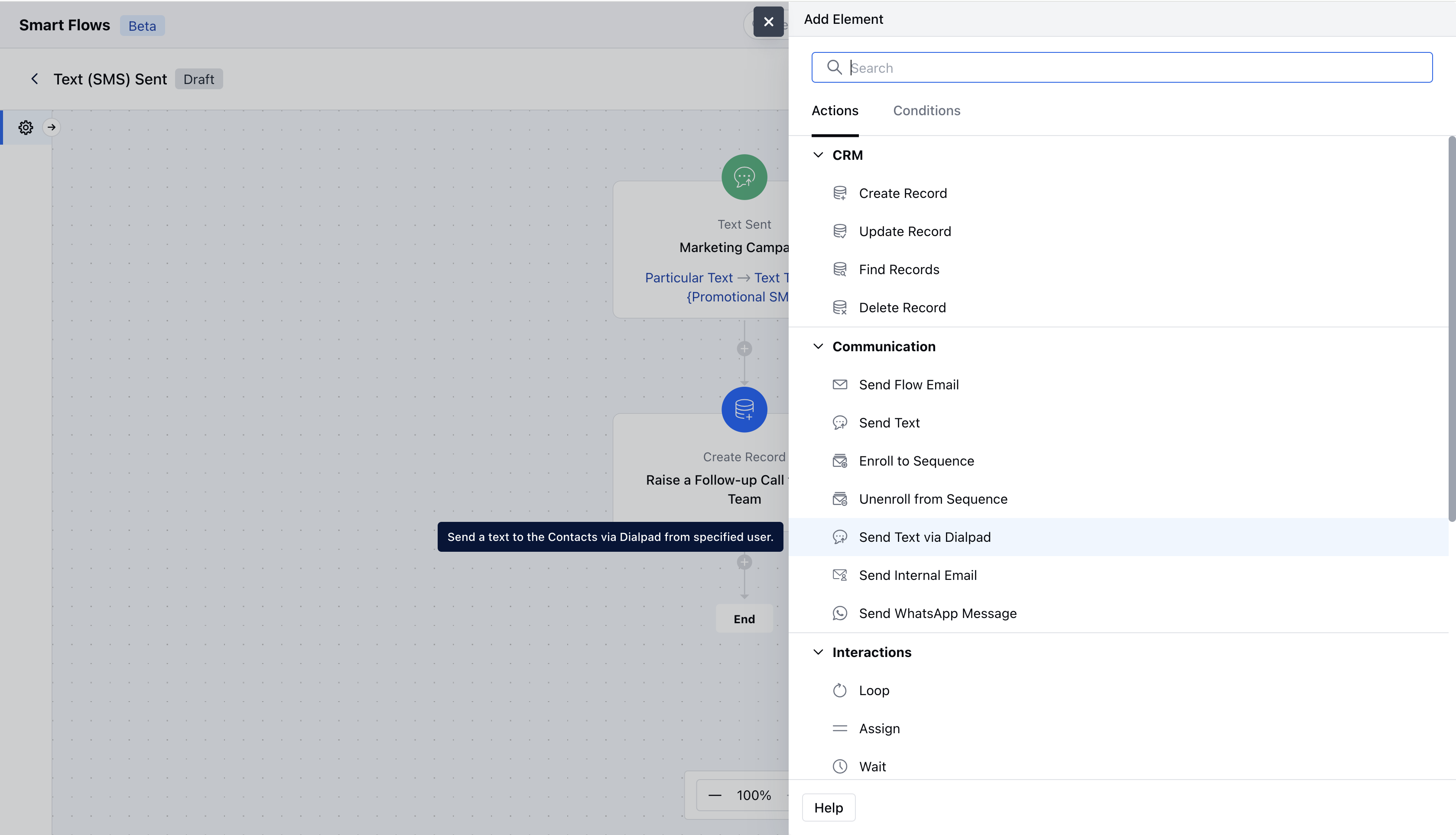
- Description: Give a brief explanation of the action’s function, describing what it will achieve.
- Select Record(s) to Enroll: Determine which records will be enrolled in the sequence. You can either select the contact associated with the flow trigger or manually choose specific records.
- Related Record: Specify any related record to associate with the contact to replace variables in the template Number Field: Select which field given in the record the message should go to. Example Cellphone, Mobile phone.
- Text Template: Select the template which should be sent Sending Configuration: You can choose if the text should be sent from a specific user or it should be sent from the record ownerOnce configuration is completed, hit **Save.
- **###