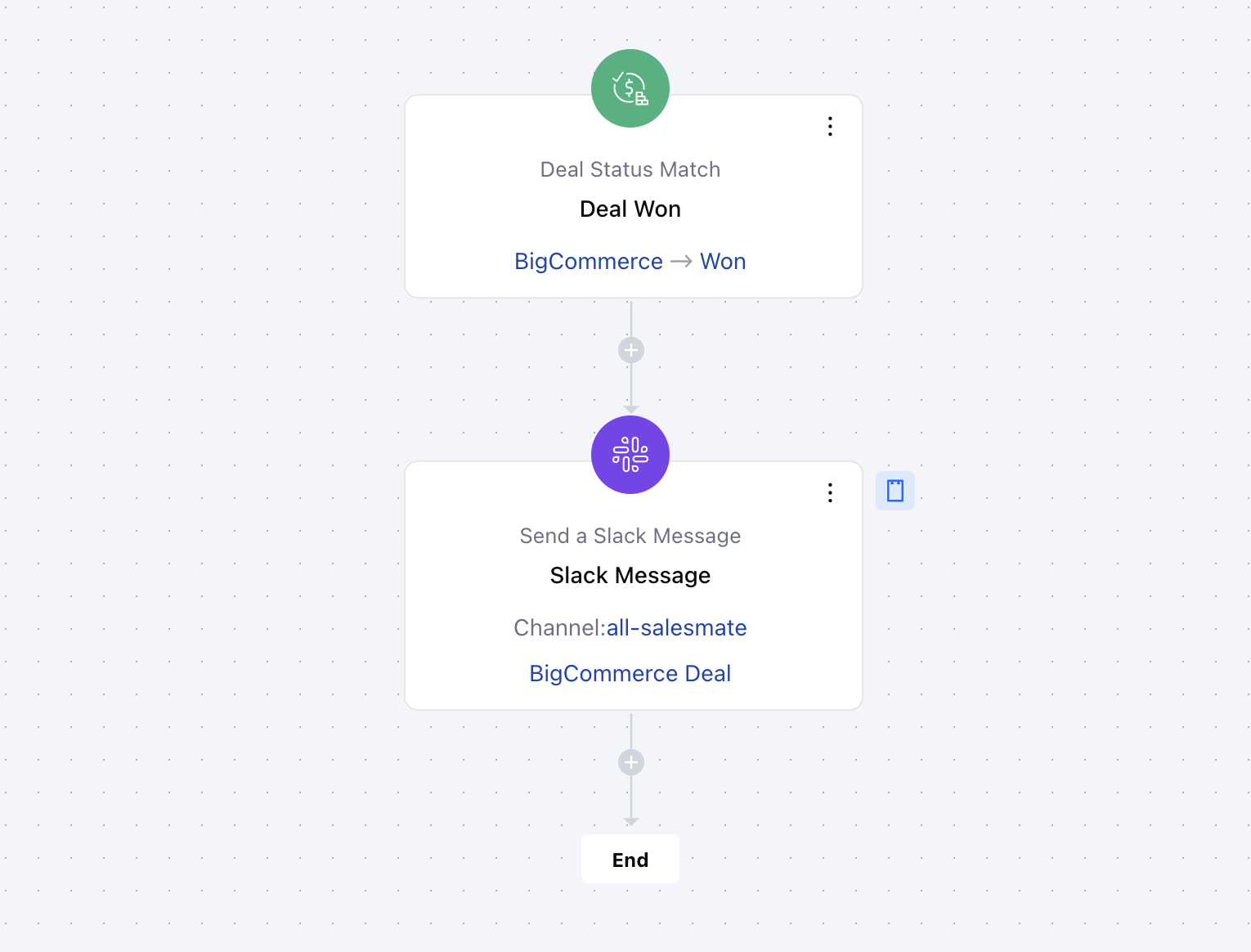
- The “Send a Slack Message” action allows users to automatically send Slack notifications based on predefined conditions. This helps teams stay updated, collaborate efficiently, and respond promptly to important activities.
Topics covered:
How to Configure Send Internal Email Action
When setting up a Smart Flow, select the Send A Slack Message action.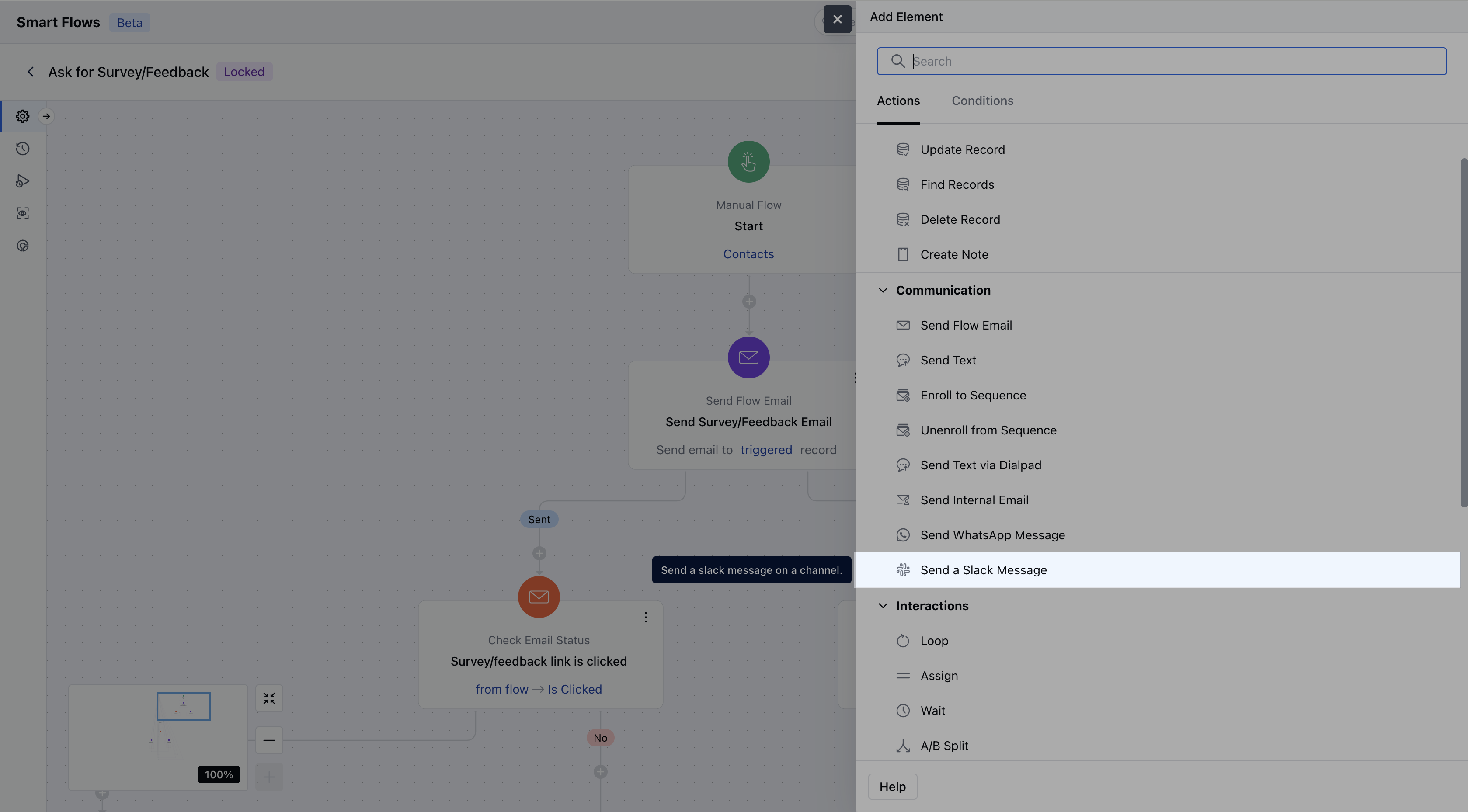
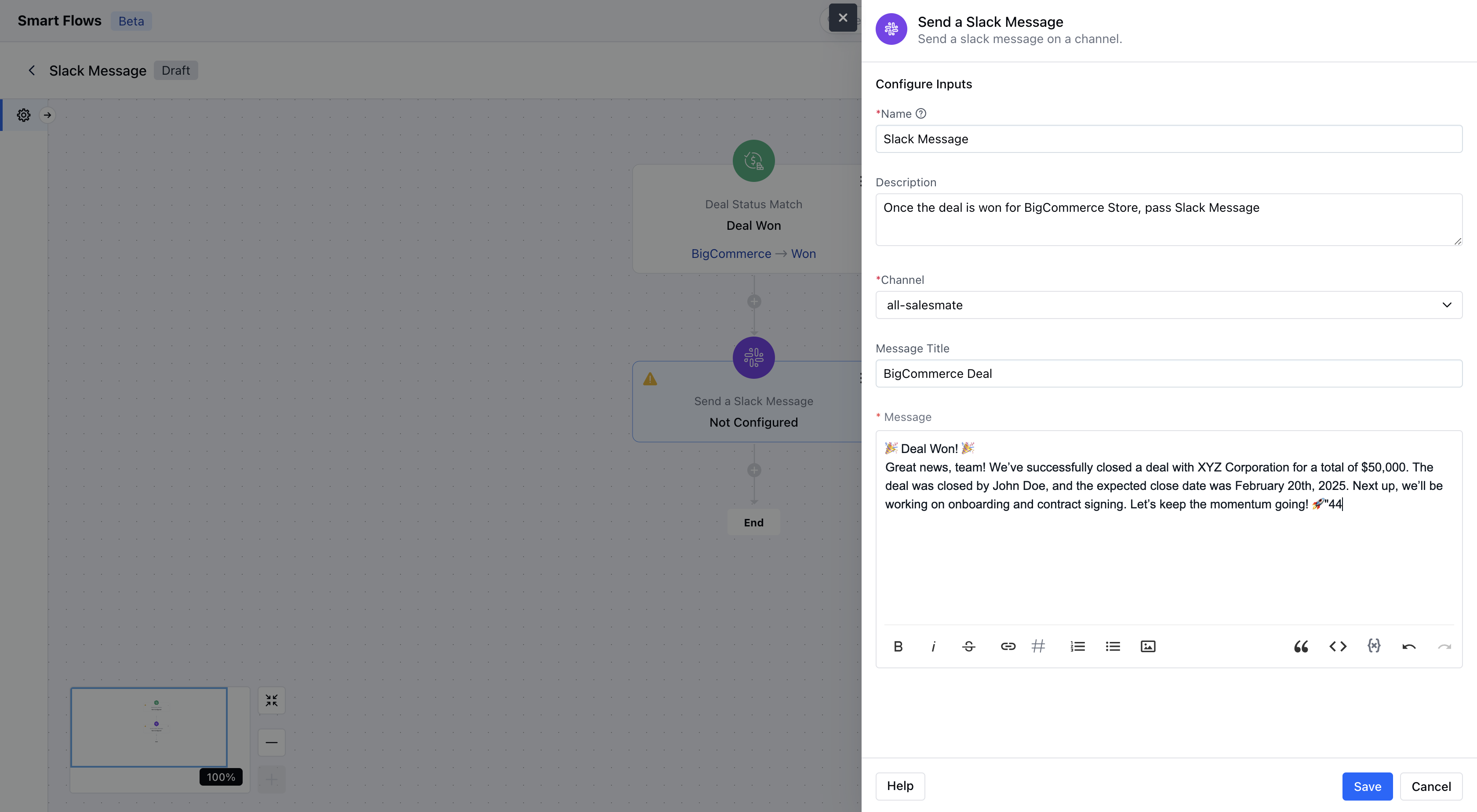
- ** Message Title **: This is an optional field. If you want to add a title to your message, type that here. A maximum of 150 characters is allowed.
- ** Message : Enter the message you wish to send. You can insert flow variables, which will be replaced upon sending, and utilize snippets. The message has a maximum character limit of 2000.Hit Save** to complete the process.
Practical Use Case
When a deal is marked as “Won” in Salesmate, a Slack message is automatically sent to the#sales-wins channel.
- Example Message: