

- Steps to Set Up an Email Received Trigger
- Set Up the Trigger
- Create Parsing Rules
- Data Available in Your Flow
- Practical Use Cases
Steps to Set Up an Email Received Trigger
Navigate to the left S **idebar.- ** Click Smart Flows, then choose Create Flow.
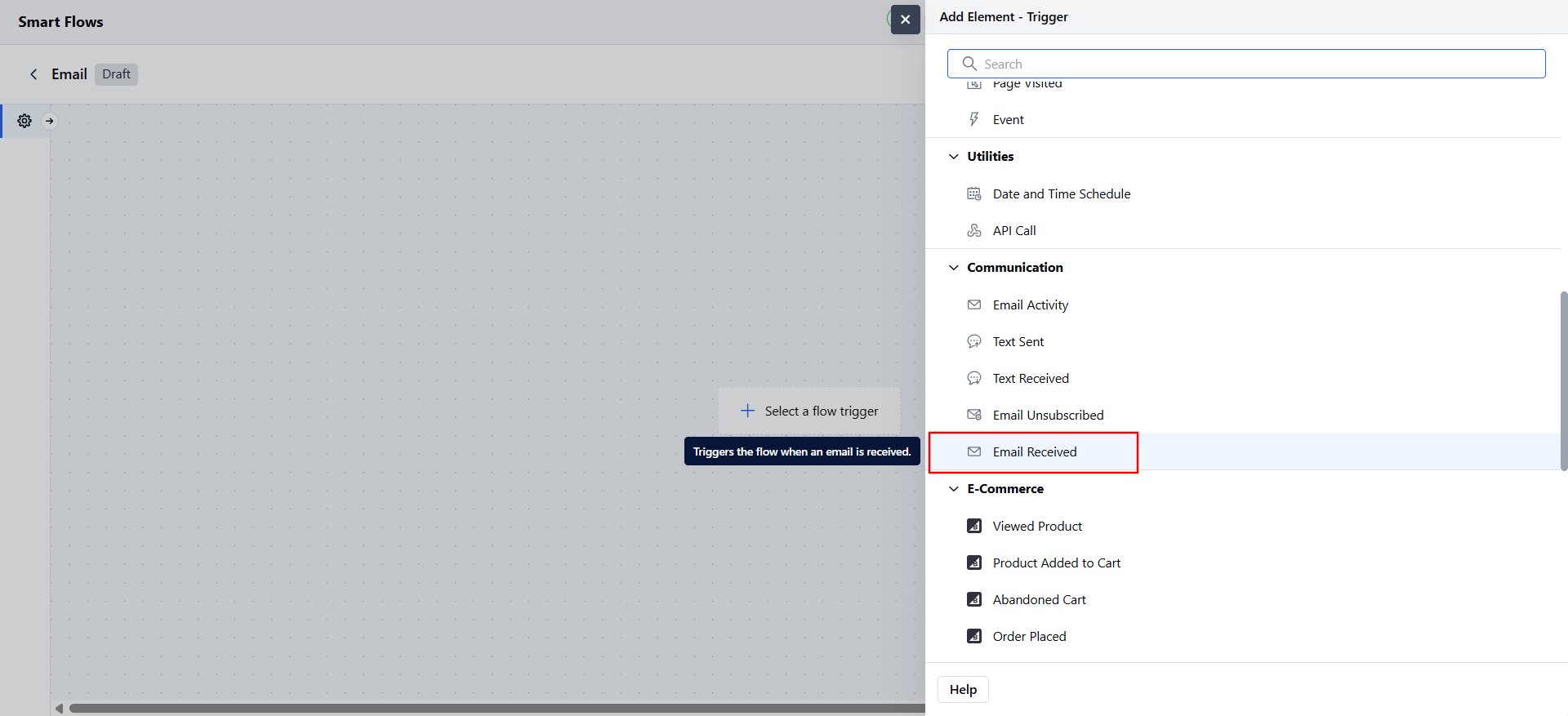
Set Up the Trigger
Here’s what you need to configure:Email Address: You’ll get a custom email address like SF-ER-[yourtext]@yourdomain.salesmate.io.The “SF-ER” part is fixed, but you can pick a custom word (3-20 characters, using letters, numbers, hyphens, or dots).- Name: Give the trigger a name that matches its purpose (e.g., “Order Emails”).
- Description: Add a short note to explain what the trigger does.
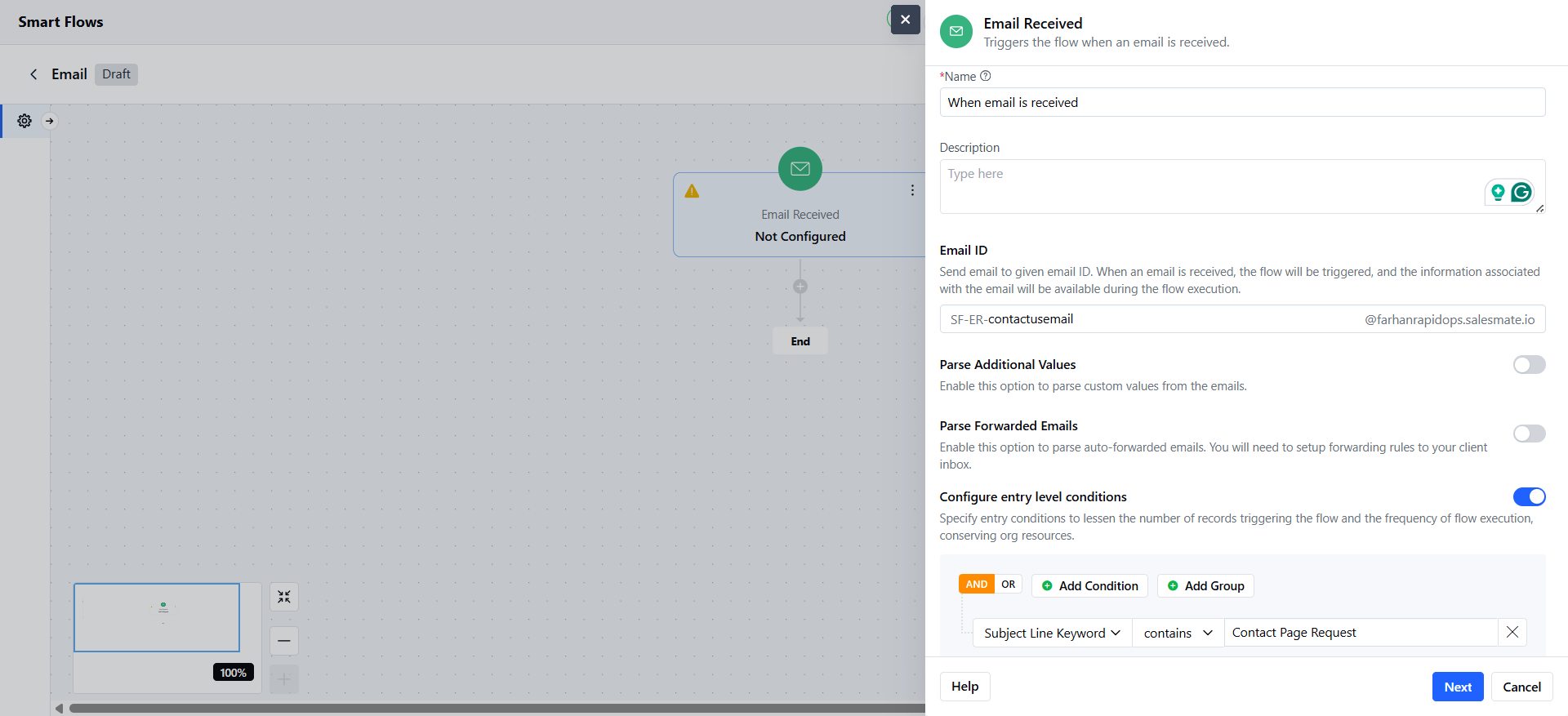
- Parse Additional Values*: Turn this on to pull specific details from the email, like an order number. If enabled, you’ll have to set up parsing rules in the next step.
- Parse Forwarded Emails: Turn this on to grab details like the original sender’s name or email from forwarded messages. You can’t use this if Parse Additional Values is turned on.
- Filter Conditions: Set rules to trigger the flow only for certain emails (e.g., emails with “invoice” in the subject, from a specific sender, or with certain words in the body).
Create Parsing Rules
If you turned on Parse Additional Values, here’s how to set up parsing:Send a Test Email: Send an email to your parser address. You can copy the address from the screen.The system saves the last 3 non-test emails, listed from newest to oldest.- Pick an Email: Choose one email from the list to set up data extraction.
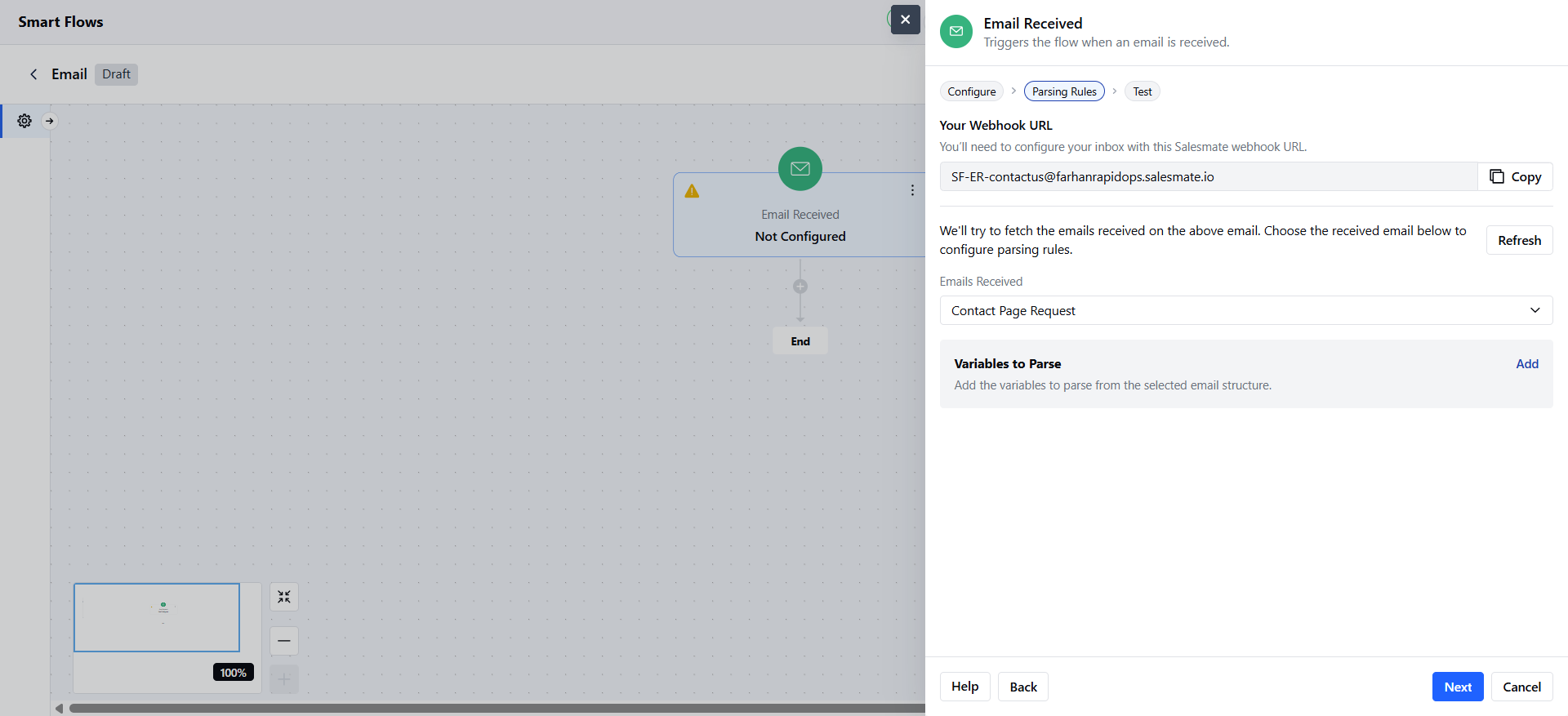
- Map Variables*: Highlight text in the email to extract (e.g., “12345” from “Order ID: 12345”).
- Advanced Options:Extract Part of Text: Pull only part of the highlighted text (e.g., “100.00”).
- DOM Path (CSS Selector): Use a selector to pinpoint data.
- Content Path (XPath): Use a path as a backup.
- Text Position: Set start and end points for the text you want.
- Review Variables: You can see all mapped variables in a list on the right. You can edit or delete them using the X icon. To change mappings, click Modify to update or pick a different email, which re-parses the data.
- Save: Save your variable mappings. You can’t edit variable names later; delete and recreate them if needed.