Topics covered:
How to Configure Event Trigger
While creating the Trigger Based Flows select the Event trigger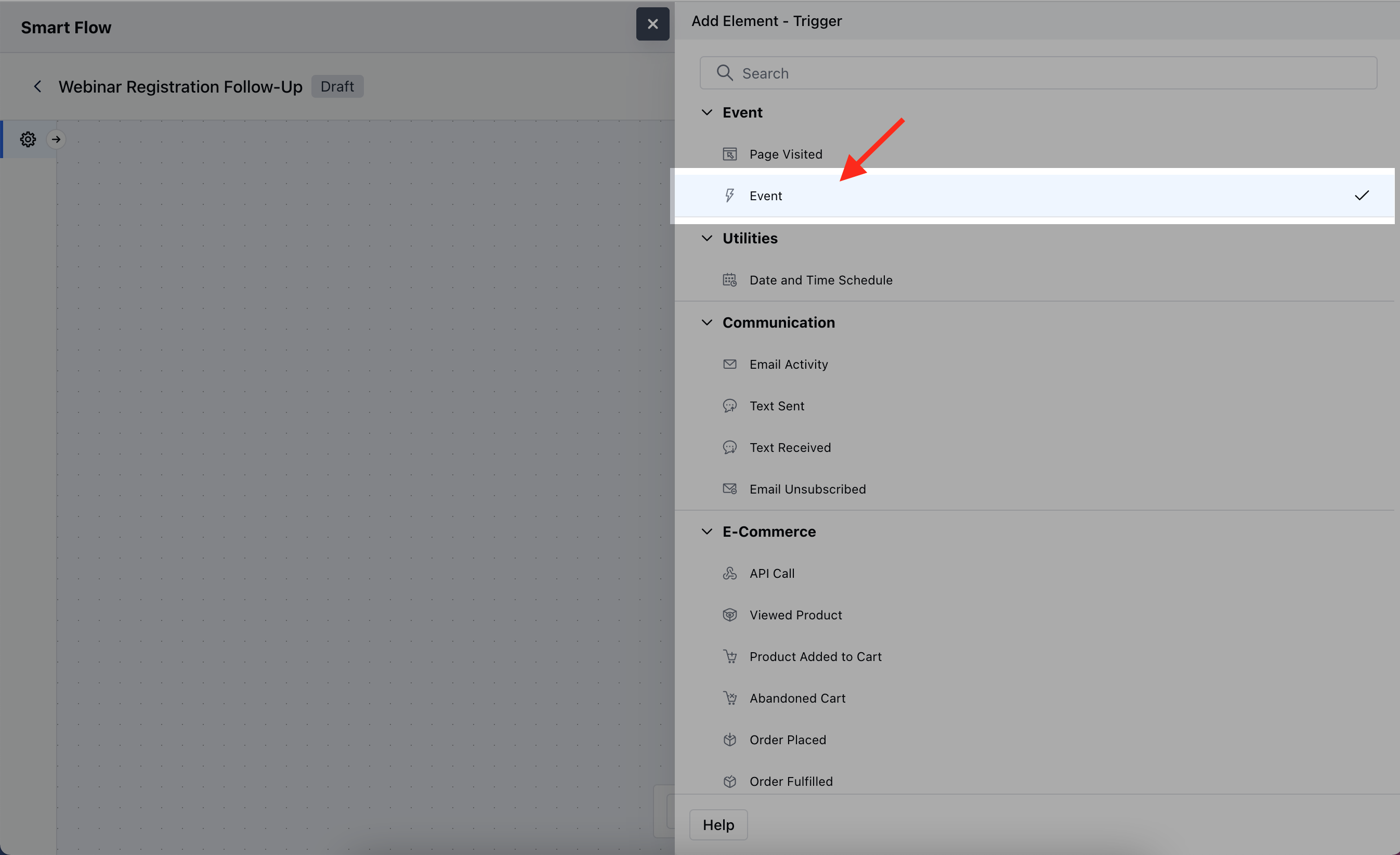
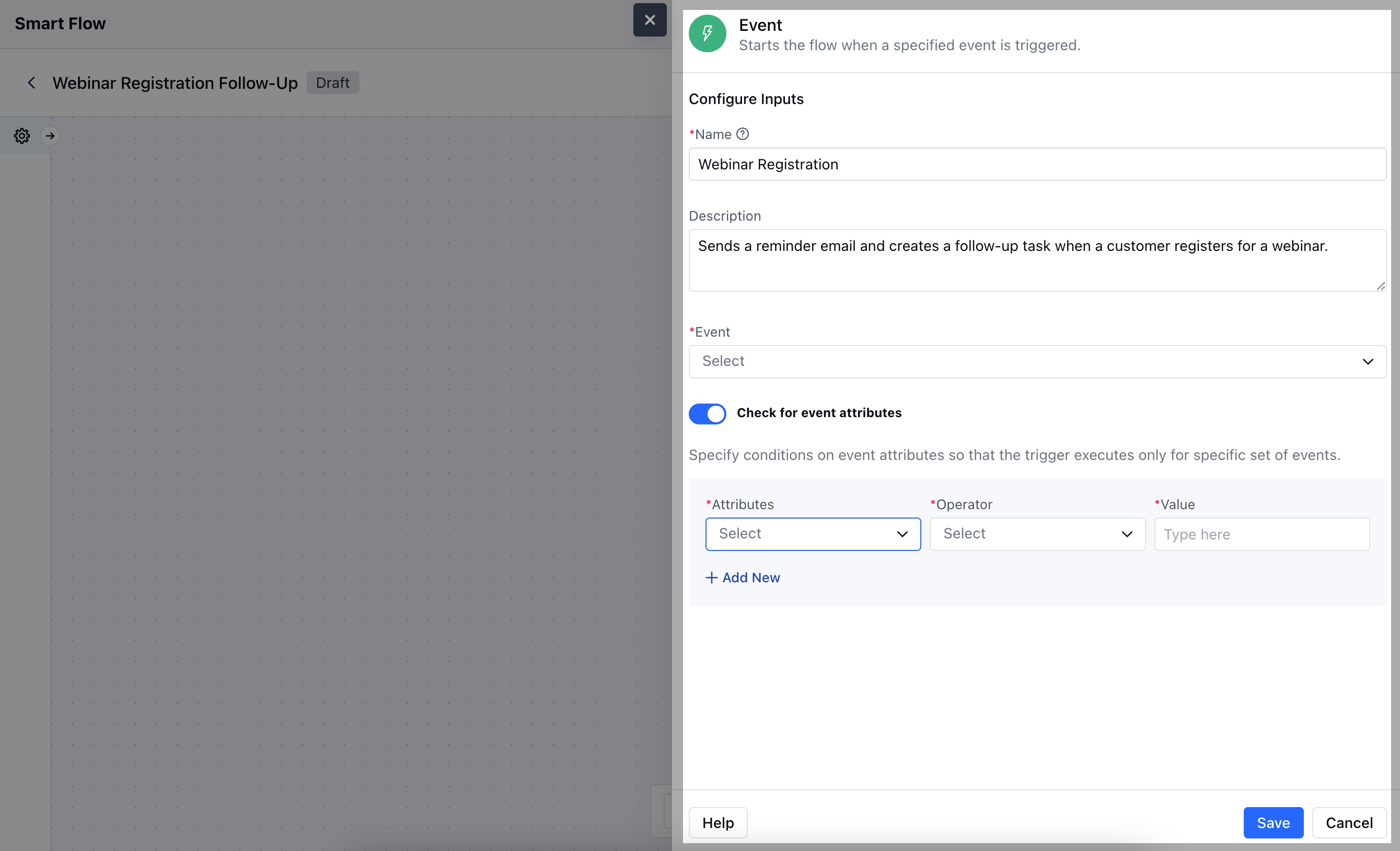
- Name: Enter a clear and descriptive name to define the trigger’s purpose within the flow.
- Description: Provide a short explanation of what this trigger will do, outlining how it fits into the overall automation process.
- Event: Select the specific event that will trigger the flow.
- Check for Event Attributes: Enable this option if you want to set additional conditions based on the attributes of the event.
- Attributes: Define specific event details that you want to monitor.
- Operator: Choose how the attribute should be compared.
- Value: Enter the specific value the attribute must meet for the trigger to activate.Once done, click on Save.
Practical Example
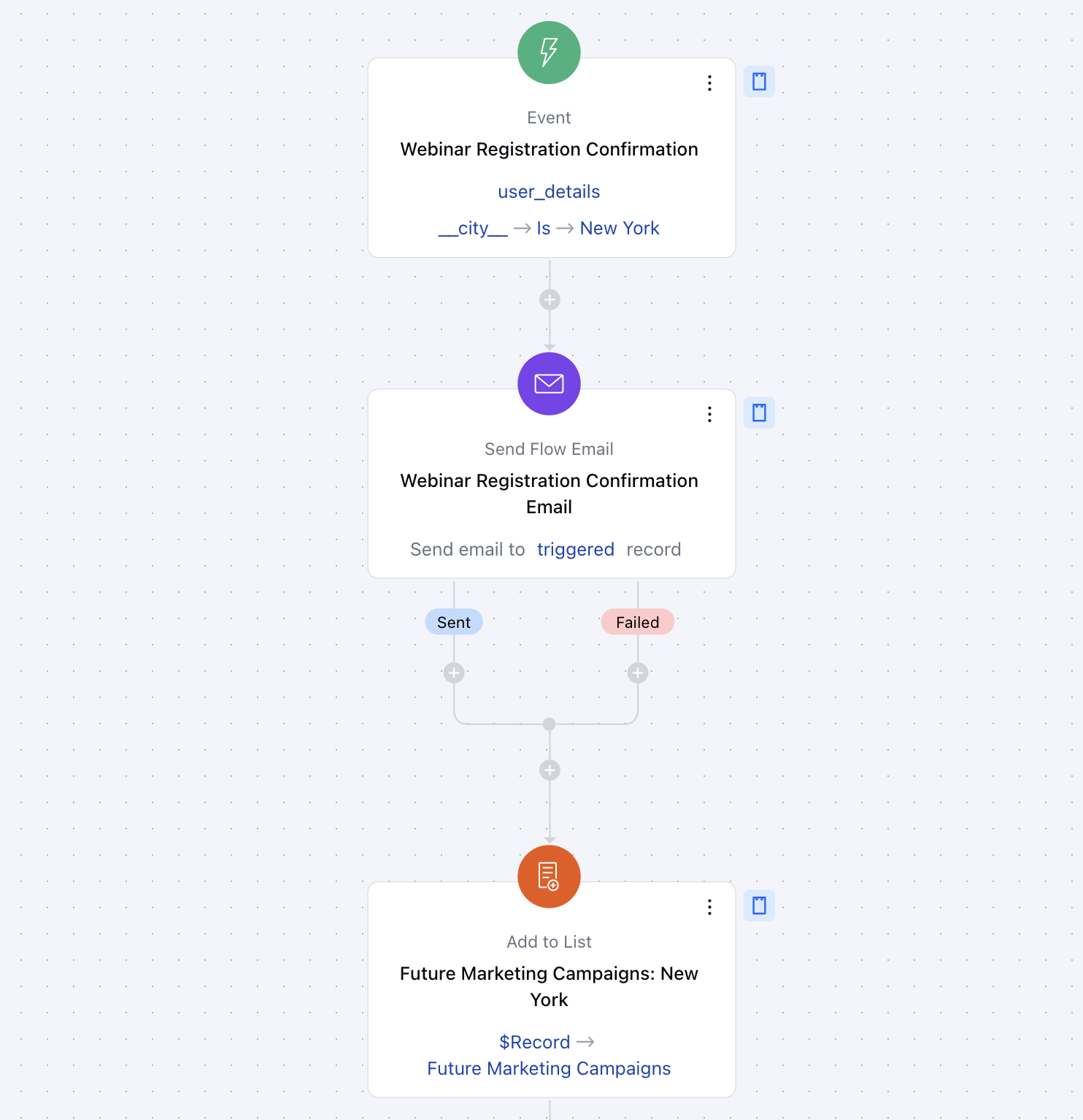
Here, We have organized a webinar on digital marketing strategies and want to send a confirmation email to participants once they register. We will segment our data based on the particular city and add them to specific lists.